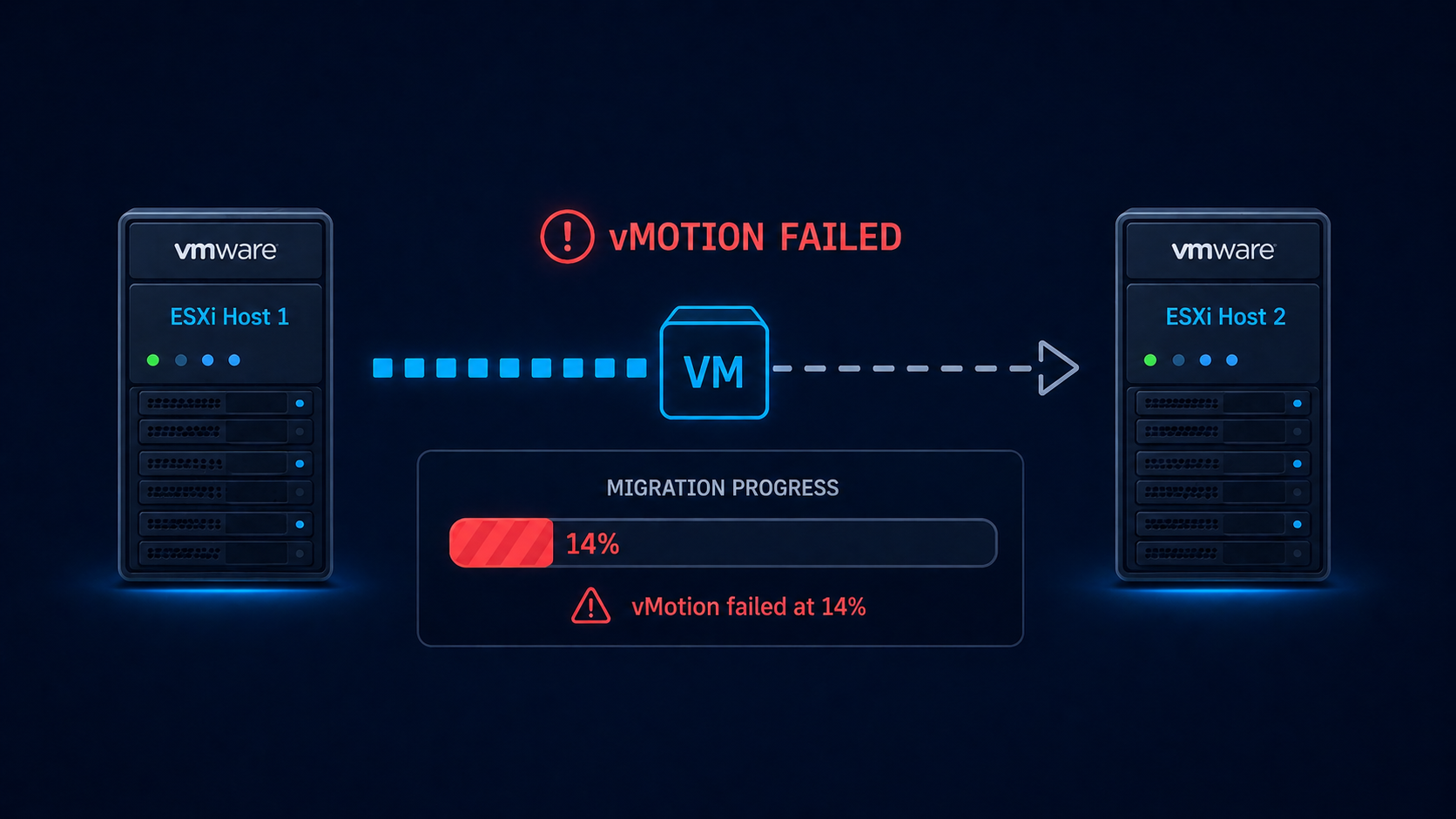
vMotion failed at 14 percent almost always points to a misconfiguration on the vMotion VLAN, and four specific causes account for nearly all cases.
You initiated a vMotion in vCenter, watched the progress bar climb, and then it stopped at 14 percent. The migration failed and rolled back. The VM is still running on the source host, which is good, but you need to know why before retrying or kicking off the broader maintenance plan. This post walks through the four real causes of vMotion failing at 14 percent, ranked by what we see, and the verified fix.
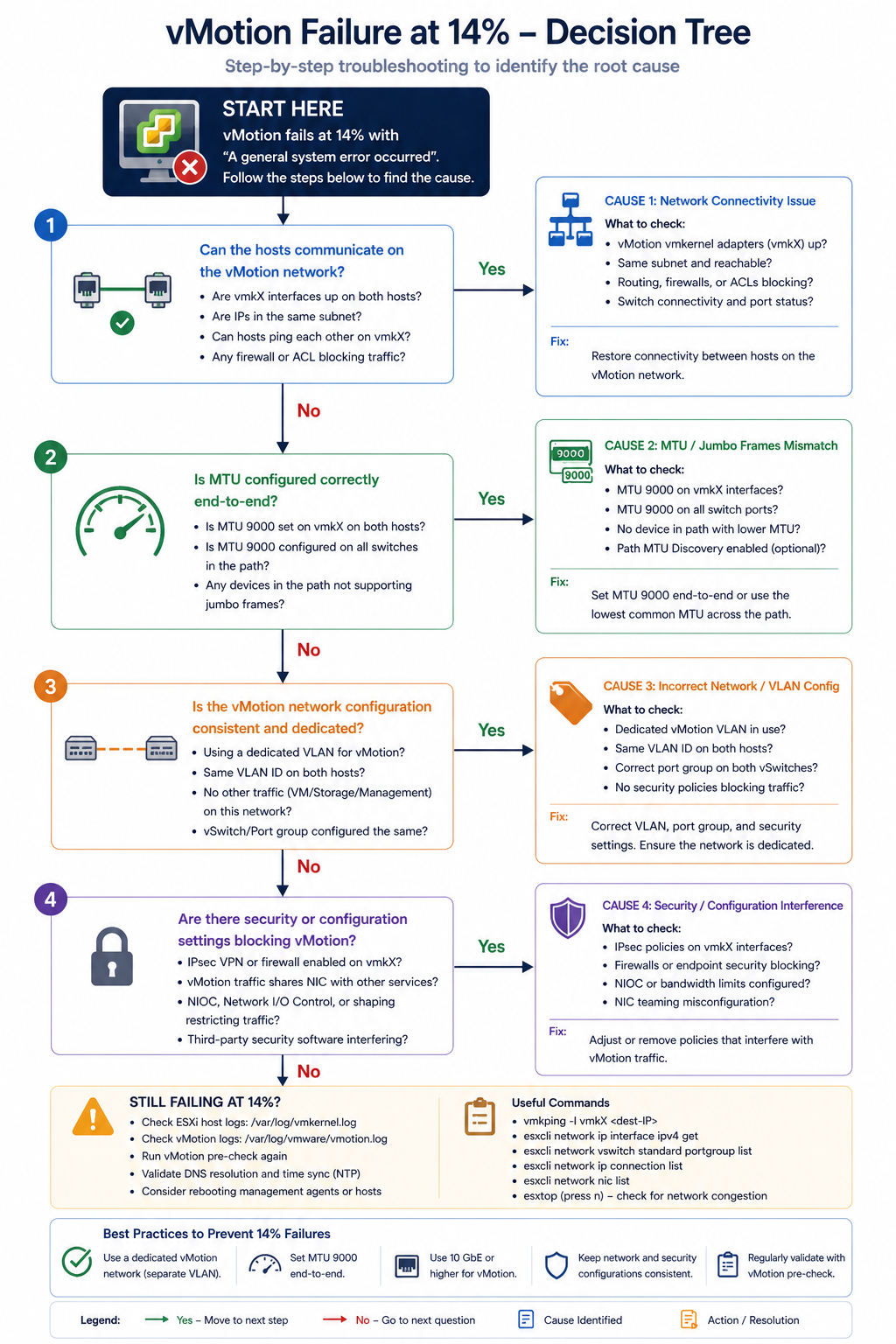
The short version. The 14 percent mark in vMotion is the network preparation phase. The hypervisor has staged the migration logically and is about to start copying memory between hosts. If anything is wrong with the vMotion network (MTU, VLAN, vmkernel configuration, or upstream switch), the migration fails right at this transition. About 50 percent of “failed at 14 percent” cases are MTU mismatch on the vMotion VLAN. Another 25 percent are vmkernel port misconfiguration. The remaining 25 percent split across upstream switch issues and source/destination compatibility.
What this error means
vMotion needs to copy a VM’s memory contents from one host to another while the VM continues to run. The 14 percent mark is when the source host begins sending memory pages to the destination host over the vMotion network. The first connection attempt and bandwidth test happens here. If the test fails (packets drop, MTU is wrong, the destination is unreachable), the migration aborts.
You will see this in vCenter task history with the error “vMotion network performance is poor” or “Network connectivity check failed” alongside the 14 percent failure point.
Verified against current VMware vSphere documentation, accessed April 2026.
The four causes, ranked
Cause one, MTU mismatch on vMotion VLAN, around 50 percent
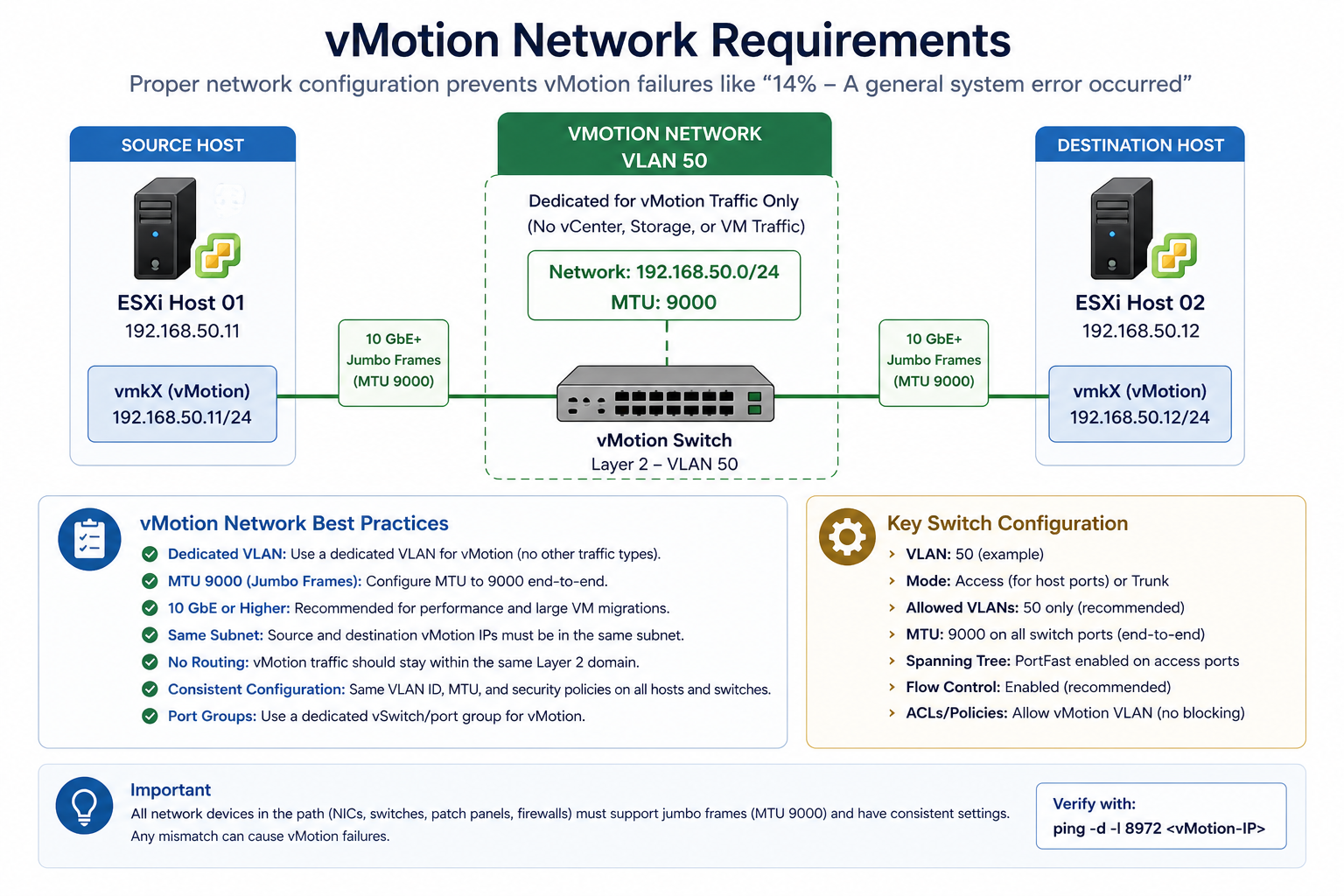
vMotion is typically configured for jumbo frames (MTU 9000) for performance. If the source vmkernel, the destination vmkernel, or any switch port between them is at default 1500, vMotion’s connectivity test packet exceeds the path MTU and gets dropped.
Verify with vmkping -d -s 8972 [destination vmkernel IP] from the source host. The -d sets the do-not-fragment bit and -s 8972 sets the payload size to test MTU 9000 end to end. If the ping fails, you have an MTU issue somewhere in the path. Fix it on the offending hop.
Cause two, vmkernel port misconfiguration, around 25 percent
The vmkernel port for vMotion is missing on one host, configured on the wrong VLAN, or has lost its association with the correct distributed switch portgroup. Common after a host re-add to a cluster or a portgroup rename.
Verify in vCenter under Host → Configure → VMkernel adapters. Confirm a vmkernel exists with vMotion service enabled, on the correct VLAN, with an IP address in the vMotion subnet. Fix any mismatch.
Cause three, upstream switch issue, around 15 percent
The physical switch between source and destination has a configuration issue. VLAN trunking incomplete on a port, port-channel split brain, or storm control kicking in during the bandwidth test.
Verify with the switch’s port configuration for both host uplinks. Confirm vMotion VLAN is allowed on both ports, port-channels are healthy, and storm control thresholds are not aggressive.
Cause four, source/destination compatibility, around 10 percent
EVC (Enhanced vMotion Compatibility) is not enabled, or the destination host has a different CPU generation that vCenter cannot mask. Less common at 14 percent (typically fails earlier in compatibility check) but possible.
Verify cluster EVC mode and CPU compatibility between source and destination. Enable or adjust EVC if needed.
What the official documentation does not mention
VMware’s docs walk through vMotion troubleshooting but rarely emphasize the vmkping with do-not-fragment and exact MTU size as the first command to run. That single command isolates 75 percent of “failed at 14 percent” cases in 30 seconds. Keep it as your reflex when this error appears.
The architectural fix
Clusters that rarely see vMotion failures have three traits. They standardize MTU at 9000 for vMotion VLAN end-to-end and verify after any switch change. They use distributed virtual switches with consistent portgroup configuration across all hosts. They run a synthetic vMotion test as part of monthly health checks, so misconfiguration is caught before a real maintenance window depends on it. The third one matters most. Most “vMotion broke yesterday” issues actually broke weeks earlier and were not noticed.
FAQ
Will the VM be affected if vMotion fails?
No. The VM continues running on the source host. vMotion failures are abort-and-rollback by design.
Can I retry immediately after fixing?
Yes, after confirming the fix with vmkping. No waiting period required.
Is this related to long distance vMotion?
Long distance vMotion has additional considerations (latency, bandwidth, encryption) but the 14 percent failure point is typically still the MTU/network issue, just with more layers between hosts.
Related posts
vMotion failures during a migration window
If vMotion is failing during a planned maintenance window and time is short, our virtualization team can jump in remotely. Tell us the symptom and the topology and we will help you isolate.
Last verified April 2026 by the aaanetworkx virtualization practice.
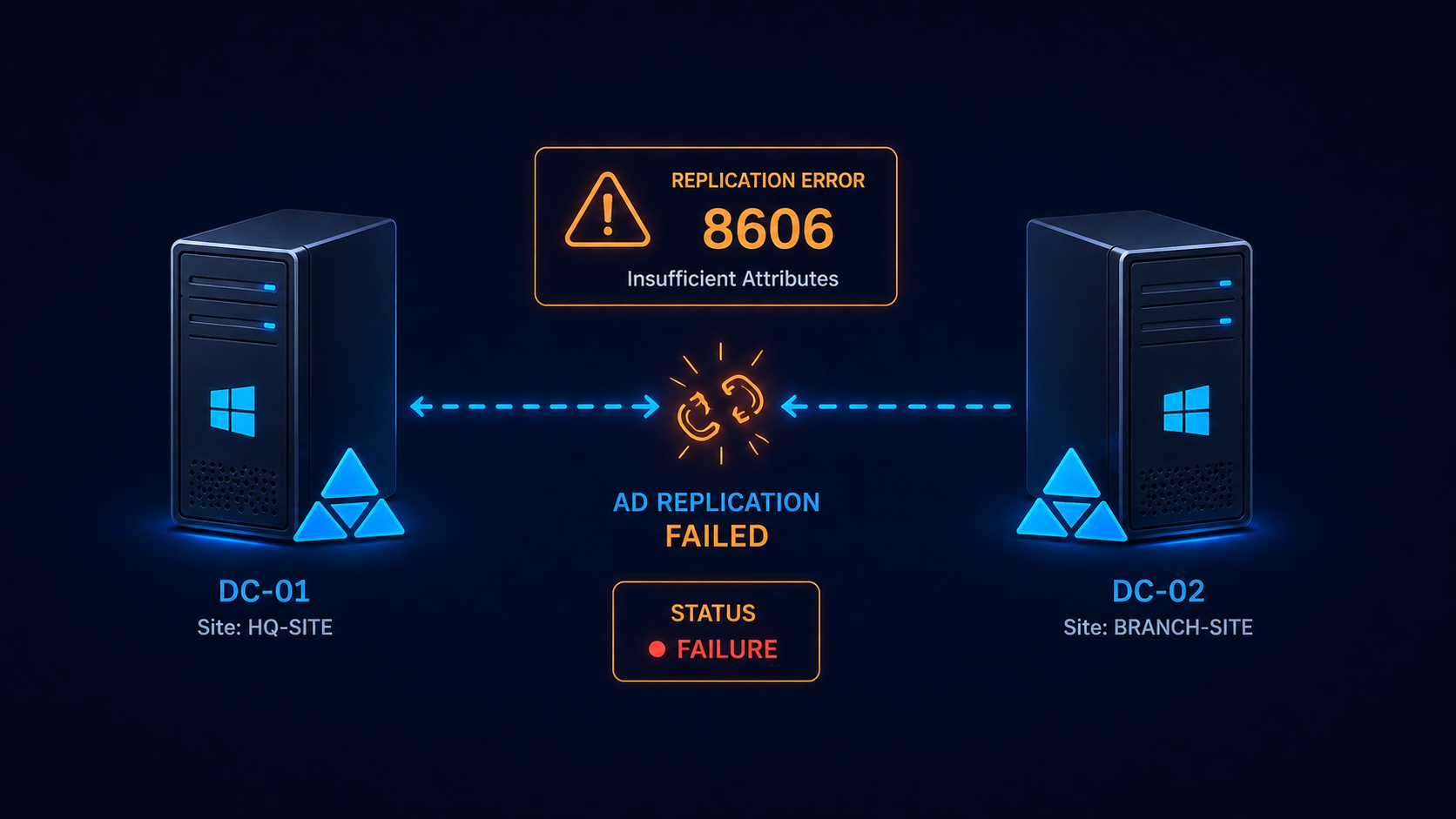
Active Directory replication error 8606 means insufficient attributes were provided to recreate an object on a destination domain controller.
You ran repadmin /showrepl and saw error 8606 staring back at you. Active Directory replication has stopped between two domain controllers, and the symptom is “insufficient attributes were provided to create an object.” This post walks through the four real causes ranked by frequency, the safe fix order, and what to do if the offending DC has been offline too long.
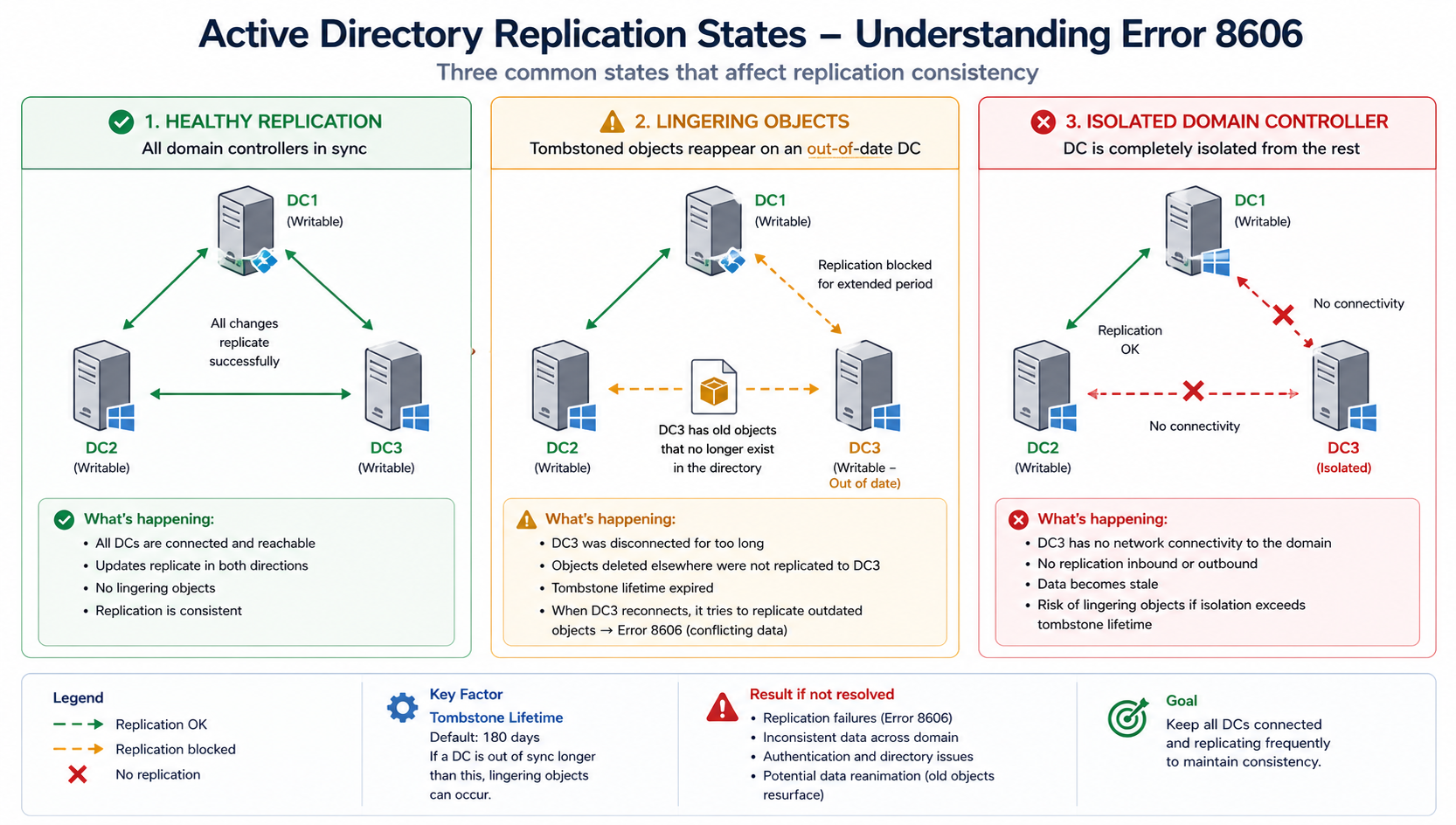
The short version. Error 8606 almost always means a domain controller has been offline longer than the tombstone lifetime (60 days by default in older AD, 180 days in newer) and is now trying to replicate. Lingering objects on the offline DC have not been properly aged out, and the rest of the forest will not accept replication from it because doing so could re-introduce deleted objects. The fix is to either remove the lingering objects with repadmin /removelingeringobjects or, more commonly, demote the offline DC and rebuild it cleanly.
Less commonly, error 8606 surfaces from USN rollback after an improper VM restore, or from time skew exceeding the Kerberos tolerance. Both have specific fixes that this post covers. Do not skip the diagnostic step, replication consistency.
What this error means
Active Directory uses tombstones to mark deleted objects so they can be cleaned up across the forest before being permanently removed. Tombstone lifetime is 180 days for forests created on Windows Server 2008 or later. If a DC is offline longer than tombstone lifetime, objects that were deleted from the live DCs and tombstoned have already been purged. The offline DC still has those objects, and bringing it back online would resurrect them.
To prevent that, the rest of the forest refuses to replicate from the offline DC. Error 8606 is the manifestation of that refusal. The DC sees its peers as unwilling to accept its updates and reports insufficient attributes.
Verified against current Microsoft Active Directory documentation, accessed April 2026.
The four causes, ranked
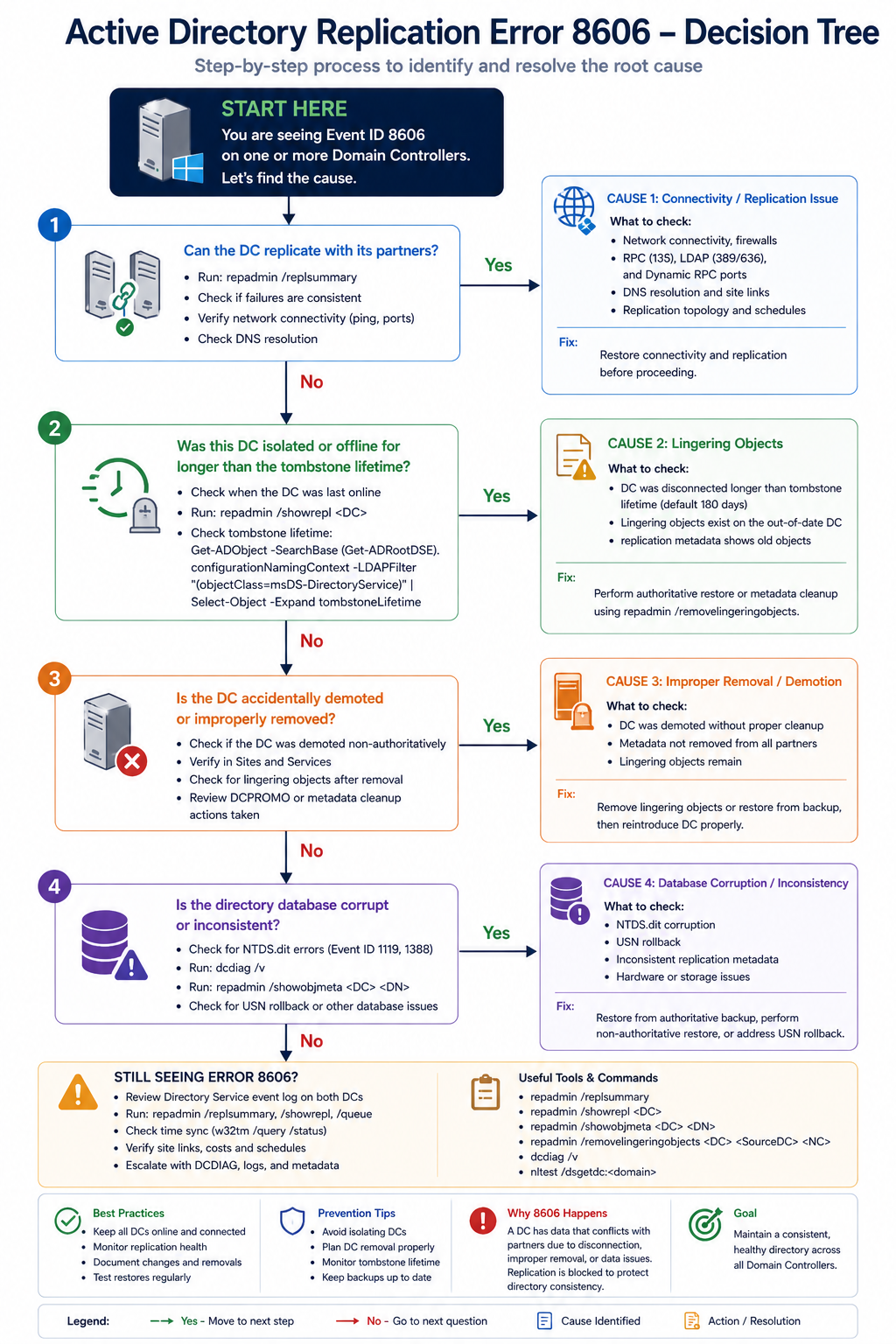
Cause one, DC offline beyond tombstone lifetime, around 60 percent
The DC was shut down, isolated by network failure, or in maintenance and missed the tombstone window. Lingering objects exist and the forest is rejecting replication.
Verify with repadmin /showrepl on the affected DC. If the last successful replication is more than 180 days ago, this is your cause. The safest fix is to demote the DC, clean it up, and re-promote. Alternatively, use repadmin /removelingeringobjects with the right arguments, but this requires confidence and is easier to get wrong.
Cause two, USN rollback from improper VM restore, around 20 percent
Someone restored a domain controller from a snapshot or backup that predated changes already replicated to the rest of the forest. AD’s USN counter rolled backward, which corrupts replication state and produces 8606 errors.
Verify with the Windows event log on the DC, looking for event 2095 (USN rollback detected). If found, the DC is in quarantine mode. Demote and rebuild, do not attempt to recover the existing DC. This rule is non-negotiable.
Cause three, time skew beyond Kerberos tolerance, around 10 percent
The DCs are out of sync by more than 5 minutes (default Kerberos tolerance). Authentication for replication fails, which surfaces as 8606 in some scenarios.
Verify with w32tm /monitor. If skew is high, fix NTP configuration on the DCs. The PDC emulator should be the authoritative time source for the domain.
Cause four, RPC over IP failure or DNS issue, around 10 percent
The DCs cannot resolve each other or cannot complete RPC calls. AD replication uses RPC dynamically allocated ports unless explicitly restricted, and a firewall in between can block the dynamic ports.
Verify with dcdiag /test:dns and dcdiag /test:replications. Fix DNS and verify firewall rules permit AD replication traffic between the DCs.
What the official documentation does not tell you
Microsoft’s article describes the lingering objects fix in technical terms but rarely emphasizes that demote-and-rebuild is almost always faster and safer than running repadmin /removelingeringobjects. The remove-lingering-objects path requires you to identify the authoritative DC, identify the source DC, and run the command for every naming context. Each step has gotchas. Demote, force-remove the DC’s metadata, build a fresh DC, promote. Total time is similar but the failure modes are simpler.
Also, USN rollback is not always obvious. If a hyperconverged platform restored a DC from a snapshot during a maintenance event, the rollback can be silent until replication starts failing days later. Always confirm USN rollback in the event log before assuming a different cause.
The architectural fix
Healthy AD environments share four practices. First, monitor replication daily with repadmin /showrepl output piped to a log review. Catch issues before they reach 60 days, let alone 180. Second, never restore DCs from snapshots without using AD-aware backup tools that handle USN correctly. Third, document the time hierarchy explicitly with the PDC as authoritative. Fourth, avoid having any DC offline for more than two weeks at a stretch. If a DC will be offline longer, demote it and re-promote it later.
FAQ
Will the DC recover on its own?
Only if the cause is transient (DNS, time skew). If the cause is tombstone lifetime exceeded or USN rollback, the DC needs intervention.
Can I extend tombstone lifetime to fix this?
You can, but doing it after the fact does not help. Extending tombstone lifetime only affects future deletions. The current lingering objects are already past the original lifetime.
Is this related to Azure AD Connect?
Indirectly. If on-prem AD replication is broken, Azure AD Connect can fail to synchronize correctly. Fix AD replication first, then verify AD Connect health.
Related posts
Need help with AD recovery
AD replication issues compound quickly and recovery decisions made under pressure can make them worse. Our identity practice handles AD recovery for organizations across Western Canada and we treat 8606 as actionable from minute one. Tell us about the environment and we will help you recover safely.
Last verified April 2026 by the aaanetworkx identity practice.
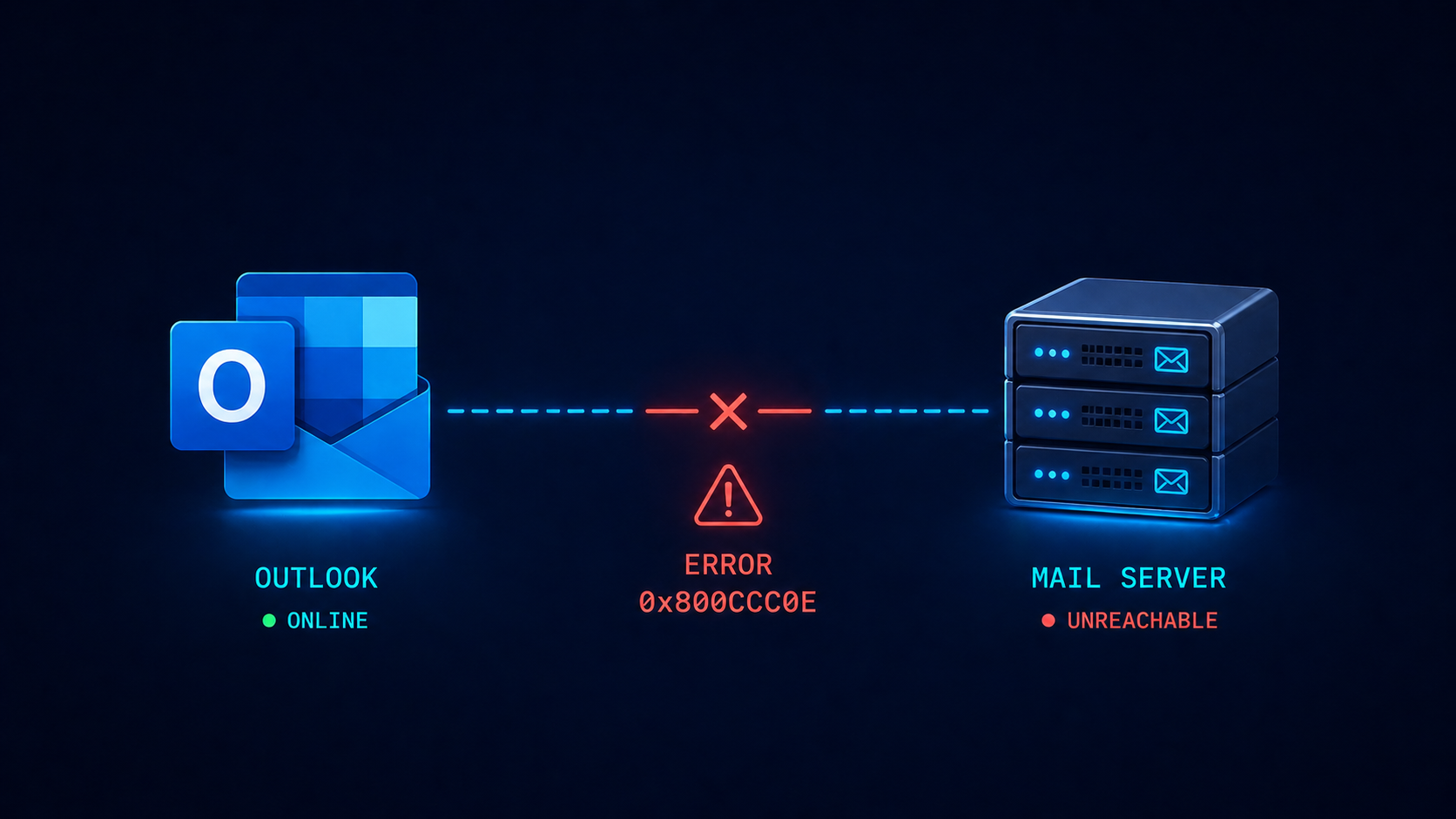
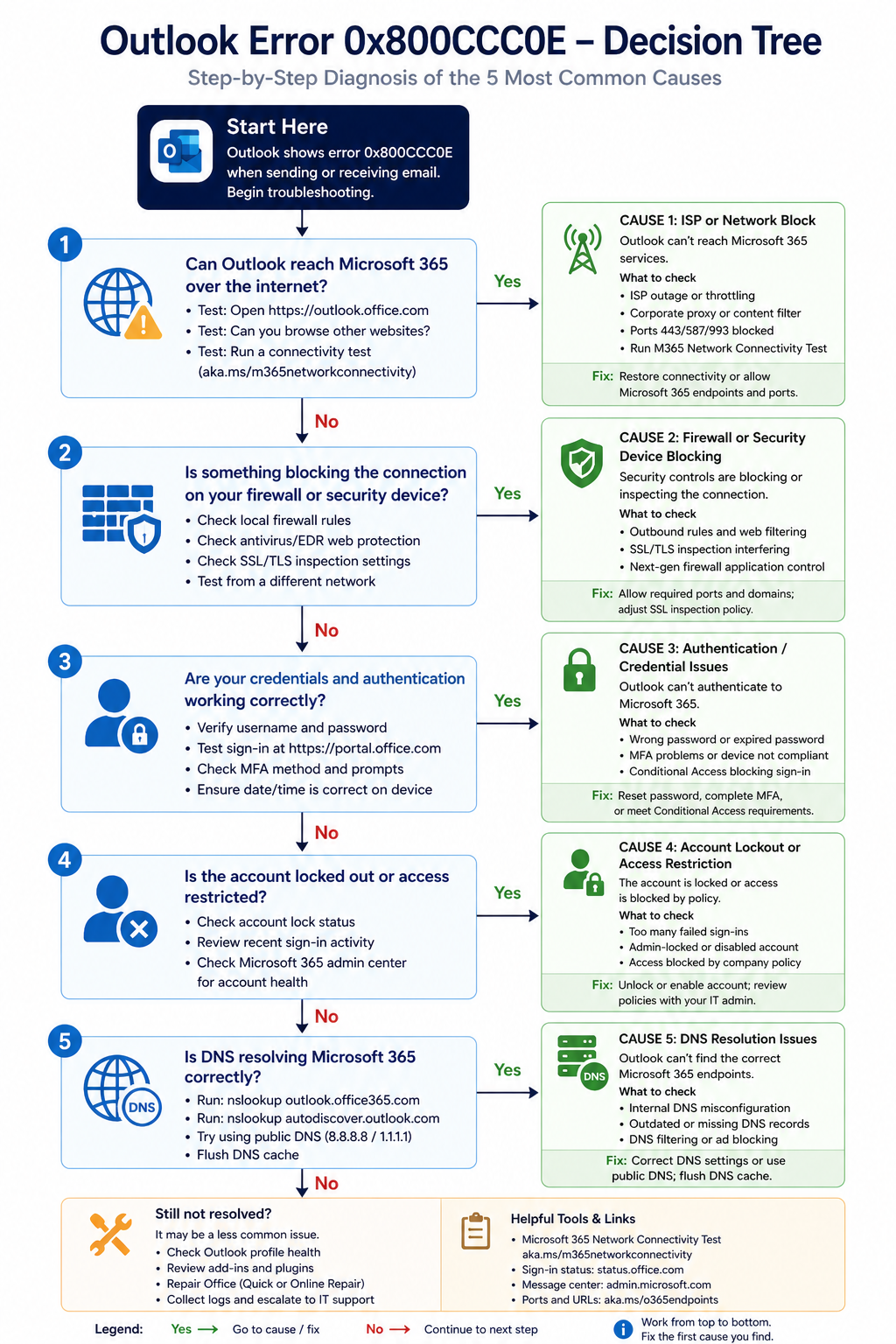
Outlook error 0x800CCC0E means the client cannot establish a TCP connection to the mail server, and the cause is one of five specific things.
Outlook tells you “Cannot connect to server, error 0x800CCC0E” and refuses to send or receive. The user is annoyed, the day’s emails are stacking up, and you need to fix it now. This post walks through the five real causes ranked by what we see most often, the diagnostic order, and the architectural fix that stops the error from recurring across your organization.
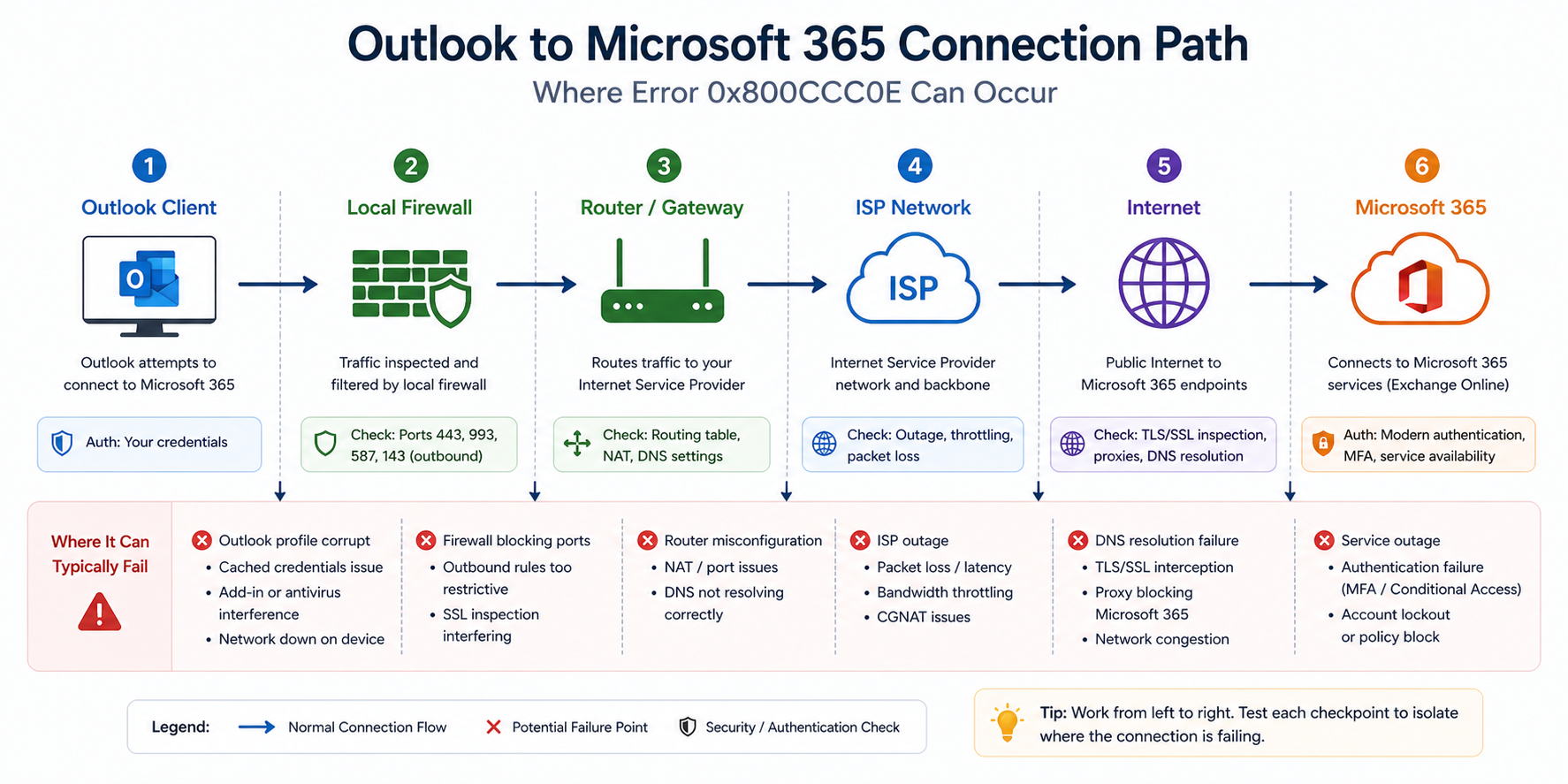
The short version. 0x800CCC0E is a generic TCP connection failure. The Outlook client tried to open a TCP connection to the mail server (typically Microsoft 365) and got back nothing, or got blocked. The cause is somewhere along the path between the client and the server, and the path goes through your local network, your firewall, your ISP, and the internet before reaching Microsoft. There are about five things that can break that chain in practice.
Most often it is an ISP blocking outbound port 25 (for SMTP submission) or a recent firewall rule change that broke connectivity. Less often it is an authentication issue masquerading as a connection error. Even less often it is the Outlook profile itself being corrupt. Whatever the cause, the fix is rarely deleting and recreating the profile, which is the first thing many users try and which often does not help.
What this error actually means
0x800CCC0E is Outlook’s way of saying “I tried to make a TCP connection, it did not work, and I do not have a more specific reason.” The error fires before any authentication happens, which is why your password is not the issue even though Outlook may prompt for it.
You will see it three places. The Outlook send/receive dialog shows the error code. The Outlook test email account feature fails with the same code. And telnet from the user’s machine to outlook.office365.com on port 993 (IMAP), 587 (SMTP submission), or 443 (HTTPS, used by modern Outlook) confirms whether TCP itself is reaching the server.
Verified against current Microsoft Outlook for Microsoft 365 documentation, accessed April 2026.
The five causes, ranked
Cause one, ISP blocking outbound port 25, around 30 percent of cases
Many residential and small business ISPs (Telus, Shaw, Bell, others) block outbound TCP 25 to prevent spam from compromised home computers. If a user is configuring SMTP on port 25 from a home or small office, the connection fails and Outlook reports 0x800CCC0E.
Fix by switching to SMTP submission port 587 with TLS, which is what Microsoft 365 expects anyway. Modern Outlook with M365 uses HTTPS exclusively and does not hit this issue, but legacy POP/SMTP configurations do.
Cause two, local firewall or security software blocking, around 25 percent of cases
Windows Defender Firewall, third-party antivirus, or a corporate security suite is blocking Outlook’s outbound traffic. Often happens after a security software update or a Windows update that changed default firewall rules.
Verify by temporarily disabling the firewall (only for the test, do not leave it off) and retrying Outlook. If it works, configure an explicit allow rule for outlook.exe and re-enable.
Cause three, authentication issue surfacing as connection error, around 20 percent of cases
The Outlook profile has stale credentials, the account is locked due to repeated failed logins, or MFA is required but the profile has not been updated to use modern authentication. Outlook surfaces this as 0x800CCC0E because it cannot complete the negotiation.
Verify by signing into the M365 web portal at outlook.office.com with the same credentials. If that works but Outlook does not, recreate the Outlook profile (not delete and recreate the account, just the profile entry in Mail control panel). If web sign-in also fails, check the user’s account status in the M365 admin center.
Cause four, DNS resolution failure, around 15 percent of cases
Outlook cannot resolve outlook.office365.com or smtp.office365.com to an IP address. Often happens when the user is on a VPN with split DNS, or when the local DNS server is misconfigured.
Verify with nslookup outlook.office365.com from a command prompt. If it fails, fix DNS first. If it works, look elsewhere.
Cause five, corrupt Outlook profile, around 10 percent of cases
The Outlook profile has internal corruption that prevents the connection from establishing. The user typically tried clearing the profile already and the issue returned.
Verify by creating a new Windows user profile and configuring Outlook there. If it works in the new profile, the original profile is corrupt. Migrate user data and switch.
What the official documentation does not mention
Microsoft’s article points at SMTP port and authentication. It does not mention that 0x800CCC0E shows up after a Windows feature update if Defender Firewall settings get reset. After major Windows updates, audit firewall rules for Outlook explicitly. Also, modern Outlook with M365 does not use SMTP/POP/IMAP at all in default configurations, it uses MAPI/HTTP over 443. If a user is hitting 0x800CCC0E with M365, check whether they accidentally configured POP/IMAP instead of Exchange or Office 365 type when adding the account.
The architectural fix
For organizations, three controls eliminate most 0x800CCC0E incidents. First, standardize on M365 Exchange Online connections (port 443, modern auth) rather than POP/IMAP/SMTP. Second, deploy Outlook profiles via configuration management with explicit firewall rules. Third, monitor account lockout events centrally so the helpdesk knows about authentication issues before users complain.
FAQ
Will reinstalling Outlook fix this?
Sometimes, but only for the corrupt-profile case. If the issue is firewall, ISP, or DNS, reinstalling Outlook does nothing.
Does this affect both Outlook desktop and Outlook mobile?
0x800CCC0E is a desktop Outlook error code. Outlook mobile uses a different protocol and surfaces different error messages.
Is this the same as 0x800CCC0F?
No. 0x800CCC0F means the connection was established but interrupted, while 0x800CCC0E means the connection never established. Different fixes.
Related posts
- Office 365 Error 5.7.708
- Active Directory Replication Error 8606
- Hidden Risks of Co-Managed Microsoft 365
Email problems that keep coming back
If your organization sees 0x800CCC0E or related Outlook errors more than rarely, the underlying issue is usually configuration drift across user devices. Tell us about your environment and we will help you standardize so this stops happening.
Last verified April 2026 by the aaanetworkx Microsoft 365 practice.

Managed IT Edmonton dental practices need looks different from generic SMB IT, with practice management integration and PHIPA at the center.
Running a dental practice in Edmonton means juggling patient care, billing, insurance, imaging, and an IT stack that has to be available every minute the chairs are full. When something breaks, it is rarely just inconvenient. A practice management system going down at 9am can cost $5,000 to $10,000 in lost productivity by lunch and leaves staff apologizing to patients. This post walks through what managed IT for an Edmonton dental practice actually involves in 2026, what reliable looks like, and what it should cost.
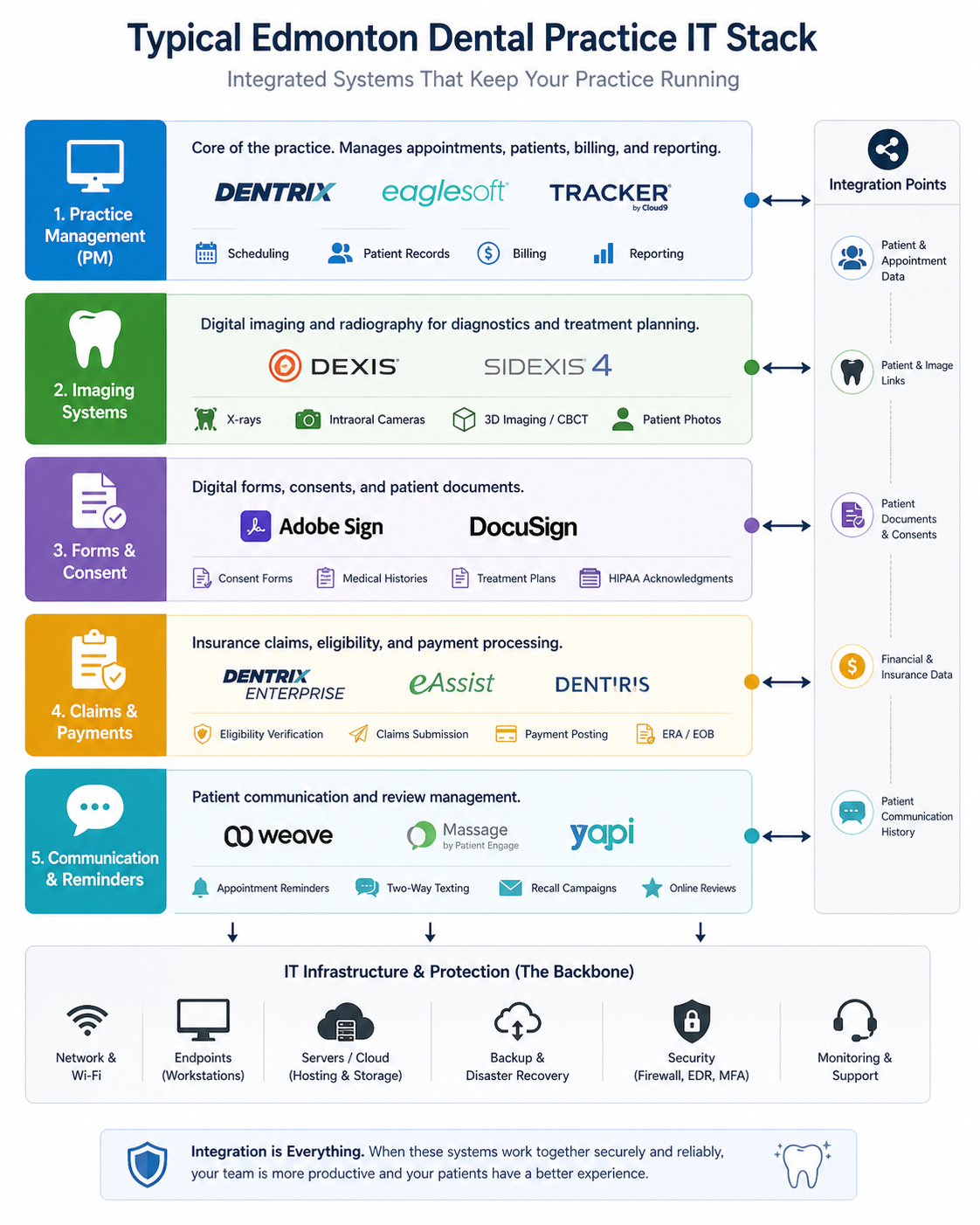
The short version. Dental practices have a uniquely demanding IT stack relative to firm size. Practice management software (Dentrix, Tracker, Eaglesoft, ClearDent, others), digital imaging integration (Dexis, Sidexis, Carestream), claims systems, charting hardware, intraoral scanners, and increasingly, cloud-based patient communication tools. All of it has to talk to all of the rest, and most generalist IT providers do not understand the integrations. The practices that have reliable IT in Edmonton work with providers who specialize in dental or at least have several dental clients in their portfolio.
Why dental is different from generic small business IT
The IT stack at a 6 chair dental practice is more complex than the stack at a 30 person law firm. Three reasons.
First, real-time imaging integration. Digital X-ray sensors and intraoral cameras have to flash an image to the chairside monitor in seconds, save it correctly to the patient record in the practice management software, and be available for the next exam. When this integration breaks, it usually breaks silently, and the staff discovers it at the worst possible moment.
Second, vendor sprawl. Most practices run software from at least four vendors who do not coordinate. The practice management vendor’s update can break the imaging vendor’s integration. The Windows update can break both. Standard generic IT support has no playbook for this. Practice-specialized IT has the integration test scripts and rollback plans ready.
Third, regulatory weight. PIPA (Alberta) and the College of Dental Surgeons of Alberta both have expectations around patient information protection. The bar is not as high as the Law Society’s, but it is not zero. Generic IT often does not even know these expectations exist. The integration is what makes or breaks the day.
What we see practices get wrong
Five patterns repeat across Edmonton dental practices we have audited. First, no offsite backup. Local backups exist, but a fire or flood would lose everything. Second, no documented vendor contact list, so when imaging breaks, staff scrambles to find who to call. Third, password sharing among hygienists and assistants because the practice management software charges per seat and nobody wanted to license everyone. Fourth, the front desk computer is also the patient communication terminal, the imaging review station, and the staff personal browsing machine, all on the same Windows account. Fifth, no incident response plan, so when ransomware hits (and it does hit dental practices regularly), the staff makes decisions in panic.
What reliable looks like
Practice management uptime
The PM server (or cloud connection) is monitored 24/7. Backups run every 4 hours during business hours, every 24 hours overnight, with offsite copies retained for 90 days. The vendor’s support contact is documented and tested annually. When the system slows down, the cause is identified within an hour, not over the course of an afternoon.
Imaging integration tested after every update
Whenever the practice management software, the imaging software, or Windows itself updates, a test capture is performed before the practice opens. This catches integration breaks before patients arrive. Fifteen minutes of preventive testing per update beats two hours of emergency support during a clinic day.
Per-user accounts and MFA
Every staff member has their own login. Multi-factor authentication on Microsoft 365, on the practice management software, and on remote access. The cost of additional licenses is far less than the cost of one ransomware incident.
Cybersecurity baseline
EDR (endpoint detection and response) on every device. Email security gateway in front of Microsoft 365. Encrypted backups with offsite copies and tested restore. Phishing simulation annually. Incident response plan written down and reviewed yearly. The same baseline that medical and legal practices need.
Vendor management
One IT provider takes ownership of coordinating with all the software vendors when something breaks across systems. The dentist does not have to be the one calling Dentrix support and Dexis support and the ISP. The IT provider does that triage and updates the practice with progress.
Hardware lifecycle planned, not reactive
Workstations refreshed every 4 to 5 years. Servers refreshed before warranty expires. Imaging sensors evaluated against current-generation alternatives every 3 years. Reactive replacements during emergencies always cost more.
What it actually costs
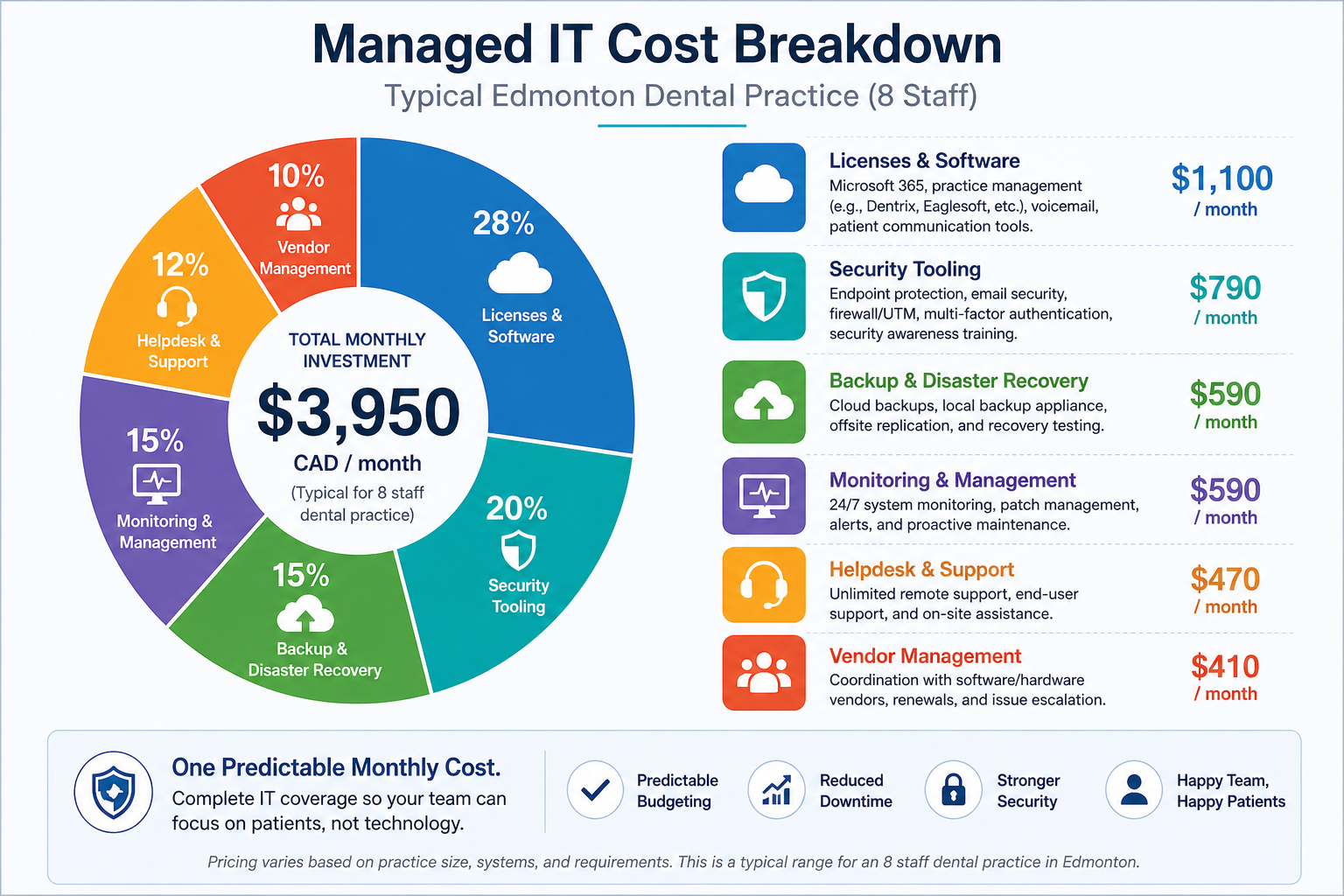
For a typical Edmonton dental practice with 6 to 12 staff and 4 to 8 chairs, fully managed IT including the cybersecurity baseline runs roughly $145 to $215 per user per month. That covers Microsoft 365 Business Premium licensing, EDR, email security, backup tooling, helpdesk and on-site support hours, vendor coordination, monitoring of the practice management server, and quarterly check-ins.
Compare to the cost of an outage. A four hour PM software outage at a 6 chair practice typically loses $4,000 to $8,000 in productive time, plus the soft cost of patient inconvenience. A ransomware incident on a dental practice that does not have tested backups can run $50,000 to $200,000 between recovery, lost revenue, and reputational impact. The math on managed IT is clear once you do it explicitly.
FAQ
Do you support Dentrix, Tracker, Eaglesoft, ClearDent?
Yes, all four. We have current Edmonton clients on each. The integration test scripts we use catch most update breakage before it affects patients.
What about cloud-based PM software?
Cloud PM is increasingly common and reduces local server complexity, but it adds dependency on internet uptime. We help practices size redundant internet (cable + cellular failover) and harden the on-site network so cloud PM is reliable.
Can you work with our existing IT person?
Yes. Many practices keep an internal IT generalist for day-to-day tickets and use us for monitoring, backup, security tooling, and vendor coordination. Co-managed works well in dental.
Related posts
- Managed IT Edmonton Medical Clinics
- Cybersecurity for Edmonton Law Firms
- Cybersecurity for Edmonton Accounting Firms
If you are a dentist or practice owner reading this
You probably already know whether your IT is reliable or just barely working. The next step is a focused 60 minute walkthrough of your practice’s systems where we identify the highest-risk gaps and tell you what to address first.
Book a free 60 minute IT assessment for your dental practice. We will come to your office, walk through the systems with whoever you want in the room, and leave you with a written priority list you can act on.
Last verified April 2026 by the aaanetworkx managed IT practice. Edmonton, Alberta.
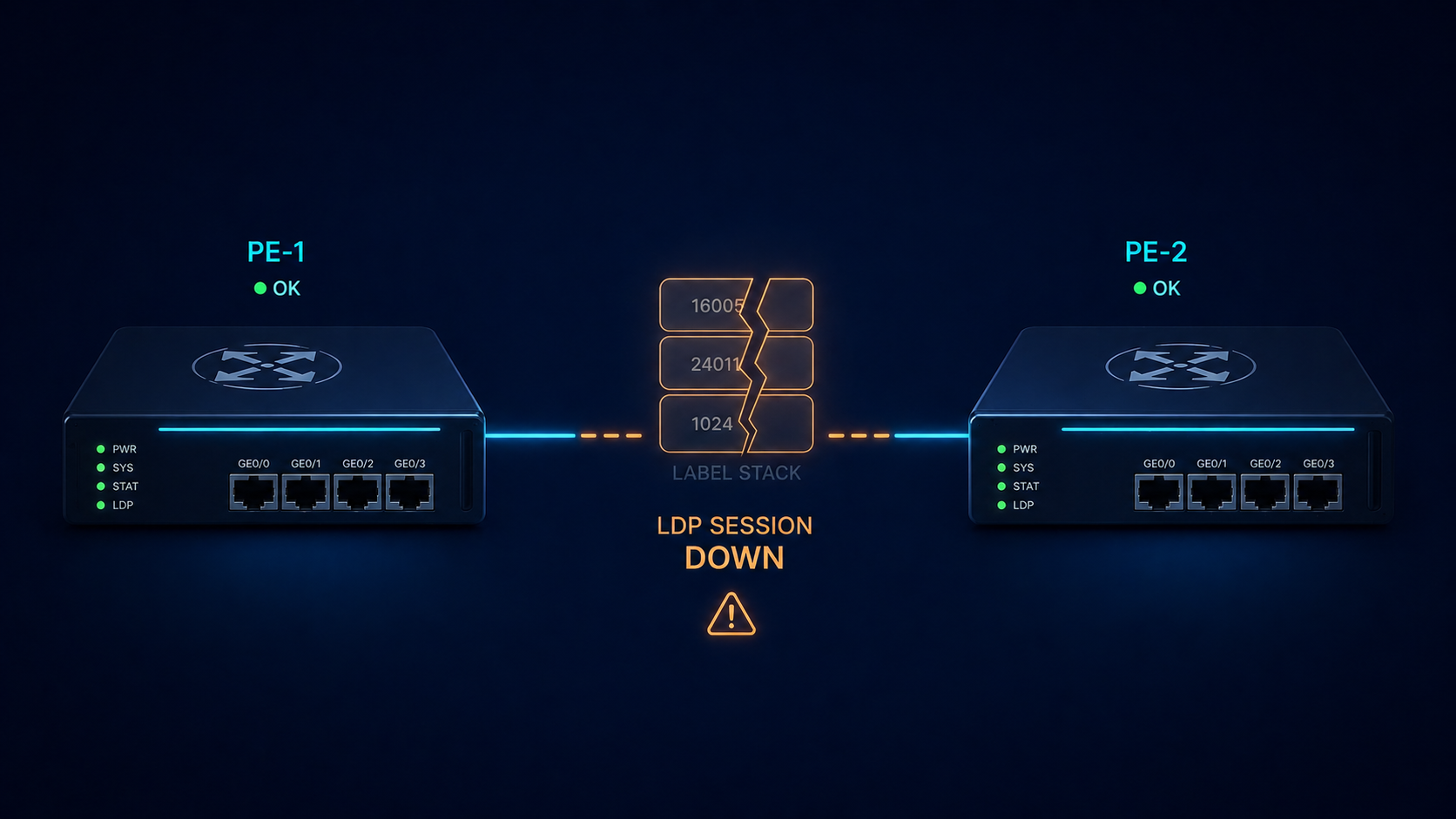
MPLS LDP neighbor down means the label distribution session between two routers has failed and forwarding is broken between them.
MPLS LDP is the protocol that distributes labels between routers in your MPLS network. When the session goes down, MPLS forwarding stops working between those two routers, and any service that depends on that path (L3VPN, L2VPN, traffic engineering) goes with it. This post walks through the five real causes of LDP neighbor down ranked by frequency, the diagnostic order, and the architectural fix that stops it from recurring.
The short version. About 30 percent of LDP down incidents are TCP transport address misconfiguration, where the LDP session cannot establish even though the hello adjacency works. Another 25 percent are IGP convergence issues that interrupt the route to the LDP transport address. The rest split across ACL/firewall blocking TCP 646, MTU mismatch on the link, and authentication drift. Diagnostic order matters. Check IGP first, transport address second, TCP reachability third, before any labels are exchanged.
What LDP down actually means
LDP runs in two phases. The hello phase uses UDP 646 between directly connected interfaces to discover potential LDP peers. The session phase uses TCP 646 between the two routers’ transport addresses (typically loopback addresses) to establish the actual LDP session that exchanges labels. If hello succeeds but TCP session fails, the neighbor shows in the hello adjacency table but not in the operational session table.
You will see this in three places. show mpls ldp neighbor shows no operational neighbor or shows it in a transient state. show mpls ldp discovery shows the hello adjacency. debug mpls ldp transport shows TCP connection failures. Your monitoring system flags affected MPLS services as down.
Verified against current Cisco IOS-XR and Juniper Junos LDP documentation, accessed April 2026.
The five causes, ranked
Cause one, transport address misconfiguration, around 30 percent
The LDP transport address (the address LDP uses to establish the TCP session) is configured to a loopback that does not exist, is shut down, or is not advertised by the IGP. Hello adjacency works because it uses interface addresses, but TCP session fails because the transport address is unreachable.
Verify with show mpls ldp parameters on both sides. The router-id and transport-address should be loopback addresses that are up, configured, and reachable across the IGP. Fix any mismatch.
Cause two, IGP route to transport address missing, around 25 percent
The transport address is correctly configured but the IGP is not advertising it, or convergence has temporarily removed the route. LDP cannot bring up the session because TCP cannot reach the destination.
Verify with show ip route x.x.x.x for the neighbor’s transport address. If no route exists or the route flaps, fix the underlying IGP issue first. LDP will recover automatically once the route stabilizes.
Cause three, ACL or firewall blocking TCP 646, around 20 percent
An ACL on a transit router or a security policy on a firewall is blocking TCP 646 between the two transport addresses. Often happens after a security audit tightens default rules.
Verify with telnet x.x.x.x 646 from one router to the other. If TCP connection fails, trace the path and find the offending filter.
Cause four, MTU mismatch on the link, around 15 percent
MPLS adds 4 bytes per label. If the underlying interface MTU is not big enough to carry IP plus the maximum label stack, large LDP messages or labeled traffic gets dropped. LDP session can establish then drop after initialization.
Verify with interface MTU on both sides and confirm it accommodates the full label stack you expect to push (4 bytes per label, plus IP plus L2 framing).
Cause five, authentication drift, around 10 percent
If LDP TCP authentication is configured (MD5 or TCP-AO), a key mismatch on one side causes the TCP session to never establish. Hello succeeds, TCP handshake fails.
Verify with show mpls ldp neighbor detail and check authentication settings on both sides. Fix the mismatch.

What the official documentation does not mention
Vendor docs walk through the LDP states but rarely explain that LDP session establishment depends on TCP, which depends on IGP, which depends on the underlying interface. So when LDP fails, the cause is often two or three layers below LDP itself. Always start at the bottom of the stack and work up. A flapping interface produces an LDP error message that looks like an LDP problem but is actually a physical layer issue.
Also, when migrating from LDP to Segment Routing, both can run simultaneously and produce confusing log messages as labels overlap during transition. Plan migrations with explicit LDP/SR coexistence in mind.
The architectural fix
Networks that rarely see LDP issues do four things. First, every router uses its loopback as the LDP transport address consistently, with the loopback advertised by the IGP. Second, ACLs at internal boundaries explicitly permit TCP 646 with documented justification. Third, MTU is standardized network-wide with margin for the maximum label stack. Fourth, monitoring alerts on LDP neighbor state changes alongside IGP route changes so the correlation is obvious. Skip any of these and LDP becomes the symptom of an underlying issue rather than its own well-managed protocol.
FAQ
Will LDP session re-establish on its own?
Yes, once the underlying issue clears (route restored, ACL fixed, MTU aligned). LDP retries every 15 seconds by default.
Should I migrate to Segment Routing?
That is a strategic decision, not an LDP fix. Segment Routing eliminates the need for LDP but requires platform support and operational change.
Does LDP graceful restart help?
Yes for planned events like software upgrades, no for actual link or configuration issues.
Related posts
Need a second opinion on an MPLS issue
MPLS issues touch IGP, LDP, BGP, and the underlying physical layer all at once. Our routing practice has helped service providers across Western Canada untangle LDP issues that turned out to be IGP or transport problems. Send us the topology and the symptom and we will help you isolate it.
Last verified April 2026 by the aaanetworkx routing practice.
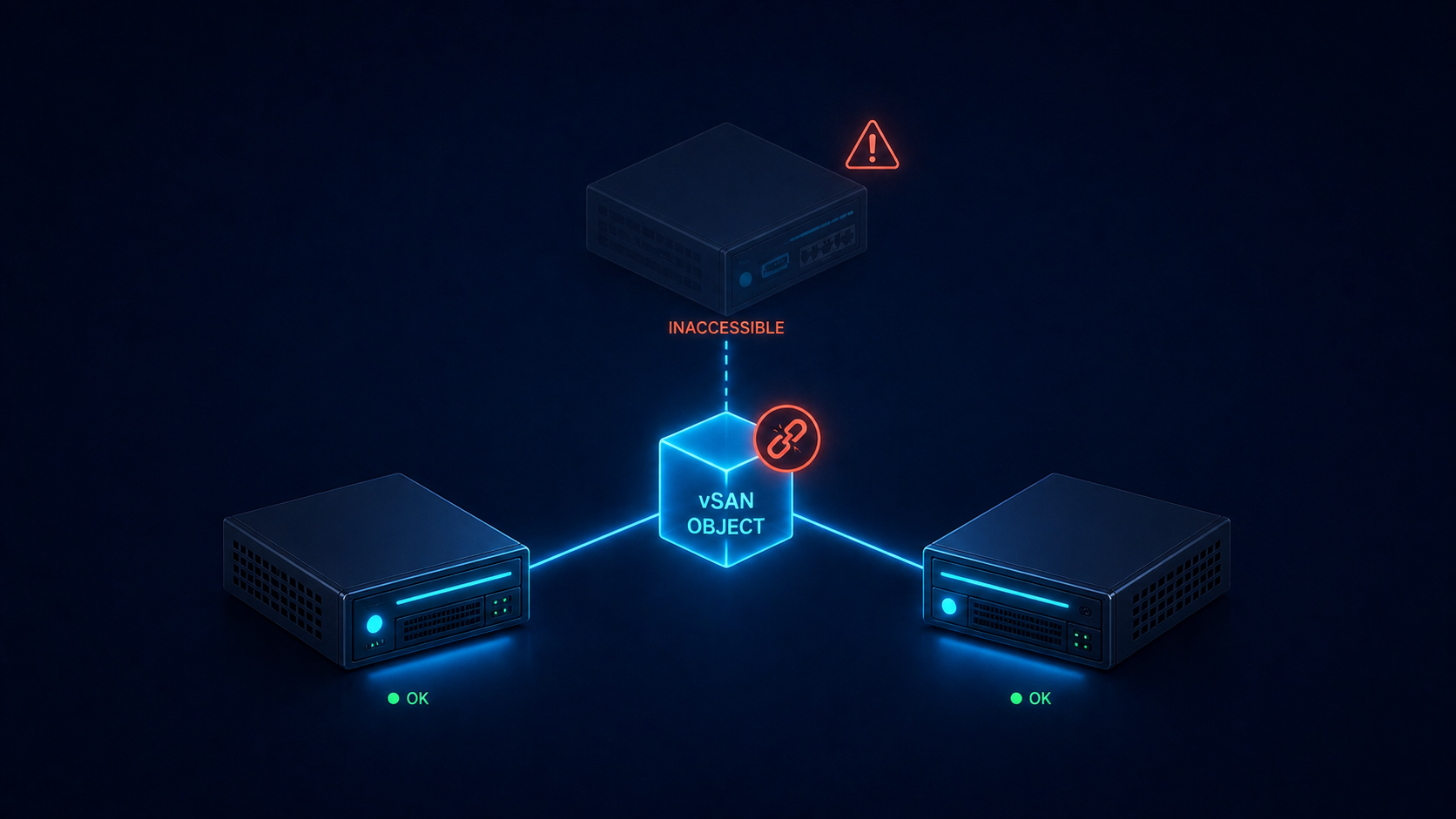
You opened the vSAN health view and saw a red dot on Object Health, with one or more objects showing as Inaccessible. Workloads on those VMs are either down or running off a stale read-only copy. This post walks through the five real causes of vSAN object inaccessible, ranked by what we actually see, and the safe order to recover without losing data.
The short version. Object inaccessible means vSAN cannot find enough live components to satisfy the storage policy’s FTT (Failures To Tolerate) for that object. With FTT=1, you need at least one full data copy plus the witness available. Lose two and the object becomes inaccessible. The fix is almost never deleting and recreating the object. The fix is restoring the missing components, which requires understanding which host or disk group is offline and why.
The single biggest mistake we see is admins under pressure deciding to recreate the VM from a backup before vSAN has had a chance to rebuild. If the underlying issue is transient (network partition, host reboot taking longer than expected), vSAN will rebuild on its own once enough components come back online. Patience plus correct diagnosis recovers more workloads than panic plus action.
What inaccessible actually means
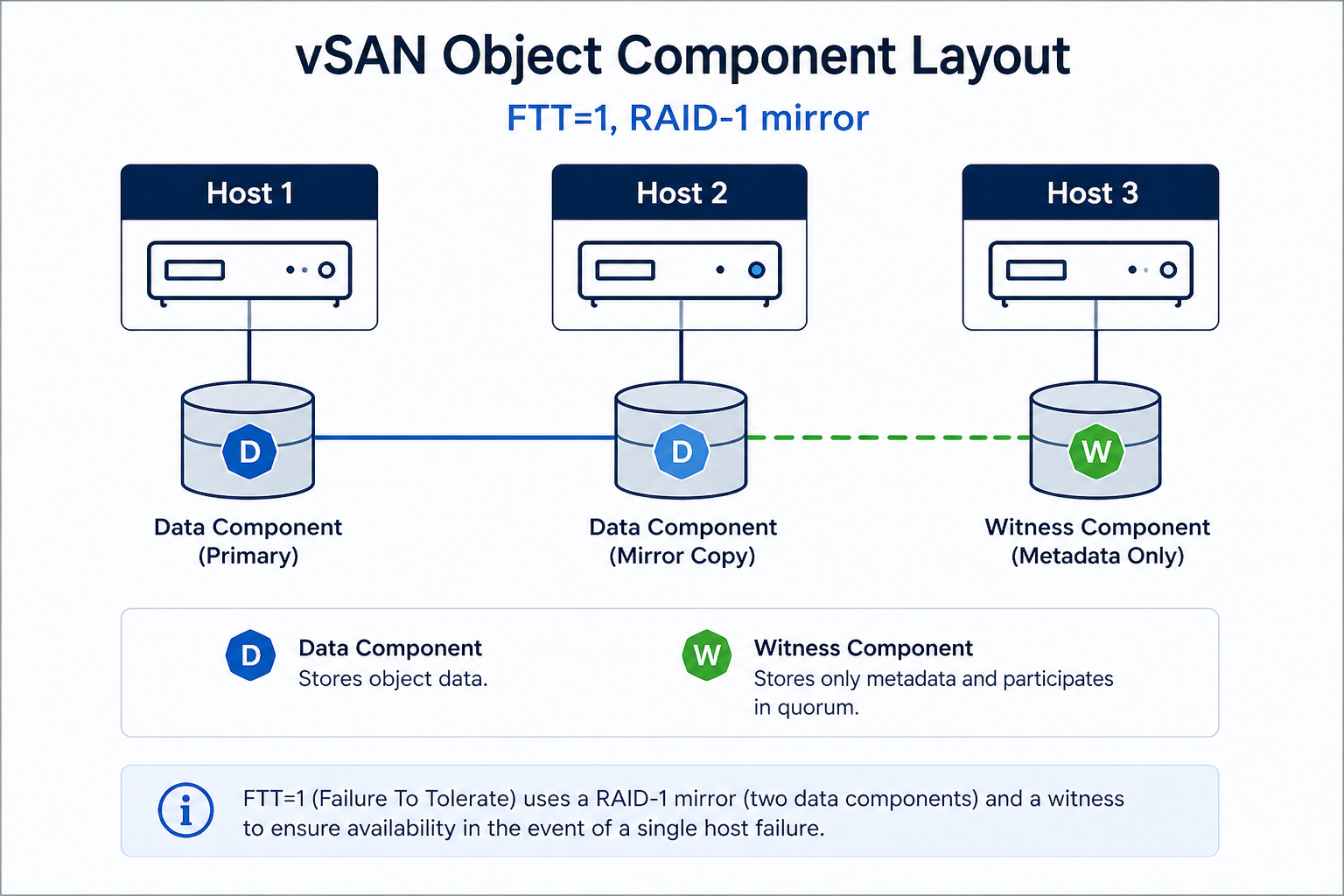
Every vSAN object (VMDK, namespace, swap, etc.) is broken into components according to its storage policy. With FTT=1 and RAID-1, every object has two data components on different hosts and one witness on a third host. The cluster can lose any one of those three and still serve reads and writes. Lose two, and the object goes inaccessible because vSAN can no longer guarantee data integrity by the rules the storage policy requires.
You will see it in three places. The vCenter UI shows the object in red on the vSAN health view. The output of esxcli vsan debug object list on any host shows the object’s components and their state. And your monitoring system flags the affected VM as down or unresponsive.
Verified against current VMware vSAN documentation, accessed April 2026.
The five causes, ranked by what we actually see
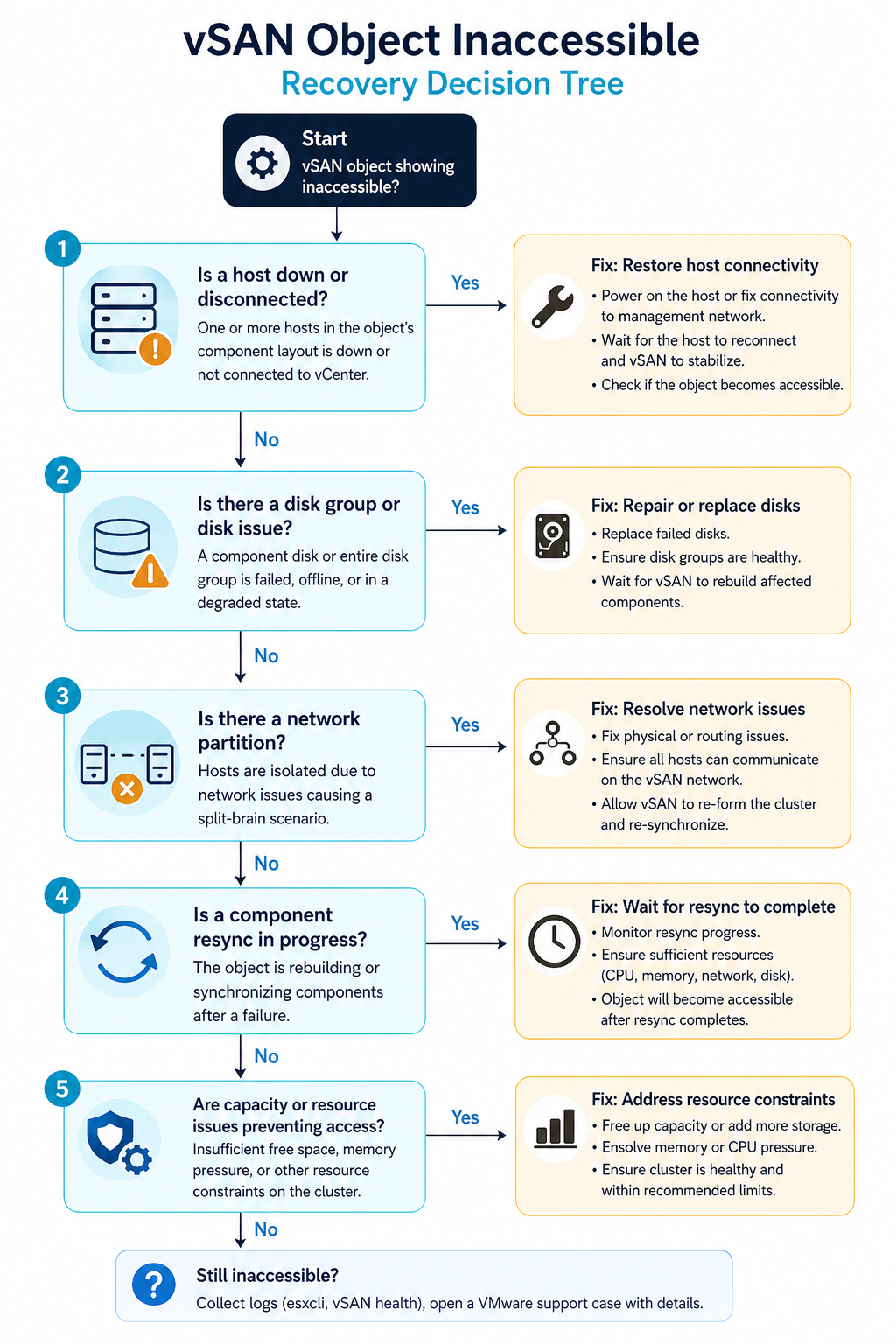
Cause one, host or disk group failure, around 40 percent of cases
One host is offline (hardware failure, hung, in maintenance mode without proper data evacuation) AND another component for the same object is also unavailable. Most common when two hosts go down within the resync window of an earlier event.
Verify with esxcli vsan cluster get on a healthy host. If a host shows as missing or in a different sub-cluster, that is your gap. Bring the host back online before doing anything else. If the host is permanently dead, replace it and let vSAN rebuild components.
Cause two, network partition between hosts, around 25 percent of cases
The hosts are running but cannot talk to each other on the vSAN network. Often a vmkernel port misconfiguration, a VLAN change on the upstream switch, or an MTU mismatch on the vSAN network after a maintenance event.
Verify with vmkping between vSAN vmkernel addresses. If pings fail or fragment, fix the network before touching the cluster. vSAN does not tolerate partitioned hosts without escalating to inaccessible objects.
Cause three, FTT not met by storage policy, around 15 percent of cases
The cluster size dropped (host removed, host failed permanently) and now has fewer hosts than the storage policy’s FTT setting requires. FTT=1 needs at least three hosts. FTT=2 needs five. A four host cluster running FTT=2 cannot satisfy the policy.
Verify with the storage policy assignment for the affected object and the current host count. Either restore the missing host or change the storage policy to a value the cluster can satisfy.
Cause four, capacity exhaustion preventing resync, around 12 percent of cases
vSAN tried to rebuild the missing components but ran out of capacity on the remaining hosts. The cluster is in a degraded state and cannot self-heal until capacity is freed.
Verify with the vSAN capacity view. If utilization is above the slack space threshold (typically 25 to 30 percent reserved), free space by removing snapshots, deleting unused VMs, or adding hosts.
Cause five, witness host issues (stretched clusters), around 8 percent of cases
In a stretched vSAN cluster, the witness host runs at a third site. If the witness is unreachable or has its own outage, all objects in the cluster lose quorum and go inaccessible.
Verify witness reachability with esxcli vsan cluster preferredfaultdomain get and ping tests to the witness vmkernel. Restore the witness or stand up a temporary one.
What the official documentation does not mention
VMware’s docs tell you to check object health and let vSAN heal. They do not warn you that running vmkfstools against an inaccessible object can corrupt the on-disk state in a way that is not recoverable. Do not run any direct manipulation commands against an inaccessible object. Use the supported repair workflow only, which is “fix the underlying cause and let vSAN heal.”
Also, vSAN sometimes shows objects as inaccessible during a normal resync after a planned host evacuation, especially on large clusters with FTT=2. If the object becomes accessible within a few minutes as the resync progresses, no action is needed. Wait at least 60 minutes before assuming an inaccessible object is permanent.
The architectural fix
Clusters that rarely see inaccessible objects have three things in common. First, sized capacity at slack-plus-30-percent so resync always has room. Second, vSAN network monitoring with MTU checks and per-host link health, so partition events are caught before they cascade. Third, FTT chosen relative to host count with margin (FTT=1 on minimum 4 hosts, FTT=2 on minimum 6) so a single failure never threatens the policy. Skip any of these three and you will see an inaccessible object during your next maintenance window.
FAQ
Will the object recover automatically?
Yes, if the underlying cause clears (host comes back, network partition heals, capacity freed). vSAN re-evaluates object health continuously.
Can I recover from backup if the object stays inaccessible?
Yes, but only as a last resort. Restore the underlying issue first, give vSAN time to heal, and only then fall back to backup if the object will not recover.
Is data lost if an object goes inaccessible?
Not necessarily. Inaccessible means the cluster cannot serve the object right now. The data on the surviving components is intact and will be served once enough components are restored.
Related posts
Need help with a degraded cluster
vSAN incidents have a window where calm diagnosis recovers everything and panic recovery loses workloads. Our virtualization team handles vSAN clusters across Western Canada and we are comfortable on the phone at any hour. Tell us your cluster size, FTT, and the symptoms and we will help you recover.
Last verified April 2026 by the aaanetworkx virtualization practice.