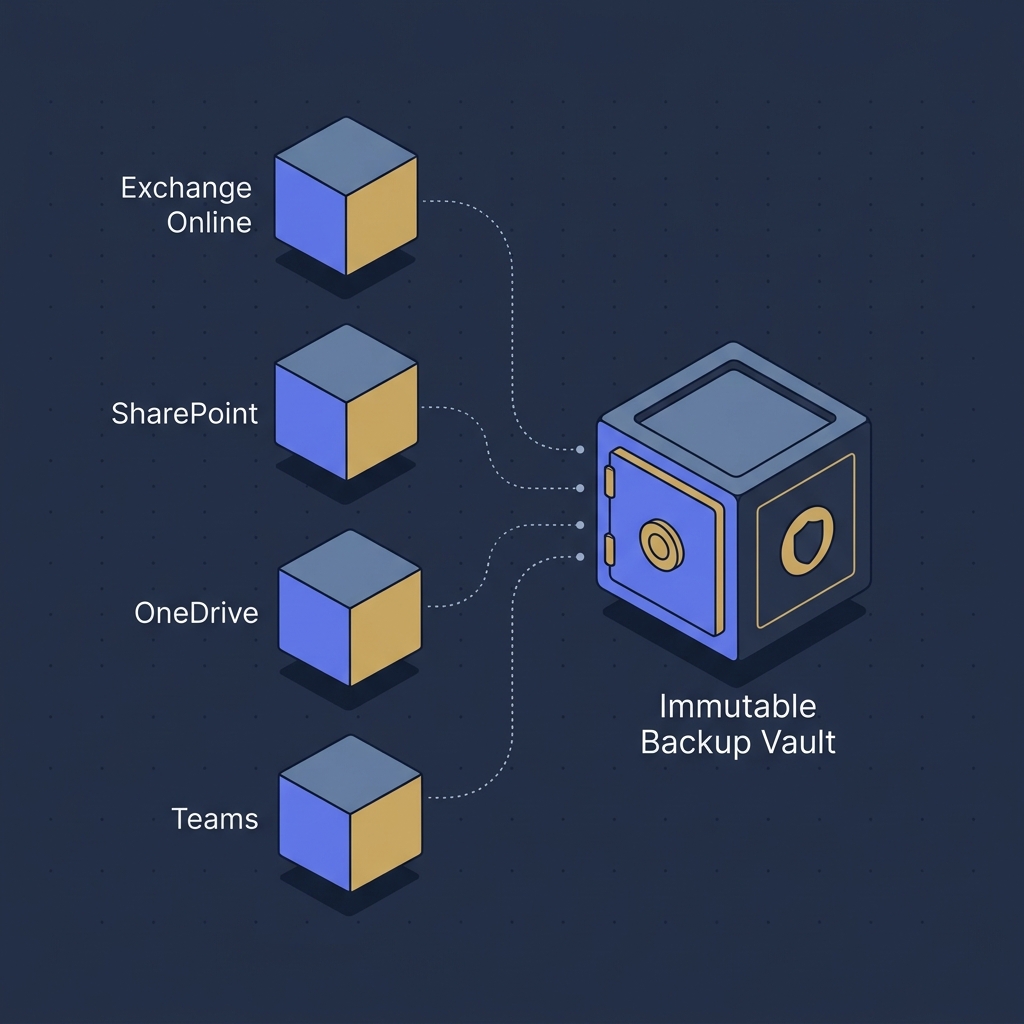
Microsoft 365 backup strategy starts with a single uncomfortable fact: Microsoft does not back up your data the way most businesses assume. The platform is highly available. The data is your responsibility.
Most small and mid-sized businesses on Microsoft 365 in Edmonton run on the same assumption: “It is in the cloud, so it is backed up.” That assumption is wrong in a specific and dangerous way. Microsoft guarantees the service is available and the platform is durable. Microsoft does not guarantee that you can recover a specific email from six months ago, restore a SharePoint document library that a departed employee emptied, or roll back a OneDrive folder that ransomware encrypted four days before anyone noticed.
This guide walks through what a real Microsoft 365 backup strategy looks like in 2026, what Microsoft actually protects, where the gaps are, how to size retention to compliance, and how to choose a backup approach that survives the failure modes that actually happen.
The shared responsibility model in plain English
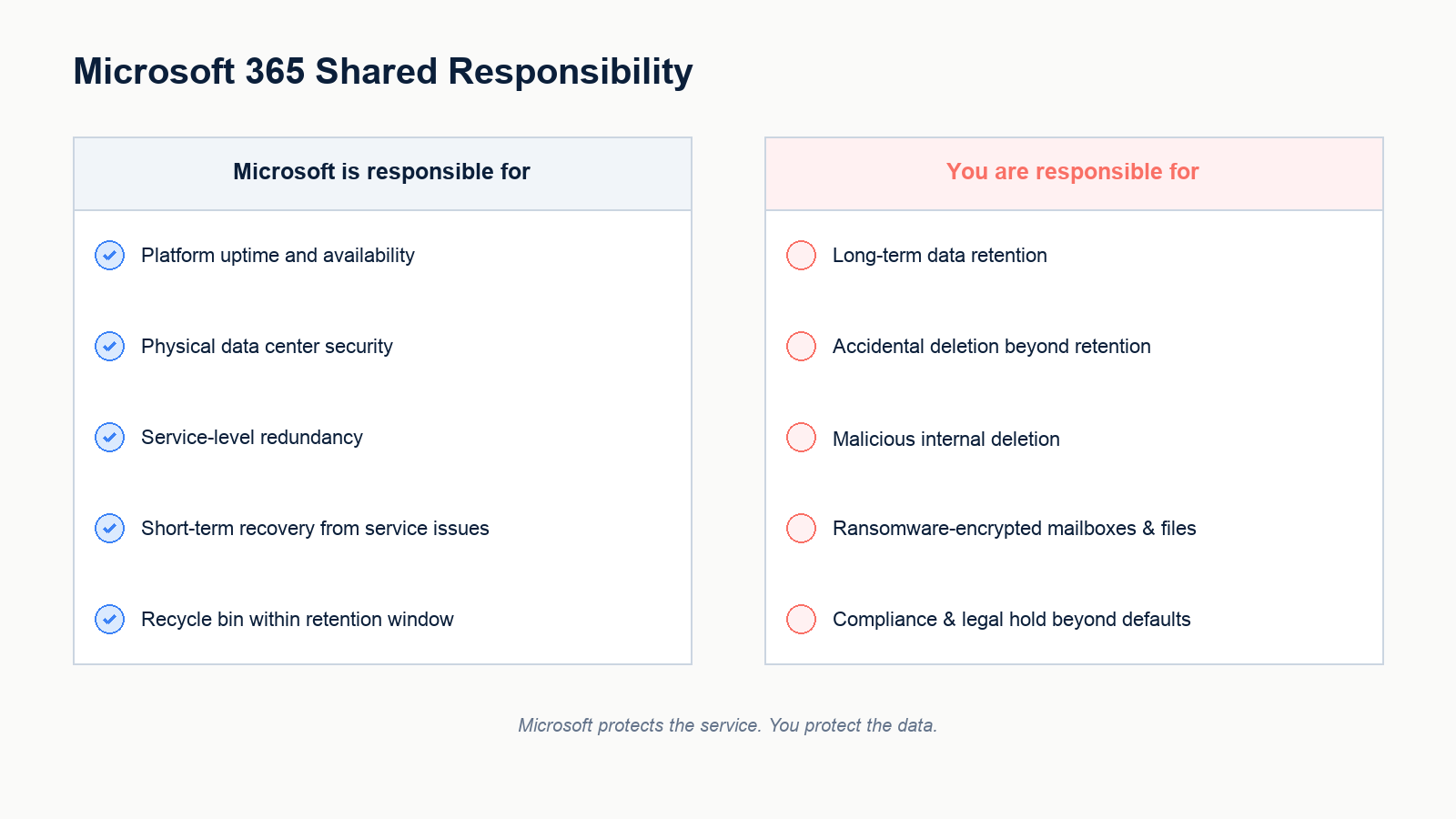
Microsoft publishes a shared responsibility model for Microsoft 365. In summary, Microsoft is responsible for the platform: physical data centers, infrastructure uptime, service-level redundancy, and short-term recovery from service-side issues. The customer is responsible for the data inside the platform: who has access to it, what happens when it is deleted, and how long it must be recoverable.
Microsoft 365 does include native retention features. The Exchange Online recycle bin holds deleted mail for a default window. SharePoint and OneDrive recycle bins hold deleted items for 93 days by default. Versioning is enabled on documents. Retention policies can be configured to hold mail and files for longer windows. These features exist and they help, but they are not equivalent to a backup, and they are not designed as one.
A backup, in the operational sense, has three properties that native M365 retention does not fully provide: it is independent of the production tenant, it is immutable for a defined retention window even by an administrator, and it allows full point-in-time recovery of an entire mailbox, site, or drive. Native retention is good at keeping data findable for compliance. It is not good at recovering from a ransomware encryption event, a malicious administrator action, or a corrupted migration.
What Microsoft does not protect
Five scenarios drive almost every M365 data-loss event we see in Alberta small businesses.
Accidental deletion beyond the retention window
A user deletes a folder of contracts. Three months later, the team realizes one of those contracts is needed for litigation. The recycle bin has expired. The contract is gone unless an independent backup exists.
Malicious deletion by a departing employee
An employee leaves on bad terms and, before their access is removed, empties their OneDrive and a SharePoint site they had owner permissions on. Versioning helps, but if the user empties the recycle bin after deleting, recovery from native tooling becomes much harder. An independent backup recovers cleanly.
Ransomware-encrypted OneDrive and SharePoint
Modern ransomware encrypts the local OneDrive sync folder on a compromised endpoint. The encrypted files then sync to the tenant. Versioning can roll back a handful of files, but rolling back tens of thousands across multiple users is operationally painful and incomplete. A point-in-time backup of the entire OneDrive and SharePoint state at a known-good moment makes this recoverable in a single operation.
Corrupted migration or third-party app misbehavior
A third-party app with broad Graph permissions modifies or deletes data unexpectedly. A migration tool overwrites items. Native retention may hold pieces, but a tenant-wide point-in-time restore is what actually resolves these.
Long-term legal and regulatory holds
Professional regulators, College of Physicians and Surgeons of Alberta, Law Society of Alberta, CPA Alberta, and certain industry standards require data to be retained for years. Native M365 retention can do this, but it must be configured deliberately, audited, and demonstrably enforced. Most small businesses we audit have not configured this correctly.
Retention windows that actually meet compliance
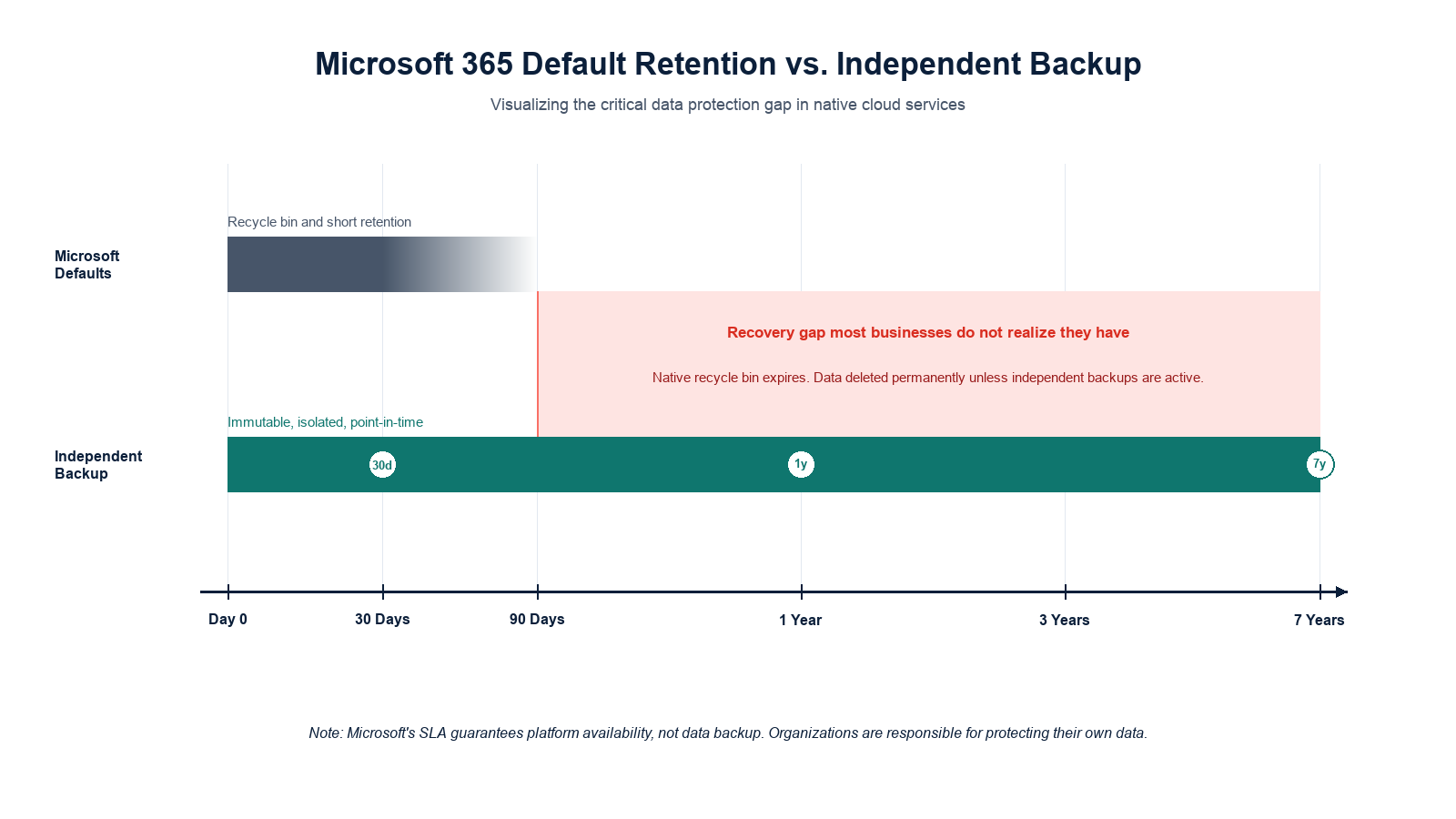
The right retention window is not a generic best practice number. It is whichever is longest among: the regulatory requirement for the industry, the contractual requirement for the largest customer, the cyber insurance requirement in the current policy, and the operational requirement for the business itself.
For most Alberta professional services firms, the practical minimum is 7 years for client-related data and 1 to 3 years for everything else. For healthcare, the Health Information Act expectations push parts of the retention longer. For construction and engineering, contract documents often need to be retained for the warranty period of the project, which can exceed 10 years.
The mistake we see most often is setting a single retention number across all data because the backup vendor’s default was easy. Tiering retention by data classification is much more defensible and usually cheaper at scale.
What to back up, in priority order
A complete M365 backup strategy covers four workload areas. They are not equal in risk.
- Exchange Online mailboxes: point-in-time mailbox recovery, including calendars and contacts. Highest day-to-day operational value, easiest to scope.
- SharePoint Online sites: full site and library restore with permissions preserved. Highest compliance value for professional services and project-based businesses.
- OneDrive for Business: per-user point-in-time restore. Highest ransomware-recovery value, since this is where workstation sync attacks land.
- Microsoft Teams: channel messages, files (which live in SharePoint), and 1:1 chats. Often the lowest priority operationally but increasingly important for legal discovery.
Most small businesses should back up all four. Sequencing matters when budget is constrained: Exchange and OneDrive first, then SharePoint, then Teams chats.
Where the backup actually lives
A backup that lives inside the same tenant it protects is not a backup, it is a copy. To survive a tenant-level compromise, the backup must be stored outside the M365 tenant’s blast radius. In practice that means one of three patterns.
The first pattern is a third-party SaaS backup service that stores backup data in its own infrastructure, with its own identity, immutable storage, and its own retention controls. Veeam Data Cloud for M365, Acronis Cyber Protect Cloud, Barracuda, Datto SaaS Protection, and Spanning are the most common in this category for Alberta SMBs. Pricing is typically per-user per-month.
The second pattern is self-hosted backup software writing to immutable cloud object storage outside the M365 tenant, such as Wasabi, Backblaze B2 with object lock, or Azure Blob in a separate tenant with immutability policies. This pattern is cheaper at scale but requires real operational discipline to manage credentials, restores, and capacity planning.
The third pattern is a hybrid where the backup tool lives on-premises (often on the same hypervisor running other workloads) and replicates to an off-site immutable target. This is most common in firms that already operate on-prem infrastructure for other reasons.
Whichever pattern is chosen, the credentials used by the backup product must not be the same credentials used to administer the M365 tenant, and the storage target must be isolated at the network and identity layer from production.
What a workable M365 backup posture looks like in 2026
For a typical Edmonton small or mid business on Microsoft 365 Business Premium, a defensible 2026 backup posture includes daily point-in-time backup of Exchange, SharePoint, OneDrive, and Teams, retention of at least 7 years for professional services data and a minimum of 1 year for general data, immutable storage outside the production tenant, dedicated backup-service credentials separated from administrator accounts, and a documented quarterly restore test of one mailbox and one SharePoint site.
For a 25-user firm, that posture commonly lands in the range of a few dollars per user per month for a managed third-party SaaS backup, plus a small annual review cost. For a 100-user firm, the per-user economics improve. In either case the cost is small relative to the data exposure it removes.
FAQ
Does Microsoft back up my Microsoft 365 data?
Microsoft protects the platform and provides short-term retention features. Microsoft does not provide point-in-time backup and recovery of customer data in the way an independent backup product does. The shared responsibility model places long-term recoverability of data on the customer.
Is the recycle bin enough?
For a single-item accidental deletion noticed within days, often yes. For ransomware, malicious deletion, compliance retention, or any incident discovered beyond the default retention window, the recycle bin is not enough.
What about Microsoft 365 retention policies?
Retention policies are useful and should be configured. They are designed primarily for compliance findability, not operational recovery. They do not provide tenant-isolated immutable backup, which is what survives a tenant-level compromise.
How long does an M365 backup restore actually take?
A single mailbox or document restore typically completes in minutes. A full SharePoint site or a tenant-wide OneDrive restore can take hours to days depending on data volume and the throttling limits Microsoft Graph applies to the backup product.
Do we need an M365 backup if we already have endpoint backup?
Yes. Endpoint backup protects the workstation. It does not protect the tenant. Exchange, SharePoint, and Teams content lives in the tenant and is not captured by endpoint backup tools.
If you are reviewing your M365 backup posture
Most businesses do not need a full backup product overhaul. They need a focused review of what is being backed up, where it is being stored, how long it is retained, and whether the restore process has been tested. That review usually takes a few days and produces a short prioritized list of fixes.
Our team helps Edmonton businesses design, deploy, and validate Microsoft 365 backup strategies that meet professional regulatory expectations, cyber insurance requirements, and actual ransomware-recovery scenarios. Book a Microsoft 365 data protection assessment. We will review your current retention, identify gaps against your compliance obligations, and recommend a backup posture that fits your business size.
Related posts
- Ransomware Recovery Plan for Small Business
- Hidden Risks of Co-Managed Microsoft 365
- Cost of Managed SOC for a 200-Employee Firm
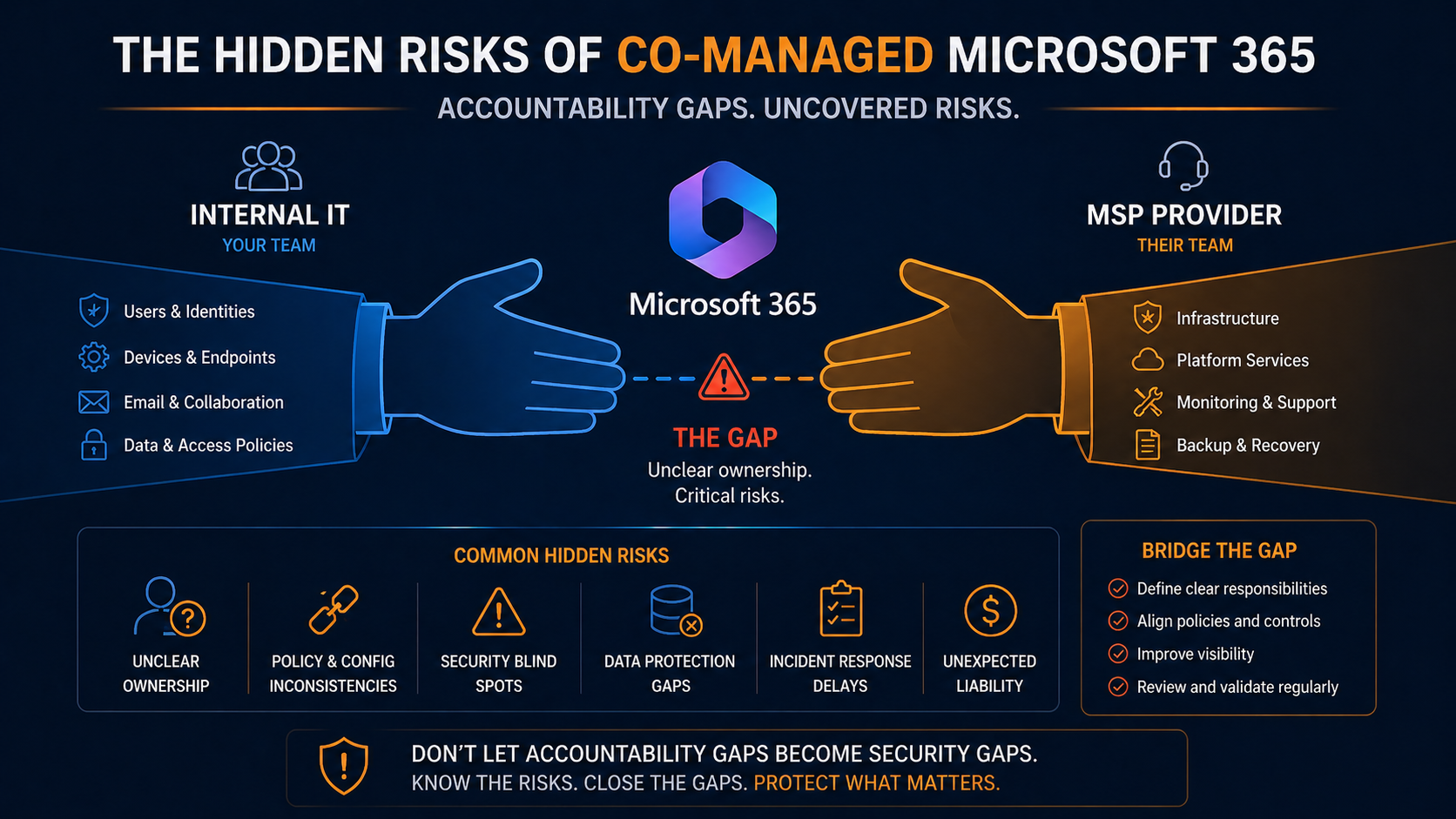
Hidden risks co-managed Microsoft 365 brings include accountability gaps, license drift, and security holes that neither party fully owns until something breaks.
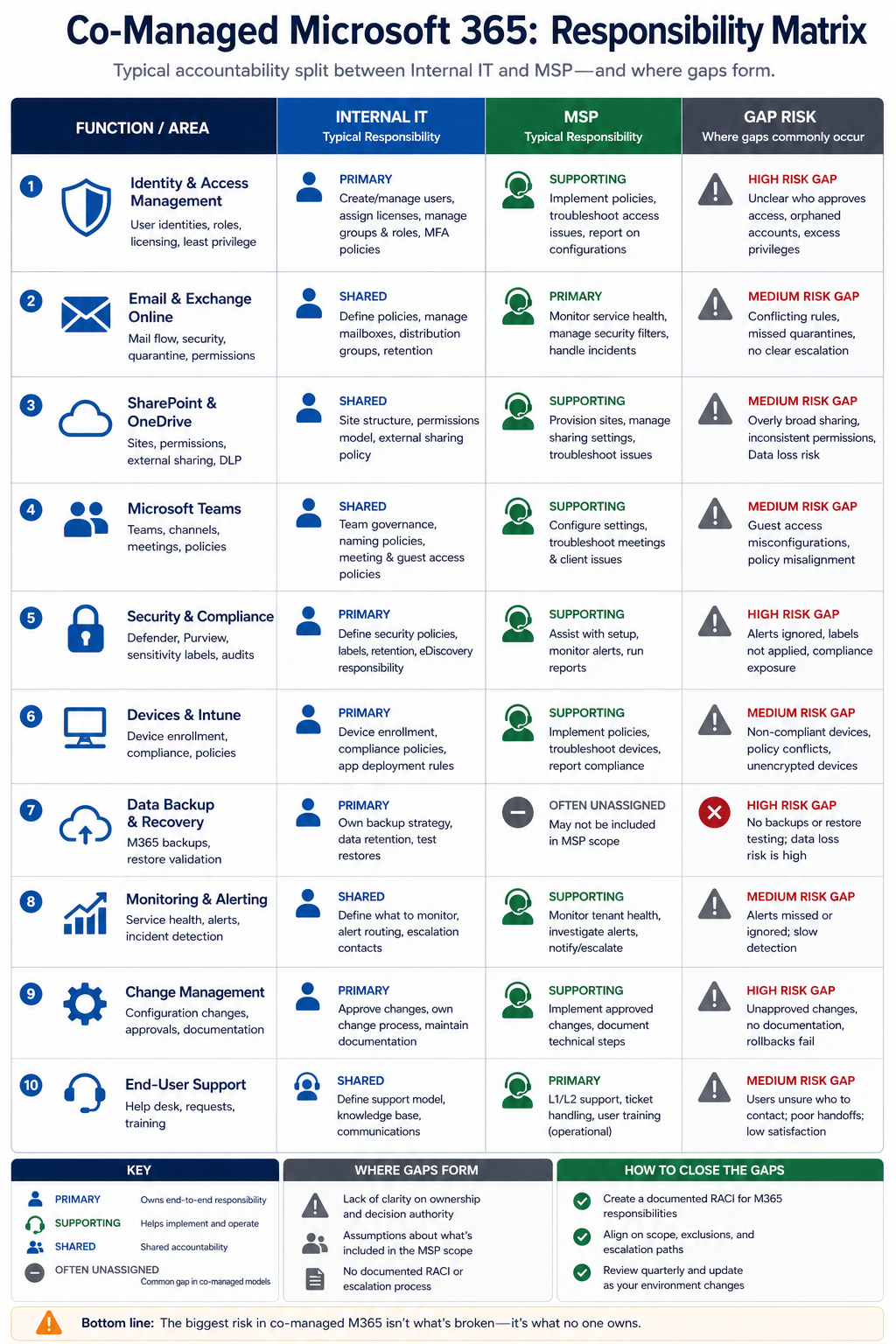
Co-managed Microsoft 365 sounds like the best of both worlds. Internal IT runs day-to-day, an MSP handles deeper expertise and after-hours, costs are split, both teams have skin in the game. In practice, the arrangement creates a specific set of risks that neither party catches because both assume the other is handling them. This post walks through the hidden risks of co-managed M365, ranked by what we see go wrong most often, and what governance actually prevents them.
The short version. The single biggest risk is the accountability gap, where critical M365 functions sit in the grey zone between internal IT and the MSP and neither owns them. Conditional access policies, license optimization, security defaults, retention policies, and admin role hygiene are the most common gaps. The fix is not more meetings. It is a written responsibility matrix that explicitly assigns every function to one party, reviewed quarterly. Most co-managed arrangements we audit do not have one, and that is exactly where the risks compound.
Why co-managed has unique risks
Single-party arrangements (fully internal or fully outsourced) have clear accountability. Things still go wrong, but when they do, you know who is responsible. Co-managed introduces a coordination layer that is rarely as well-defined as the underlying technical work. The MSP assumes internal IT is reviewing security alerts overnight. Internal IT assumes the MSP is keeping the conditional access policies up to date with M365 feature changes. Both assume the other is reviewing license utilization quarterly. Six months later, an audit reveals that nothing was actively assigned.
What goes wrong, ranked
1. Conditional access policies drift, around 35 percent of cases
Microsoft adds new conditional access conditions and signals every quarter. Threat intelligence integration, device health requirements, network location refinements. None of these get applied to a tenant unless someone is explicitly responsible for reviewing the M365 roadmap and updating policies. In co-managed arrangements without clear ownership, conditional access policies sit at the configuration from the day the tenant was set up. The result is a security posture that ages by the month.
2. License waste and gaps, around 25 percent
Internal IT assumes the MSP is optimizing licensing. The MSP assumes internal IT knows which users still need which features. Result: licenses sit assigned to departed staff for months, while new staff get over-licensed because nobody is sure what they need. Or worse, security features that are licensed are not actually enabled because nobody knows they were paid for.
3. Admin role sprawl, around 15 percent
Both internal IT and MSP staff get assigned global admin roles “just in case.” The total list of global admins grows over time, often including departed contractors and former MSP analysts. We audited one tenant with 14 global admins, of whom 6 were no longer employed by either organization. Each one is a credential breach away from a tenant takeover.
4. Retention policies misaligned, around 10 percent
Email and SharePoint retention policies need to match legal hold requirements, which evolve with regulation. Neither party owns this in many co-managed setups, so policies remain at default until a legal request reveals data was deleted that should have been kept, or kept that should have been deleted.
5. Security alert fatigue and missed signals, around 10 percent
Microsoft 365 Defender, Entra Identity Protection, and Purview generate alerts. Internal IT reviews some during business hours. The MSP reviews different ones during overnight monitoring. Without explicit handoff, real signals get missed because neither party is sure who is on first.
6. Tenant configuration drift, around 5 percent
Both parties make changes to tenant configuration over time, often without documenting them. Six months later, nobody knows why a particular setting is what it is, and changes break things in unexpected ways.
What good governance looks like
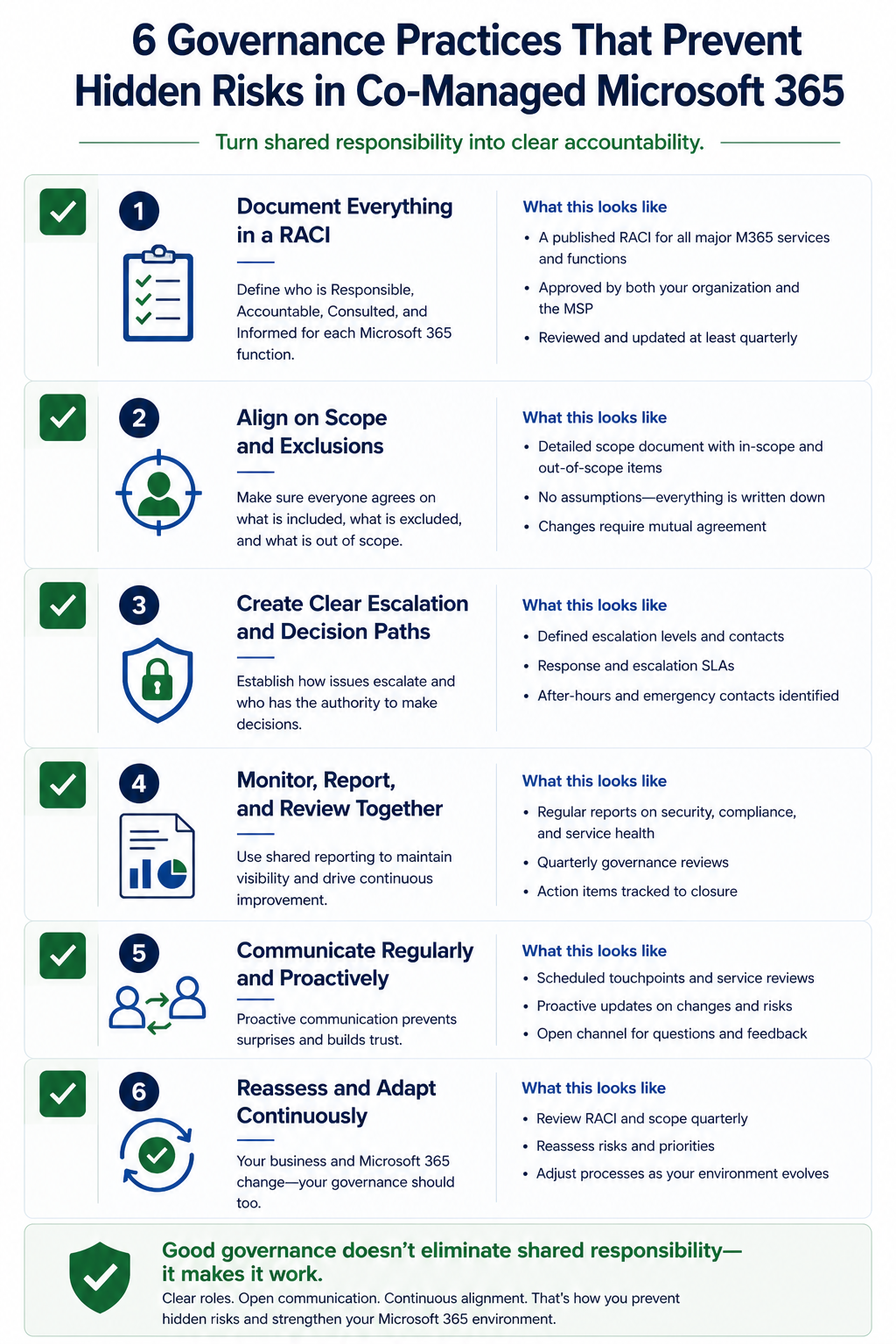
Co-managed arrangements that work well share six practices. First, a written responsibility matrix explicitly listing every M365 function and assigning it to one party. Second, a monthly meeting between internal IT and MSP that reviews changes, alerts, and upcoming Microsoft roadmap items. Third, a quarterly admin role review where both parties confirm who has elevated permissions and remove anyone who should not. Fourth, joint license review every six months. Fifth, a single shared changelog where both parties record tenant configuration changes. Sixth, an annual full audit of conditional access, retention, and security baseline against current Microsoft recommendations.
None of this is exotic. It is governance discipline that organizations doing co-managed well tend to have. Organizations doing it poorly do not.
FAQ
Is co-managed worse than fully outsourced?
Not inherently. Co-managed combines internal context with external expertise and can be excellent. The risk is in execution, specifically the accountability gaps. Fully outsourced has clearer ownership but loses internal context.
How often should we review the responsibility matrix?
Quarterly minimum. Re-confirm assignments, capture any new functions Microsoft has added (CoPilot, new compliance modules, etc.), and adjust as either party’s role evolves.
Do these risks apply to small firms?
Less so. Small firms typically have less complex M365 deployments. The risks scale with tenant complexity, not just employee count.
Related posts
Audit your co-managed arrangement
Most of the gaps above are invisible until something fails. We do focused co-managed M365 audits that produce a written responsibility matrix and a list of the specific gaps your tenant has today. Tell us about your arrangement and we will run a 4 hour audit and deliver findings.
Last verified April 2026 by the aaanetworkx Microsoft 365 practice.
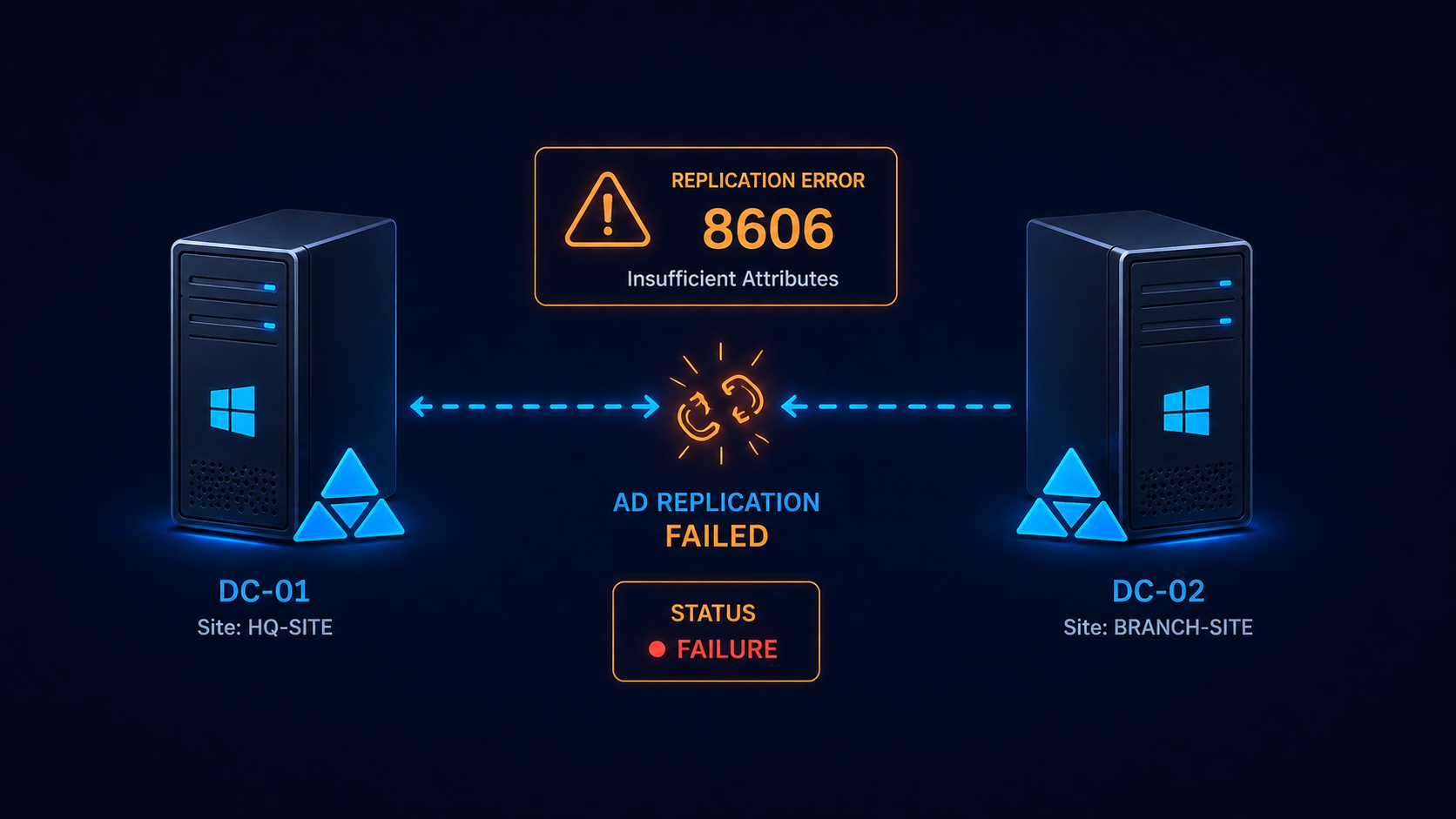
Active Directory replication error 8606 means insufficient attributes were provided to recreate an object on a destination domain controller.
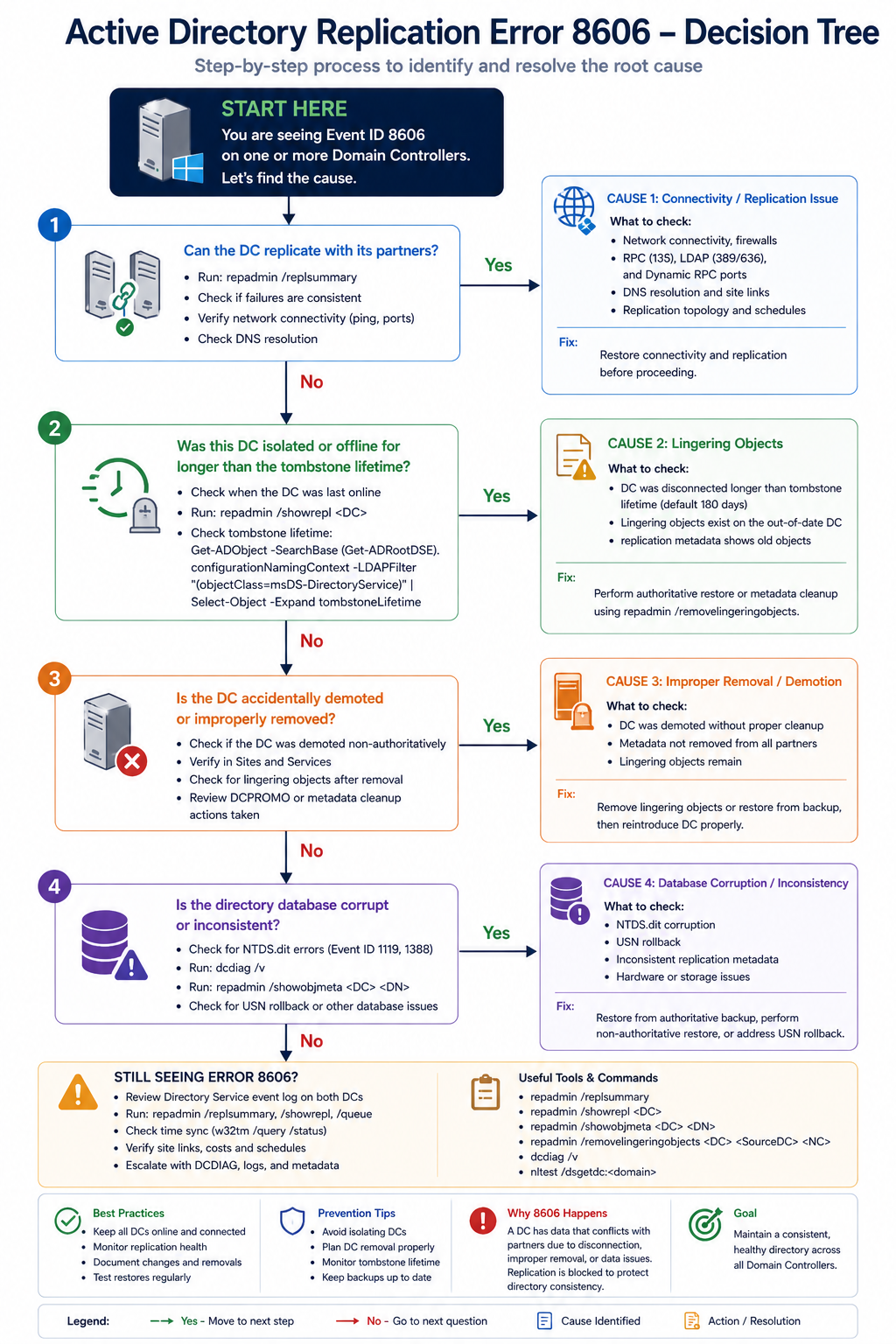
You ran repadmin /showrepl and saw error 8606 staring back at you. Active Directory replication has stopped between two domain controllers, and the symptom is “insufficient attributes were provided to create an object.” This post walks through the four real causes ranked by frequency, the safe fix order, and what to do if the offending DC has been offline too long.
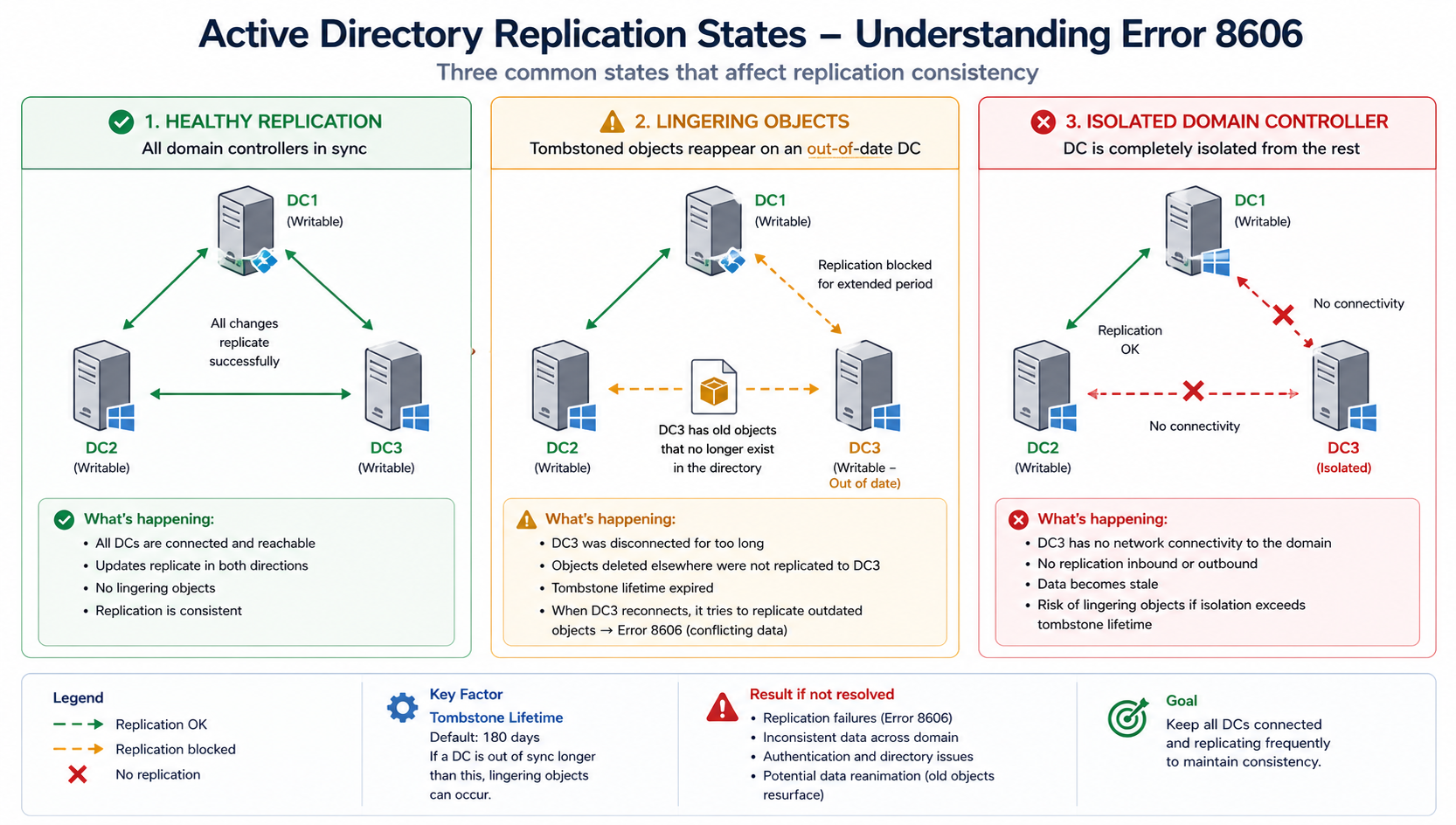
The short version. Error 8606 almost always means a domain controller has been offline longer than the tombstone lifetime (60 days by default in older AD, 180 days in newer) and is now trying to replicate. Lingering objects on the offline DC have not been properly aged out, and the rest of the forest will not accept replication from it because doing so could re-introduce deleted objects. The fix is to either remove the lingering objects with repadmin /removelingeringobjects or, more commonly, demote the offline DC and rebuild it cleanly.
Less commonly, error 8606 surfaces from USN rollback after an improper VM restore, or from time skew exceeding the Kerberos tolerance. Both have specific fixes that this post covers. Do not skip the diagnostic step, replication consistency.
What this error means
Active Directory uses tombstones to mark deleted objects so they can be cleaned up across the forest before being permanently removed. Tombstone lifetime is 180 days for forests created on Windows Server 2008 or later. If a DC is offline longer than tombstone lifetime, objects that were deleted from the live DCs and tombstoned have already been purged. The offline DC still has those objects, and bringing it back online would resurrect them.
To prevent that, the rest of the forest refuses to replicate from the offline DC. Error 8606 is the manifestation of that refusal. The DC sees its peers as unwilling to accept its updates and reports insufficient attributes.
Verified against current Microsoft Active Directory documentation, accessed April 2026.
The four causes, ranked
Cause one, DC offline beyond tombstone lifetime, around 60 percent
The DC was shut down, isolated by network failure, or in maintenance and missed the tombstone window. Lingering objects exist and the forest is rejecting replication.
Verify with repadmin /showrepl on the affected DC. If the last successful replication is more than 180 days ago, this is your cause. The safest fix is to demote the DC, clean it up, and re-promote. Alternatively, use repadmin /removelingeringobjects with the right arguments, but this requires confidence and is easier to get wrong.
Cause two, USN rollback from improper VM restore, around 20 percent
Someone restored a domain controller from a snapshot or backup that predated changes already replicated to the rest of the forest. AD’s USN counter rolled backward, which corrupts replication state and produces 8606 errors.
Verify with the Windows event log on the DC, looking for event 2095 (USN rollback detected). If found, the DC is in quarantine mode. Demote and rebuild, do not attempt to recover the existing DC. This rule is non-negotiable.
Cause three, time skew beyond Kerberos tolerance, around 10 percent
The DCs are out of sync by more than 5 minutes (default Kerberos tolerance). Authentication for replication fails, which surfaces as 8606 in some scenarios.
Verify with w32tm /monitor. If skew is high, fix NTP configuration on the DCs. The PDC emulator should be the authoritative time source for the domain.
Cause four, RPC over IP failure or DNS issue, around 10 percent
The DCs cannot resolve each other or cannot complete RPC calls. AD replication uses RPC dynamically allocated ports unless explicitly restricted, and a firewall in between can block the dynamic ports.
Verify with dcdiag /test:dns and dcdiag /test:replications. Fix DNS and verify firewall rules permit AD replication traffic between the DCs.
What the official documentation does not tell you
Microsoft’s article describes the lingering objects fix in technical terms but rarely emphasizes that demote-and-rebuild is almost always faster and safer than running repadmin /removelingeringobjects. The remove-lingering-objects path requires you to identify the authoritative DC, identify the source DC, and run the command for every naming context. Each step has gotchas. Demote, force-remove the DC’s metadata, build a fresh DC, promote. Total time is similar but the failure modes are simpler.
Also, USN rollback is not always obvious. If a hyperconverged platform restored a DC from a snapshot during a maintenance event, the rollback can be silent until replication starts failing days later. Always confirm USN rollback in the event log before assuming a different cause.
The architectural fix
Healthy AD environments share four practices. First, monitor replication daily with repadmin /showrepl output piped to a log review. Catch issues before they reach 60 days, let alone 180. Second, never restore DCs from snapshots without using AD-aware backup tools that handle USN correctly. Third, document the time hierarchy explicitly with the PDC as authoritative. Fourth, avoid having any DC offline for more than two weeks at a stretch. If a DC will be offline longer, demote it and re-promote it later.
FAQ
Will the DC recover on its own?
Only if the cause is transient (DNS, time skew). If the cause is tombstone lifetime exceeded or USN rollback, the DC needs intervention.
Can I extend tombstone lifetime to fix this?
You can, but doing it after the fact does not help. Extending tombstone lifetime only affects future deletions. The current lingering objects are already past the original lifetime.
Is this related to Azure AD Connect?
Indirectly. If on-prem AD replication is broken, Azure AD Connect can fail to synchronize correctly. Fix AD replication first, then verify AD Connect health.
Related posts
Need help with AD recovery
AD replication issues compound quickly and recovery decisions made under pressure can make them worse. Our identity practice handles AD recovery for organizations across Western Canada and we treat 8606 as actionable from minute one. Tell us about the environment and we will help you recover safely.
Last verified April 2026 by the aaanetworkx identity practice.
Outlook error 0x800CCC0E means the client cannot establish a TCP connection to the mail server, and the cause is one of five specific things.
Outlook tells you “Cannot connect to server, error 0x800CCC0E” and refuses to send or receive. The user is annoyed, the day’s emails are stacking up, and you need to fix it now. This post walks through the five real causes ranked by what we see most often, the diagnostic order, and the architectural fix that stops the error from recurring across your organization.
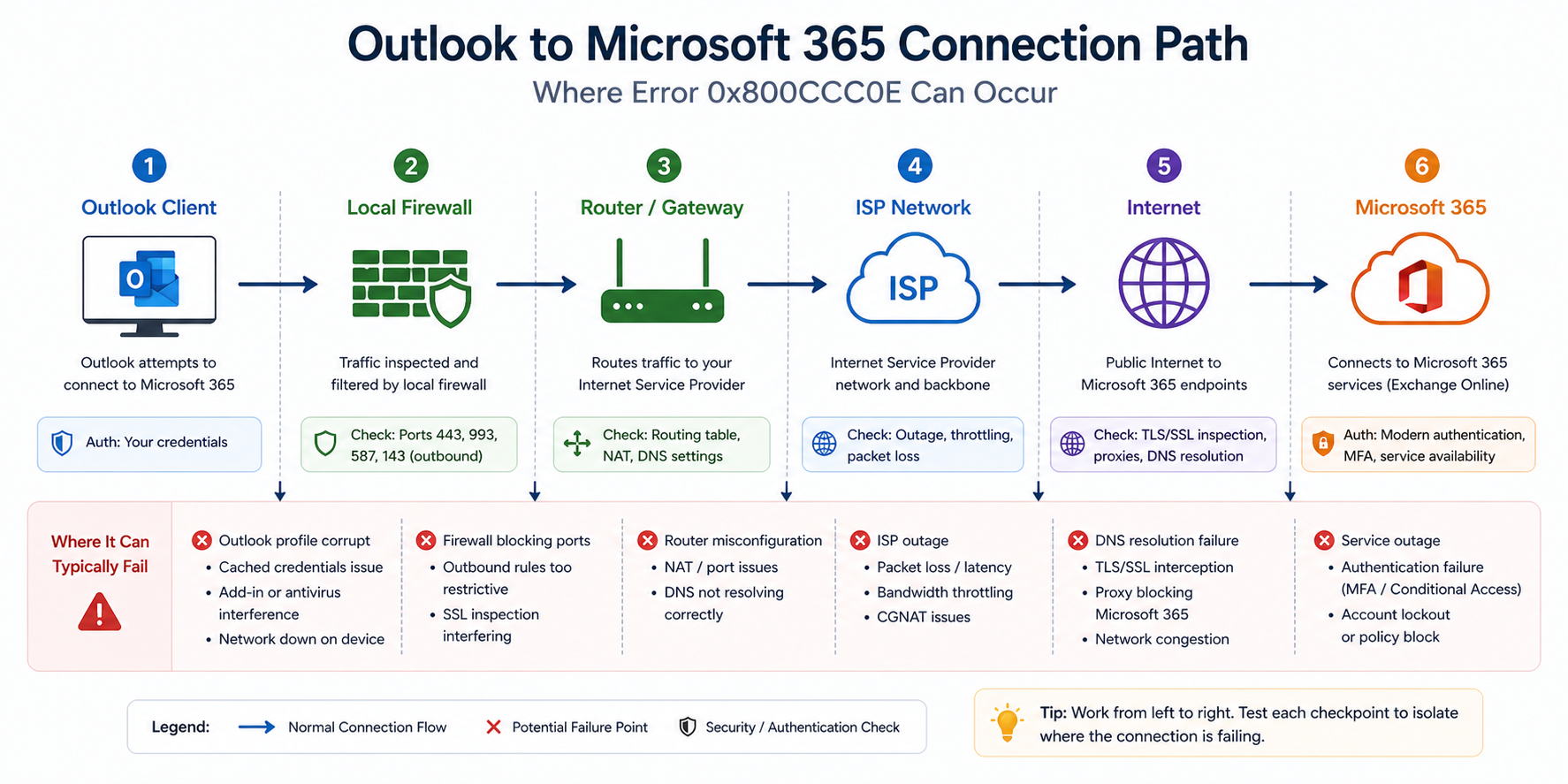
The short version. 0x800CCC0E is a generic TCP connection failure. The Outlook client tried to open a TCP connection to the mail server (typically Microsoft 365) and got back nothing, or got blocked. The cause is somewhere along the path between the client and the server, and the path goes through your local network, your firewall, your ISP, and the internet before reaching Microsoft. There are about five things that can break that chain in practice.
Most often it is an ISP blocking outbound port 25 (for SMTP submission) or a recent firewall rule change that broke connectivity. Less often it is an authentication issue masquerading as a connection error. Even less often it is the Outlook profile itself being corrupt. Whatever the cause, the fix is rarely deleting and recreating the profile, which is the first thing many users try and which often does not help.
What this error actually means
0x800CCC0E is Outlook’s way of saying “I tried to make a TCP connection, it did not work, and I do not have a more specific reason.” The error fires before any authentication happens, which is why your password is not the issue even though Outlook may prompt for it.
You will see it three places. The Outlook send/receive dialog shows the error code. The Outlook test email account feature fails with the same code. And telnet from the user’s machine to outlook.office365.com on port 993 (IMAP), 587 (SMTP submission), or 443 (HTTPS, used by modern Outlook) confirms whether TCP itself is reaching the server.
Verified against current Microsoft Outlook for Microsoft 365 documentation, accessed April 2026.
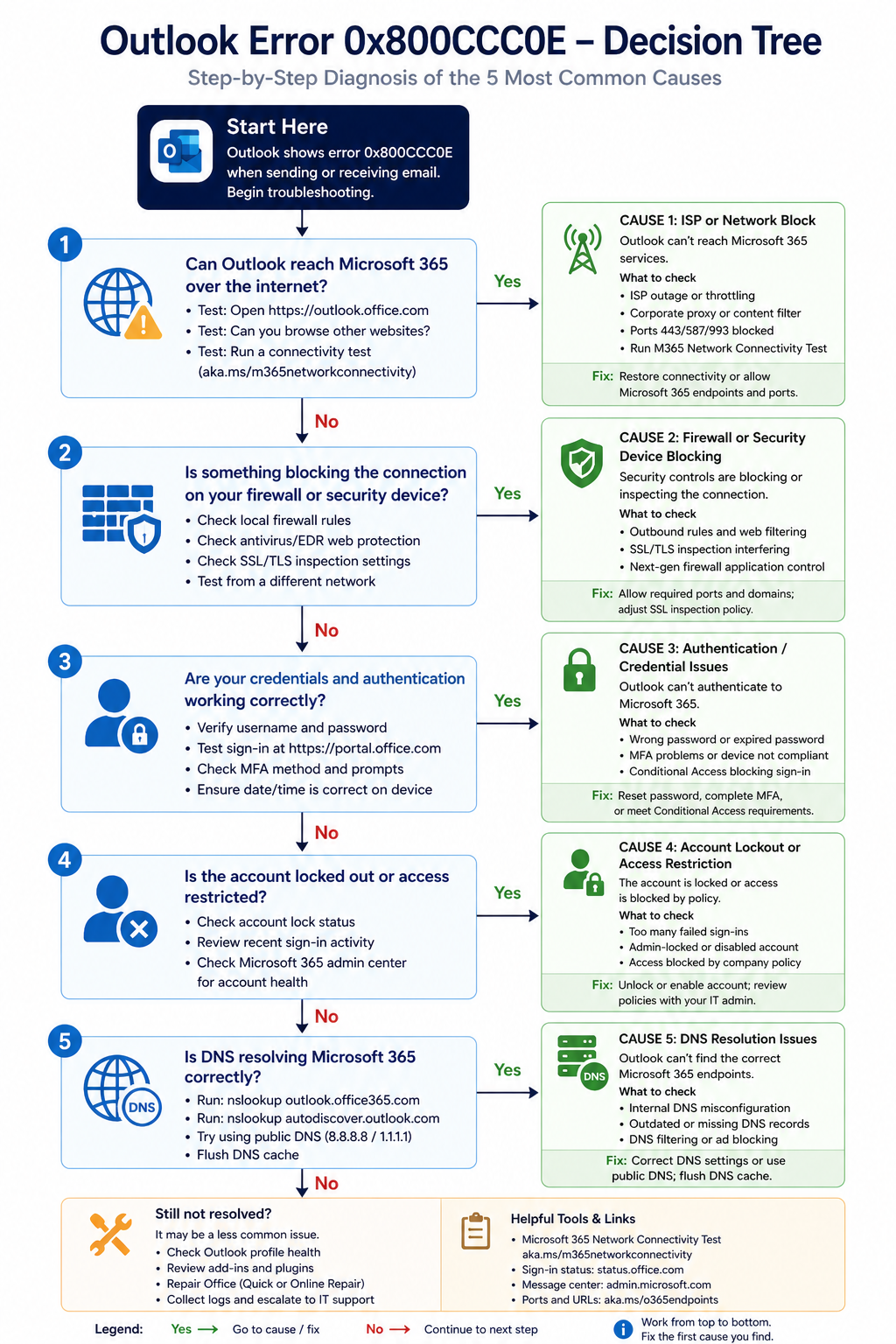
The five causes, ranked
Cause one, ISP blocking outbound port 25, around 30 percent of cases
Many residential and small business ISPs (Telus, Shaw, Bell, others) block outbound TCP 25 to prevent spam from compromised home computers. If a user is configuring SMTP on port 25 from a home or small office, the connection fails and Outlook reports 0x800CCC0E.
Fix by switching to SMTP submission port 587 with TLS, which is what Microsoft 365 expects anyway. Modern Outlook with M365 uses HTTPS exclusively and does not hit this issue, but legacy POP/SMTP configurations do.
Cause two, local firewall or security software blocking, around 25 percent of cases
Windows Defender Firewall, third-party antivirus, or a corporate security suite is blocking Outlook’s outbound traffic. Often happens after a security software update or a Windows update that changed default firewall rules.
Verify by temporarily disabling the firewall (only for the test, do not leave it off) and retrying Outlook. If it works, configure an explicit allow rule for outlook.exe and re-enable.
Cause three, authentication issue surfacing as connection error, around 20 percent of cases
The Outlook profile has stale credentials, the account is locked due to repeated failed logins, or MFA is required but the profile has not been updated to use modern authentication. Outlook surfaces this as 0x800CCC0E because it cannot complete the negotiation.
Verify by signing into the M365 web portal at outlook.office.com with the same credentials. If that works but Outlook does not, recreate the Outlook profile (not delete and recreate the account, just the profile entry in Mail control panel). If web sign-in also fails, check the user’s account status in the M365 admin center.
Cause four, DNS resolution failure, around 15 percent of cases
Outlook cannot resolve outlook.office365.com or smtp.office365.com to an IP address. Often happens when the user is on a VPN with split DNS, or when the local DNS server is misconfigured.
Verify with nslookup outlook.office365.com from a command prompt. If it fails, fix DNS first. If it works, look elsewhere.
Cause five, corrupt Outlook profile, around 10 percent of cases
The Outlook profile has internal corruption that prevents the connection from establishing. The user typically tried clearing the profile already and the issue returned.
Verify by creating a new Windows user profile and configuring Outlook there. If it works in the new profile, the original profile is corrupt. Migrate user data and switch.
What the official documentation does not mention
Microsoft’s article points at SMTP port and authentication. It does not mention that 0x800CCC0E shows up after a Windows feature update if Defender Firewall settings get reset. After major Windows updates, audit firewall rules for Outlook explicitly. Also, modern Outlook with M365 does not use SMTP/POP/IMAP at all in default configurations, it uses MAPI/HTTP over 443. If a user is hitting 0x800CCC0E with M365, check whether they accidentally configured POP/IMAP instead of Exchange or Office 365 type when adding the account.
The architectural fix
For organizations, three controls eliminate most 0x800CCC0E incidents. First, standardize on M365 Exchange Online connections (port 443, modern auth) rather than POP/IMAP/SMTP. Second, deploy Outlook profiles via configuration management with explicit firewall rules. Third, monitor account lockout events centrally so the helpdesk knows about authentication issues before users complain.
FAQ
Will reinstalling Outlook fix this?
Sometimes, but only for the corrupt-profile case. If the issue is firewall, ISP, or DNS, reinstalling Outlook does nothing.
Does this affect both Outlook desktop and Outlook mobile?
0x800CCC0E is a desktop Outlook error code. Outlook mobile uses a different protocol and surfaces different error messages.
Is this the same as 0x800CCC0F?
No. 0x800CCC0F means the connection was established but interrupted, while 0x800CCC0E means the connection never established. Different fixes.
Related posts
- Office 365 Error 5.7.708
- Active Directory Replication Error 8606
- Hidden Risks of Co-Managed Microsoft 365
Email problems that keep coming back
If your organization sees 0x800CCC0E or related Outlook errors more than rarely, the underlying issue is usually configuration drift across user devices. Tell us about your environment and we will help you standardize so this stops happening.
Last verified April 2026 by the aaanetworkx Microsoft 365 practice.
You sent a perfectly normal email to a customer on Microsoft 365 and it bounced back with this delightful message. “Service unavailable, Client blocked from sending from unregistered domains. 5.7.708.” If you are reading this, your team probably cannot send to anyone hosted in Microsoft 365 right now, which depending on your industry might mean nobody.
Take a breath. This one is fixable, usually within a couple of hours, but the path is not obvious if you have never walked it before.
Here is what is happening. Microsoft has decided that the public IP address your mail is leaving from looks suspicious. That can happen for legitimate reasons (your firewall vendor changed something, your hosting provider reassigned the IP, your domain has not built reputation yet) or for less legitimate reasons (a compromised account on your network started sending spam through the same egress IP). Either way, the symptom is identical and the unblock procedure is the same.
What 5.7.708 actually means
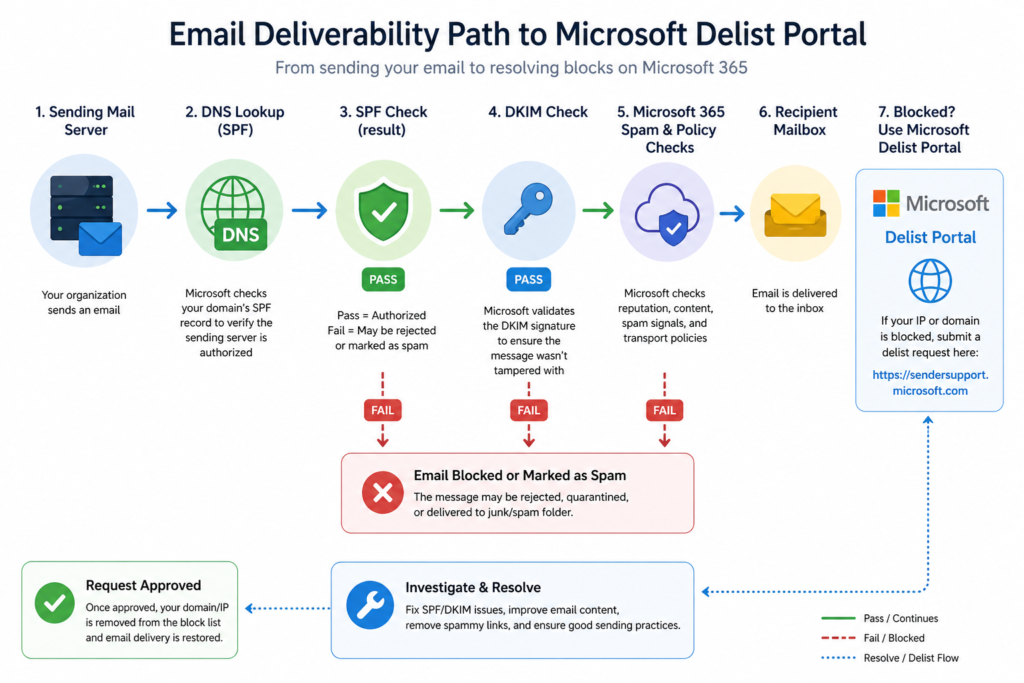
The Exchange Online inbound mail filter assigns a reputation score to every IP address that connects to it. When that score crosses a threshold for any of several reasons, including unauthenticated sending, low domain age, or a sudden volume spike, the IP gets placed on what Microsoft calls the high risk delivery pool, and any mail coming from it receives a 5.7.708 rejection at the SMTP layer.
The bounce includes the offending IP in the diagnostic information. Find it in the original headers of the non delivery report. That IP is the one you need to unblock, and it is almost always your firewall’s public address, not the address of your internal mail server.
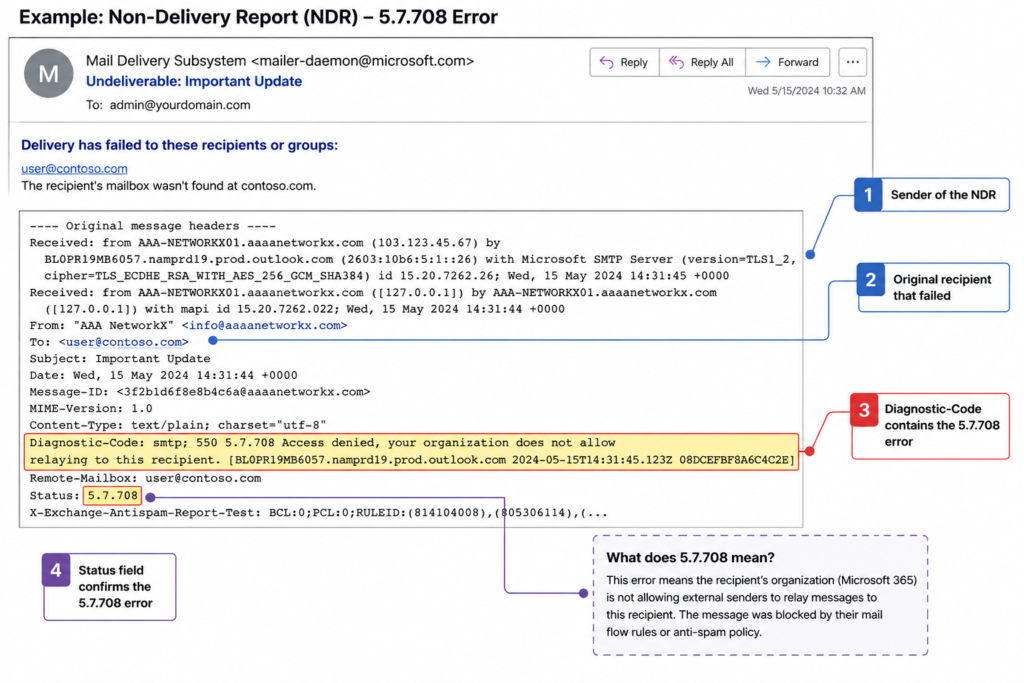
Verified against Microsoft Learn documentation for Exchange Online Protection error codes, accessed April 2026.
The three things that cause it, in order of how often we see them
Cause one, an account on your network was compromised, around 60 percent of cases
This is the most common trigger and the one people least want to hear. A user clicked a phishing link last week, an attacker is now sending pharmacy spam through Outlook on the web, and Microsoft noticed before you did. Before you do anything else, audit recent sign ins in the Microsoft 365 security portal for impossible travel and unusual sending volume. If you find the compromised account, reset the password, revoke all sessions, and check inbox rules for hidden forwarders.
Cause two, your SPF or DKIM is broken or missing, around 25 percent of cases
If your sending domain does not publish a valid SPF record that includes your egress IP, or your DKIM signature is failing, Microsoft has no way to verify that your mail is legitimate. Run your domain through any free SPF and DKIM checker. Fix the records. Wait for DNS to propagate. The block usually clears within a few hours after authentication starts passing.
Cause three, a new IP with no sending history, around 15 percent of cases
This hits companies that just moved to a new firewall, a new hosting provider, or a new SMTP relay. The IP has zero reputation, Microsoft is conservative by default, and your mail gets blocked until you build a track record. The fix here is the formal delist request, covered in the next section.
How to unblock the IP
Go to the Microsoft Smart Network Data Services delist portal. The URL is sender.office.com. Submit your IP address along with a working email contact for verification. Microsoft sends a confirmation email, you click the link, and a human reviews the request. Resolution times we have seen recently range from forty five minutes to about six hours. If the request is rejected, the rejection email tells you what authentication or reputation issue still needs to be fixed first.
While you wait, do not switch to a different egress IP just to get mail flowing. That new IP will get blocked too within a day if the underlying cause is a compromised account. Fix the cause first.
What the official documentation does not mention
Microsoft’s article tells you to use the delist portal. It does not mention that submissions from a free email address (gmail, outlook personal) are deprioritized in the review queue. Use a contact at your own domain or, better, at a domain you host elsewhere. It also does not mention that if your sending domain was recently registered (under thirty days), the delist will likely fail until the domain ages a bit. Patience, in that case, is the only fix.
The architectural fix that stops this from recurring
If you have hit 5.7.708 more than once, the underlying problem is that your egress mail flow has no monitoring on it. The teams that never see this error are the ones who do three things. They lock outbound port 25 to only the addresses of their authorized mail servers. They monitor outbound mail volume per user with an alert at three times the rolling average. And they enforce multifactor authentication on every account that has any mail send permission, including service accounts.
When to escalate
Open a Microsoft support case if the delist portal rejects your request three times in a row with no clear reason, or if the block returns within twenty four hours of being lifted despite no compromise indicators. Bring the bounce headers, the SPF and DKIM check results, and the timestamps of any recent network changes.
FAQ
How long does the Microsoft delist portal take?
Most submissions clear within four hours during business hours in Pacific time. Submissions outside that window may take longer.
Can I get added to an allow list to prevent this in future?
No. Microsoft does not maintain a permanent allow list for sending IPs. Reputation is recalculated continuously.
Will my queued mail deliver after the unblock?
Yes, your sending mail server will retry queued messages on its normal schedule and they will go through once the IP is removed from the high risk pool.
When the bounces will not stop
If your team is fighting this every few months, we should talk. Our managed messaging practice handles outbound mail hygiene for organizations that cannot afford a single hour of mail downtime. See how we keep your senders out of the high risk pool.
Last verified April 2026 by the aaanetworkx messaging practice.
If you opened the Synchronization Service Manager this morning and saw a long list of red entries with the code 8344 next to your Active Directory connector, you are in the right place. We see this one almost every week across customer environments, and the official Microsoft article only tells half the story.
Here is the short version before you scroll. Sync error 8344 in Azure AD Connect (now branded Microsoft Entra Connect Sync) means the service account used to read or write into your on premises Active Directory does not have the rights it needs for that specific object. Most of the time it is a permission that got removed by a tightening of OU level ACLs, not a bug in the connector itself. The fix is to restore the inheritance or the explicit right on the affected OU, then trigger a delta sync.
That said, our NOC sees four very different root causes hiding under the same error number, and one of them only started appearing after the Entra Connect rebrand last year. So please do not stop at “grant write permissions and move on.” Read through the verified causes below.
What this error actually means
Error 8344 surfaces when the AD DS connector account inside Azure AD Connect attempts an operation against a directory object and the operation is rejected with the LDAP code insufficientAccessRights. The connector logs it as a synchronization failure on the specific object, not as a connector wide failure, which is why the rest of your sync still appears to work.
You will see it in three places. The Synchronization Service Manager shows the run profile result with a count of 8344 errors. The Windows Application event log on your sync server records event ID 6803 with the same description. And inside the Microsoft Entra admin center under Health and Sync errors, you will see the affected user or group flagged with a permission related warning.
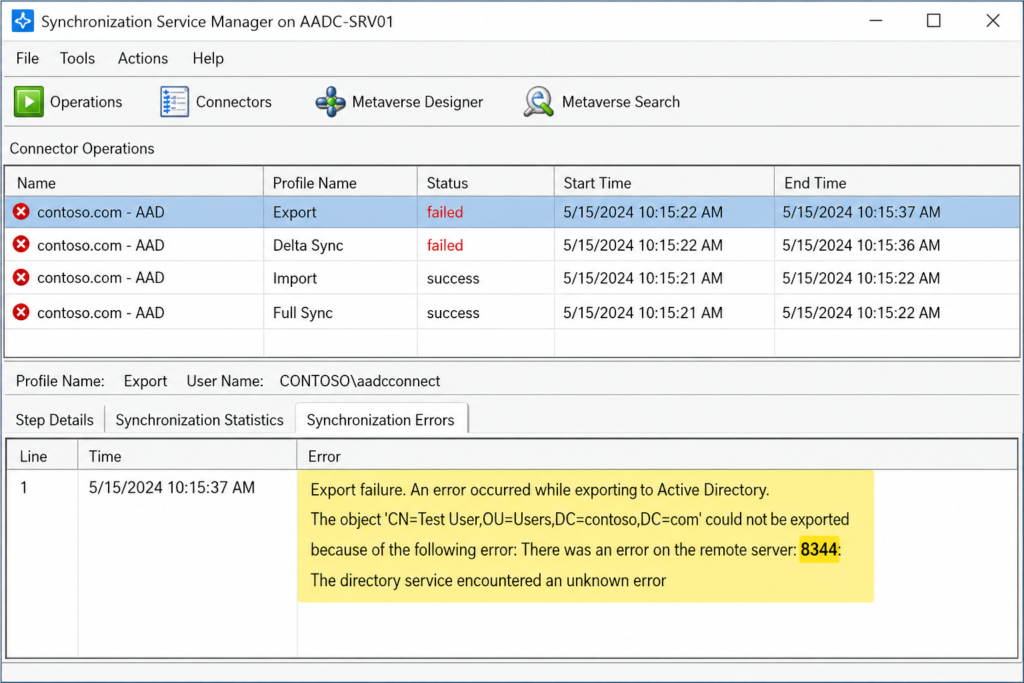
Verified against Microsoft Learn documentation for Microsoft Entra Connect Sync, accessed April 2026.
The four causes we actually see, ranked by frequency
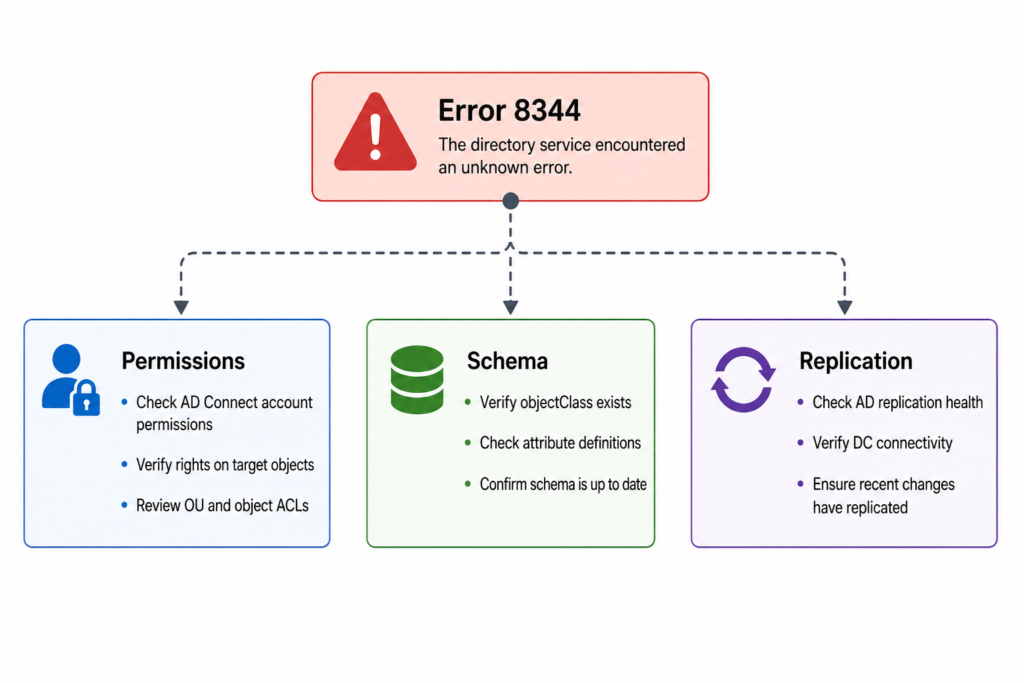
Cause one, removed inheritance on a target OU, roughly 55 percent of cases
Someone in the AD team tightened security on a sensitive OU (often Finance or Executives) and disabled inheritance without re adding the AD DS connector account to the explicit ACL. Confirm by opening Active Directory Users and Computers, enabling Advanced Features, and checking the Security tab on the OU. The MSOL_xxxxxxxxx account or the custom service account configured during installation should appear with at least Read all properties. If it does not, that is your culprit. Re add it, then run a delta import followed by a delta sync.
Cause two, password write back failing on protected groups, about 20 percent of cases
When self service password reset writes a new password back to AD, the connector needs Reset Password and Write lockoutTime rights. AdminSDHolder strips these from members of protected groups every hour. The fix is not to grant the permission directly on the user. The fix is to grant it on the AdminSDHolder container itself so the SDProp process preserves it.
Cause three, hybrid Exchange attribute writeback rejected, about 15 percent of cases
If you run Exchange hybrid, the connector writes attributes like proxyAddresses back into AD. A hardened schema or a third party identity governance tool can block this. Check the event log for the specific attribute that failed. The fix lives in the Exchange hybrid configuration, not in Azure AD Connect.
Cause four, the new Cloud Sync agent installed alongside legacy Connect, about 10 percent of cases and rising
This one is recent. After the rebrand to Entra Connect Sync in 2025, several customers ended up with both the classic agent and the new lightweight Cloud Sync agent active for overlapping OUs. The two race for write access and one of them loses with an 8344. If you see the error appear suddenly without any AD changes, this is almost always the cause. Disable one of the two for the affected scope.
What the official documentation does not mention
The Microsoft article tells you to check permissions. It does not tell you that the Enterprise Admins group is not always sufficient on child domains in a multi domain forest, because the connector account may need explicit delegation on each domain separately. It also does not warn you that running the Azure AD Connect wizard to “repair permissions” can overwrite custom delegation you set deliberately. Run that wizard with caution.
The architectural fix
If 8344 keeps reappearing, the underlying issue is not permissions. It is that your AD permission model and your sync service are owned by two different teams who do not talk to each other. The teams that never see this error twice are the ones who add the AD DS connector account to a documented baseline ACL applied to every OU through a Group Policy or DSACLS script. Pair that with a weekly automated check that runs the Azure AD Connect health diagnostic and emails the result.
Curious what a permission baseline would look like in your forest, we publish the exact script we deploy on managed identity engagements. Drop us a note and we will send it over.
When to escalate
Open a ticket with Microsoft if the same object fails 8344 after you have verified permissions on every OU in the object’s path, the AdminSDHolder container, and the schema. Bring the directory replication health report and the latest run profile XML when you do.
FAQ
Is sync error 8344 service affecting?
Only for the specific user or group named in the error. The rest of your tenant continues to sync normally, which is why this error often goes unnoticed for weeks until a help desk ticket arrives.
Will it clear on its own?
No. The connector retries the same object on every sync cycle and fails the same way until a human intervenes.
Has the fix changed in the new Entra Connect Sync release?
The underlying fix is identical. The diagnostic location moved from the legacy portal to the Entra admin center, and the run history view now groups errors by object rather than by run.
Need eyes on it now
If you have hit 8344 more than once this quarter, the issue is not the error, it is the absence of a feedback loop catching permission drift before it cascades. Our managed identity team monitors hybrid AD environments around the clock and resolves these before they reach your help desk. Book a fifteen minute walkthrough of how we would set this up in your environment.
Last verified April 2026 by the aaanetworkx identity practice.