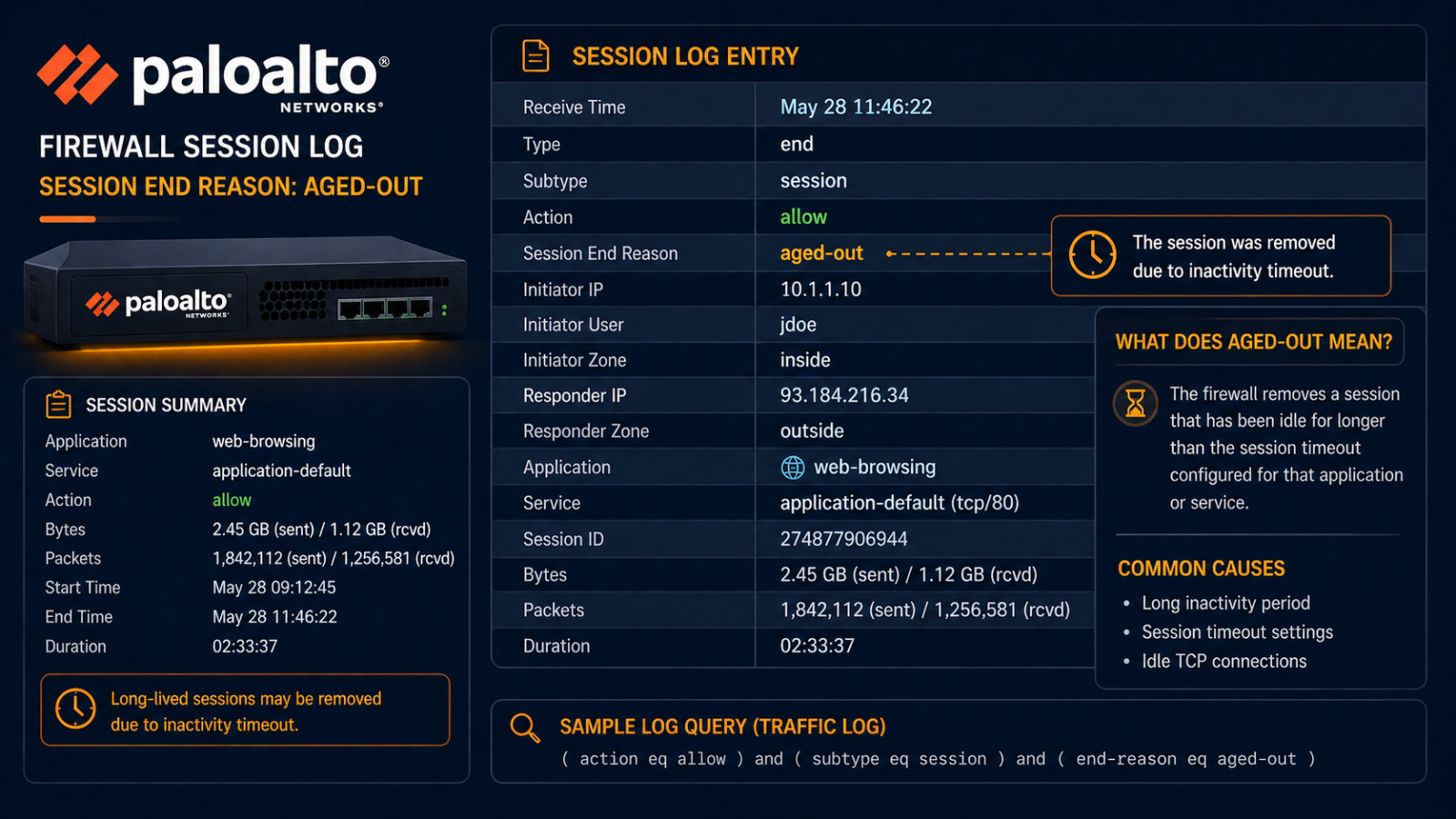
Palo Alto session end aged-out means a session was closed by an idle timeout, but rarely the timeout you think is firing.
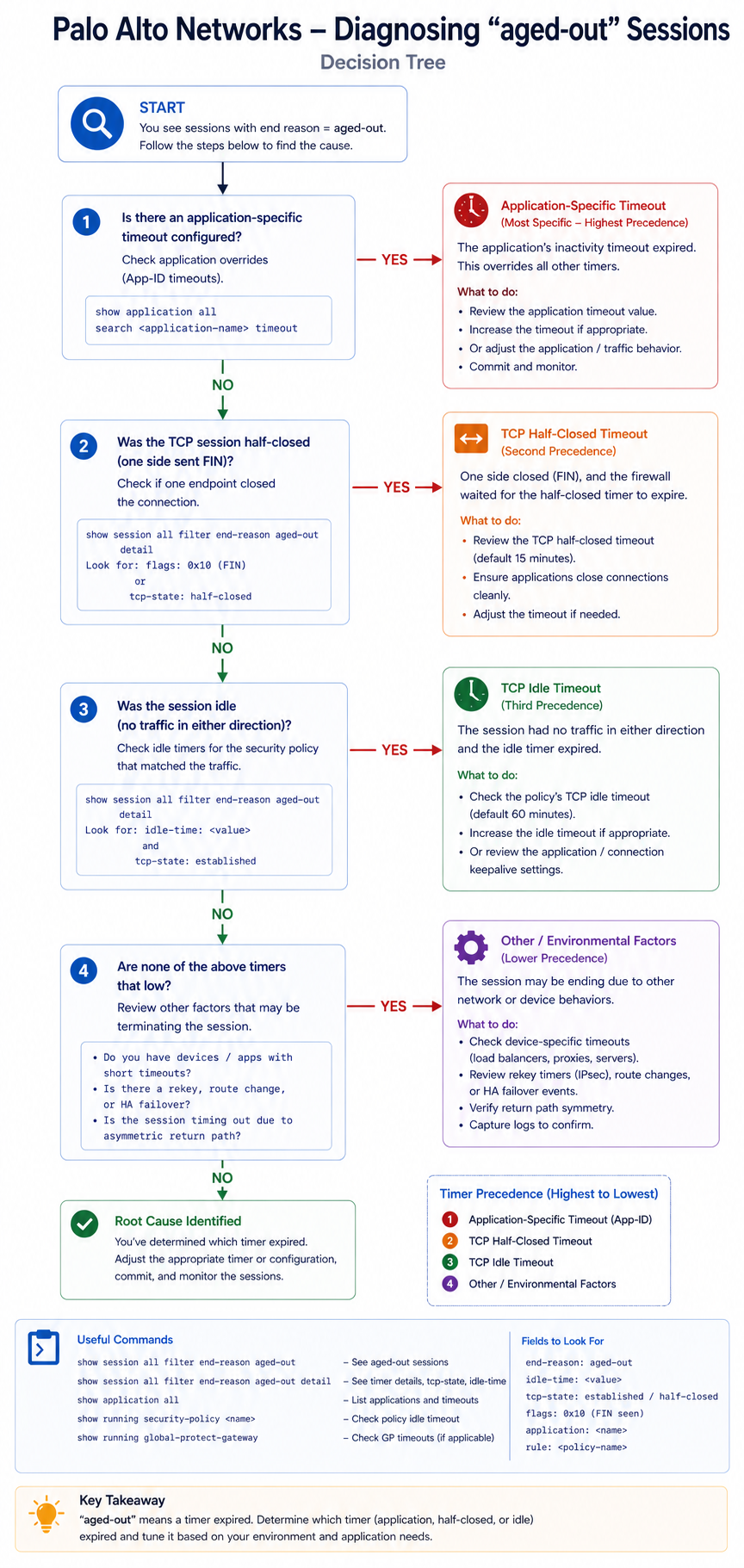
Your Palo Alto firewall is logging session end reason aged-out for sessions that should be staying up. Users complain that long running sessions to specific applications keep dropping. This post walks through the four real causes of aged-out sessions on Palo Alto, ranked by frequency, and the configuration changes that fix each.
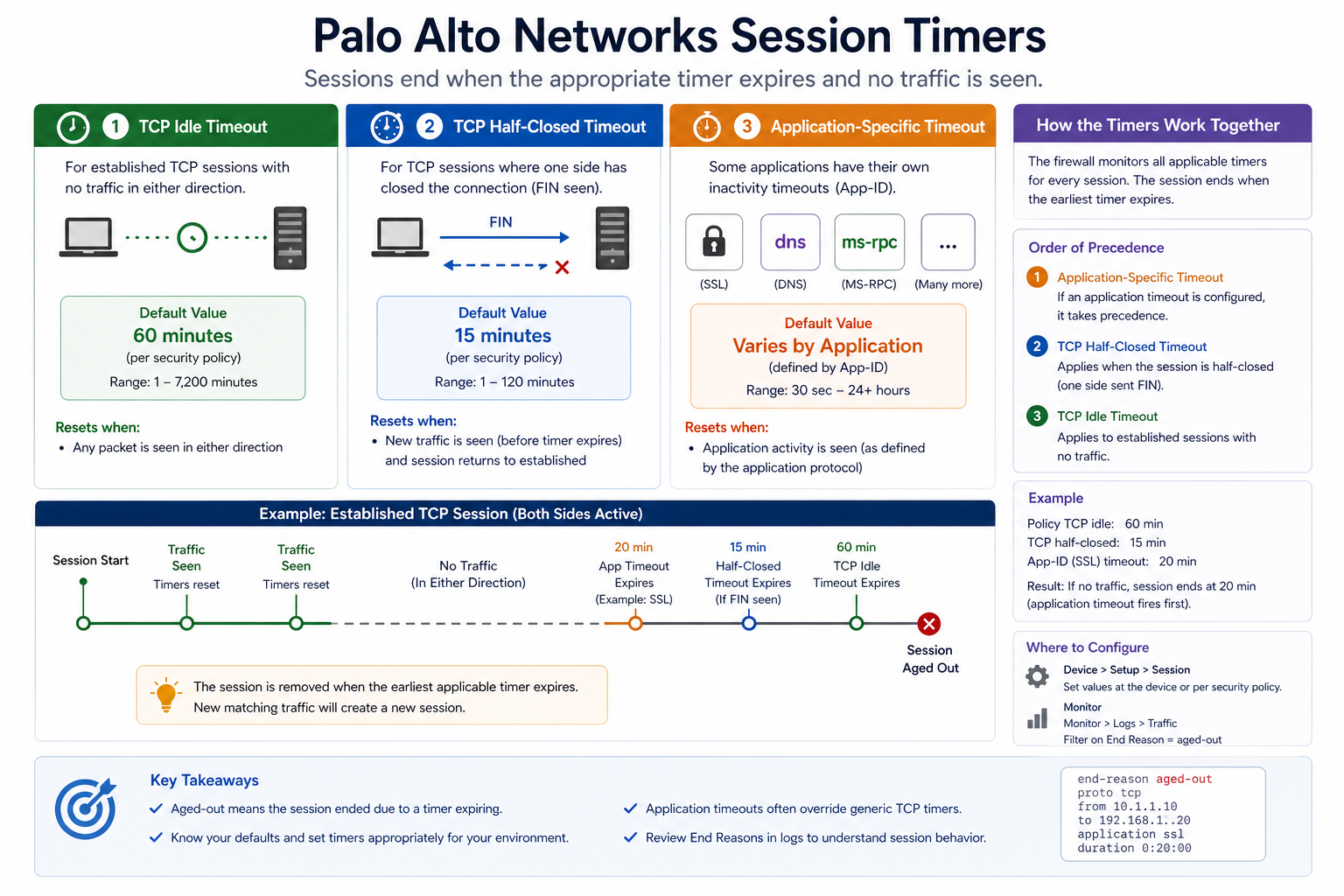
The short version. Aged-out means the session was closed because no traffic crossed it within the configured idle timeout. Default TCP idle timeout on Palo Alto is 3600 seconds (one hour). Many enterprise applications keep sessions logically open without sending data for longer than that, especially older ERP, terminal server, and database systems. The fix is rarely raising the global TCP timeout, which is too blunt. The fix is application-specific timeout overrides that only affect the relevant traffic, without weakening the firewall’s session table behavior overall.
What this end reason means
Palo Alto’s session table tracks every connection through the firewall. Each session has a timer, and when the timer expires without traffic, the session is removed and logged with end reason aged-out. The default timers are intentionally aggressive to keep the session table from filling up with stale connections. Specific applications need different timer values to match how they actually behave, and Palo Alto provides per-application override mechanisms for exactly this purpose.
You will see this in Monitor → Logs → Traffic, where each session log includes the end reason field. Filter for “session-end-reason eq aged-out” to find affected sessions. The application field on the log tells you which app is most affected, which guides the explicit application override.
Verified against current PAN-OS 11.x documentation, accessed April 2026.
The four causes, ranked
Cause one, application keep-alive interval longer than firewall timeout, around 50 percent
The application sends keep-alive packets every 90 minutes (or has no keep-alive at all and relies on user activity), but the firewall idle timeout is 60 minutes. The session ages out between keep-alives.
Verify by checking the application’s documentation or capturing traffic to see actual keep-alive intervals. Fix by setting an application-specific timeout in Objects → Applications → [app] → Timeout that exceeds the keep-alive interval.
Cause two, asymmetric routing causing missed packets, around 25 percent
The session is active on both ends, but return packets take a different path that does not go through the firewall. From the firewall’s perspective, the session is idle, so it ages out.
Verify by tracing the routing on both sides. Fix by either making the routing symmetric or, as a workaround, configuring zone protection profiles that allow asymmetric flow handling. Asymmetric routing should be fixed at the routing layer, not worked around on the firewall.
Cause three, NAT hairpin or out-of-state packets, around 15 percent
Internal client connects to a public IP that NATs back to an internal server through the firewall. The session state gets confused and times out unexpectedly.
Verify by checking session detail and confirming the packet flow. Fix by routing internal-to-internal traffic directly without going through the firewall, or by configuring U-turn NAT correctly.
Cause four, intentional, working as designed, around 10 percent
The session legitimately went idle for an hour and the firewall correctly aged it out. The user reconnects and it works again. This is normal behavior and only worth investigating if it is causing user pain.
Verify by asking the user about their workflow. If a one hour idle is normal in their business, no fix needed. If they expected the session to stay up, address with one of the other three causes.
What the official documentation does not mention
Palo Alto’s docs cover application timeout configuration but rarely emphasize that raising the global TCP idle timeout is almost always the wrong fix. It works in the short term but enlarges the session table, increases memory pressure on the firewall, and weakens stateful protection. Always prefer application-specific overrides, and if you find yourself raising the global timeout, ask why. There is almost always a better targeted fix.
The architectural fix
Firewalls that rarely produce user pain from aged-out sessions share three traits. First, applications with known long-lived behavior (ERP, terminal server, legacy DB protocols) have explicit application timeout overrides documented and applied. Second, asymmetric routing is fixed at the routing layer rather than worked around on the firewall. Third, monitoring tracks session table utilization and average session age so capacity issues are caught before they cause dropouts. Skip these and aged-out sessions become a recurring helpdesk theme.
FAQ
Should I raise the global TCP timeout?
Almost never. Use application-specific overrides instead. Raising the global timeout enlarges the session table and weakens protection.
Is aged-out the same as discard or unknown?
No. Discard means policy denied the session. Aged-out means the session was active but timed out. Unknown means the firewall could not classify the application. Different causes, different fixes.
Will enabling application keep-alive on the client help?
Sometimes, yes. If the client OS supports configurable TCP keep-alive intervals, lowering them below the firewall idle timeout works. But this is a per-OS or per-application setting and may not be controllable centrally.
Related posts
Sessions dropping during business hours
Recurring aged-out issues for specific applications mean the firewall is not aligned to the application behavior. Our team can audit your firewall configuration against your actual application portfolio. Tell us about the application and we will help you tune correctly.
Last verified April 2026 by the aaanetworkx security practice.