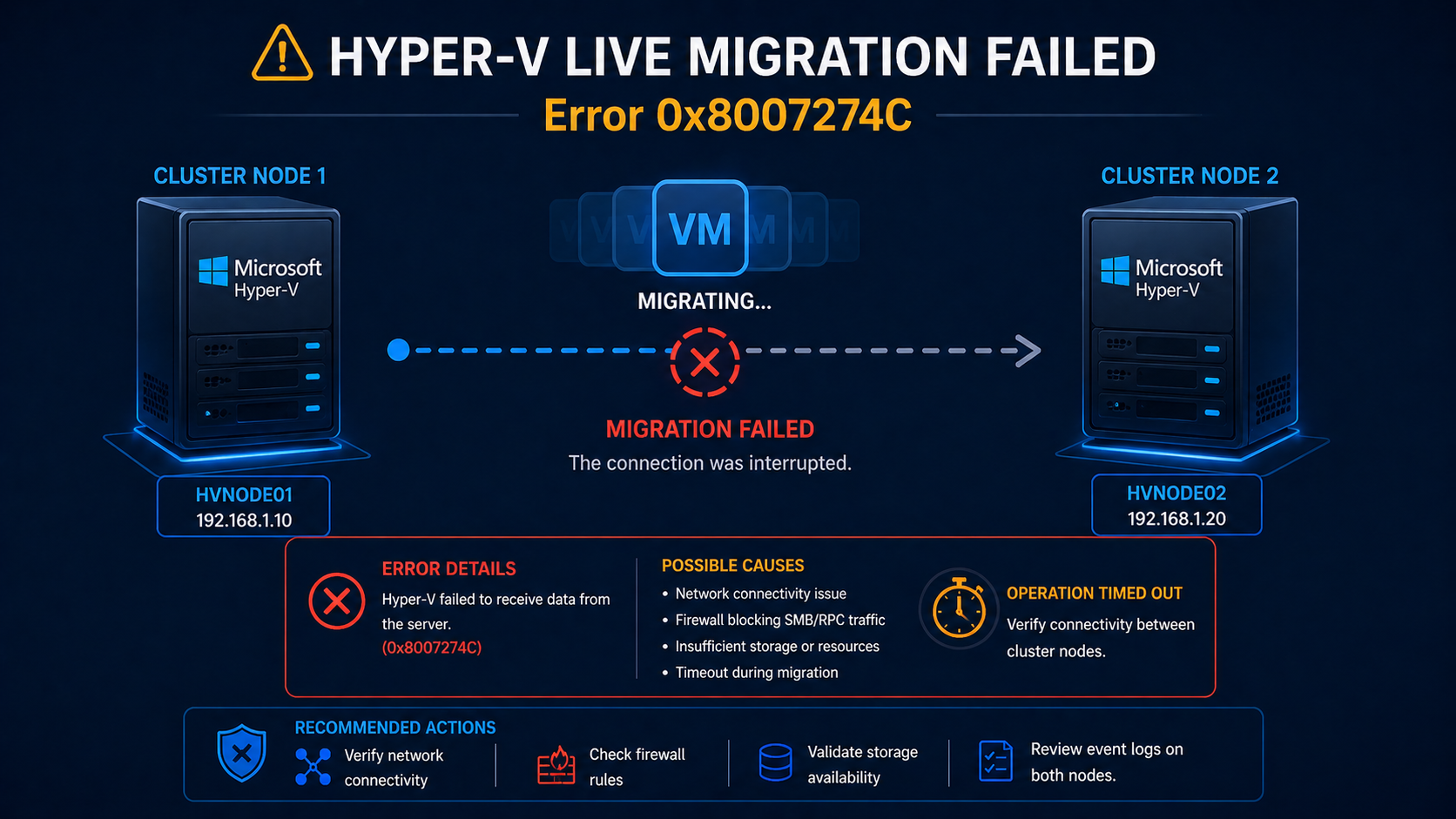
Hyper-V live migration error 0x8007274C means the network connection between cluster nodes timed out during the transfer.
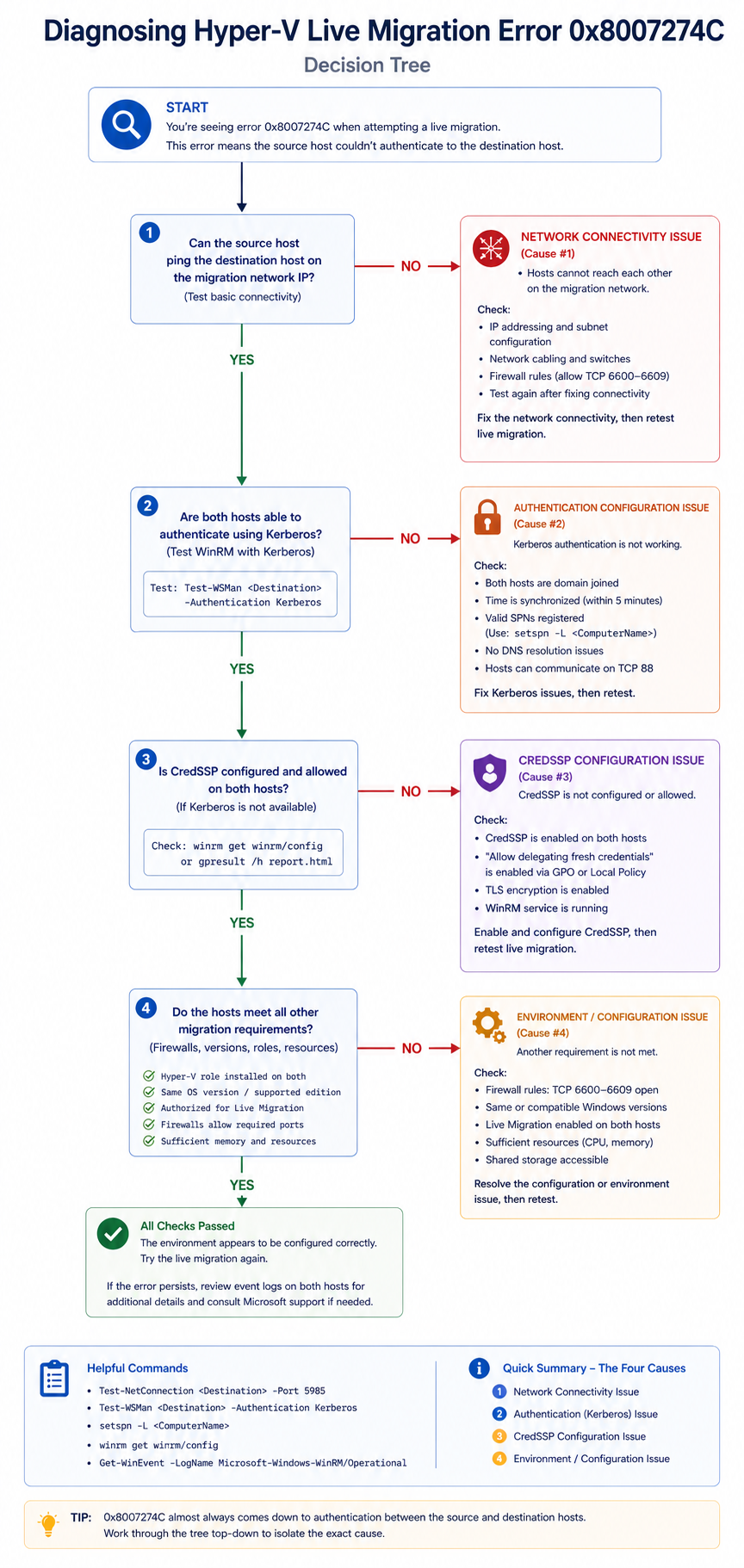
You initiated a Hyper-V live migration in Failover Cluster Manager and got back error 0x8007274C, which translates to “the network connection timed out.” The VM is still running on the source host, but the migration aborted. This post walks through the four real causes of this error ranked by frequency and the verified fix.
The short version. 0x8007274C is a TCP-level connection timeout that surfaces during live migration when source and destination hosts cannot complete the handshake required to start memory transfer. About 40 percent of cases are dedicated migration network configuration issues. Another 30 percent are authentication delegation, specifically Kerberos constrained delegation. The remaining 30 percent split across CPU compatibility (less common at this error code, but possible) and antivirus or third-party agent interference.
The fastest diagnostic is to check the migration network on both hosts and confirm authentication mode matches what is configured at the cluster level. Most “0x8007274C” issues fall out from those two checks, before chasing the deeper timeout issues.
What this error means
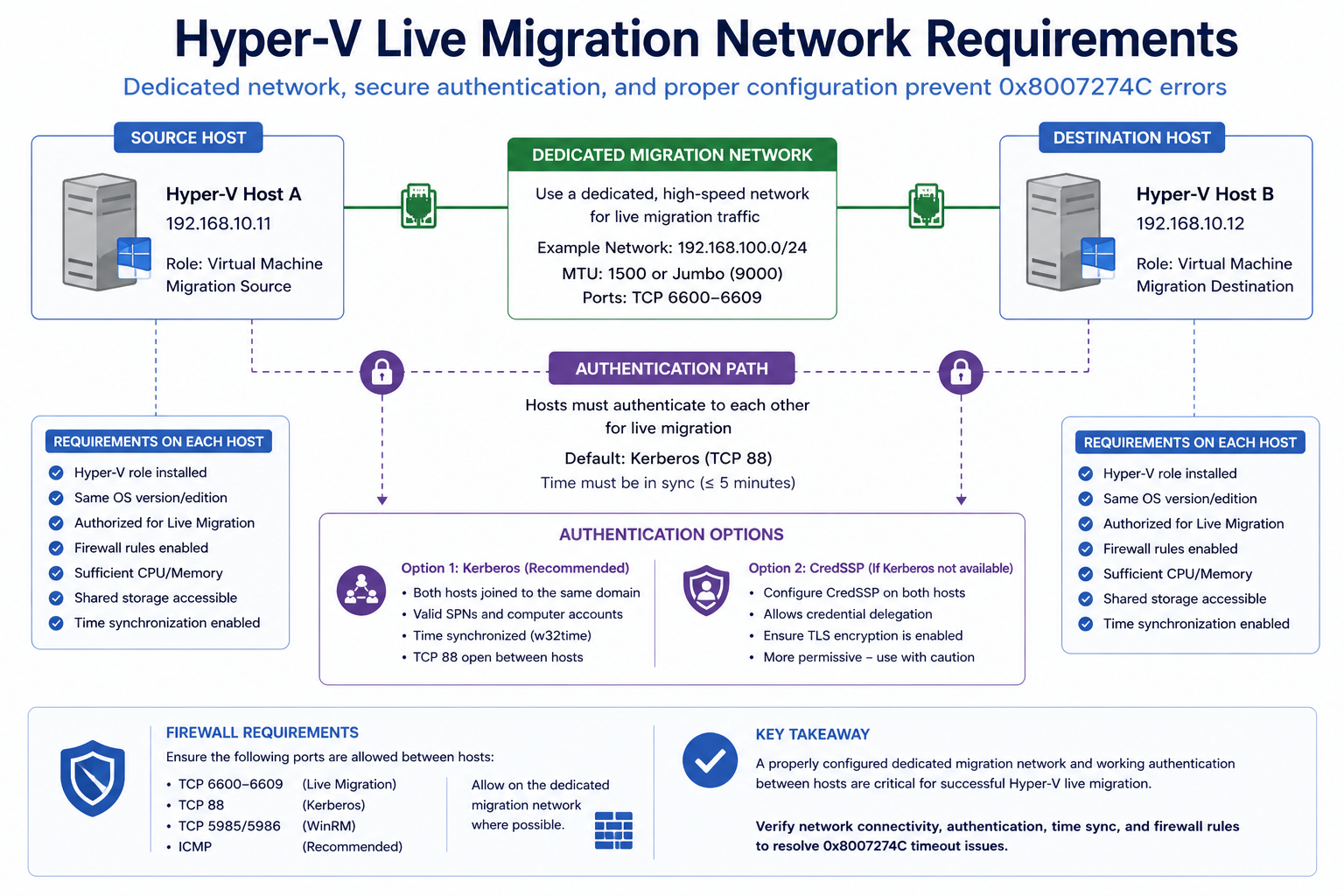
Live migration requires the source and destination hosts to authenticate, establish a TCP connection on the live migration network, and begin transferring memory state. If any step fails or times out, Windows surfaces 0x8007274C. The error is generic about which step actually failed, which is why diagnosis requires checking the event logs on both hosts to find the specific phase that hit the timeout.
Verified against current Microsoft Hyper-V and Failover Cluster documentation, accessed April 2026.
The four causes, ranked
Cause one, dedicated migration network misconfiguration, around 40 percent
Live migration is configured to use a specific network, but on one of the hosts that network is not configured, the IP is on the wrong subnet, or the network has lost its association with the live migration role.
Verify in Hyper-V Manager → Hyper-V Settings → Live Migrations on each host. Confirm the configured networks are present and reachable on both sides. Test connectivity with Test-NetConnection [destination IP] -Port 6600 from PowerShell, since 6600 is the default Hyper-V live migration port.
Cause two, Kerberos delegation incomplete, around 30 percent
If live migration is configured to use Kerberos (recommended over CredSSP for non-interactive sessions), constrained delegation must be set up correctly in Active Directory for each host computer object. Missing delegation entries cause authentication failures that surface as 0x8007274C.
Verify in AD Users and Computers → host computer object → Delegation tab. Confirm “Trust this computer for delegation to specified services only” is set, and that cifs and Microsoft Virtual System Migration Service entries exist for the other Hyper-V hosts in the cluster.
Cause three, antivirus or agent interference, around 15 percent
Endpoint security software on either host is interfering with the live migration TCP connection or the VM file handles being accessed during migration.
Verify by temporarily excluding Hyper-V file paths and processes from the AV (Microsoft has a specific exclusion list documented). If migration succeeds with exclusions, configure them permanently.
Cause four, CPU compatibility or processor flag mismatch, around 15 percent
Less common at 0x8007274C specifically, but possible. The VM has CPU features enabled that the destination cannot provide. Live migration’s compatibility check fails and the connection times out during negotiation.
Verify by checking the VM’s processor compatibility setting and the destination host’s CPU. Enable processor compatibility on the VM if migrating between different CPU generations.
What the official documentation does not mention
Microsoft’s troubleshooting articles cover delegation and network but rarely emphasize that 0x8007274C can also surface from time skew between hosts. If the cluster nodes are out of time sync by more than a few minutes, Kerberos authentication fails silently and the symptom looks like a network timeout. Always check w32tm /monitor as part of the diagnostic, even though the docs do not mention it.
The architectural fix
Hyper-V clusters that rarely see live migration errors share four practices. They use a dedicated, redundant migration network with consistent IP addressing across all nodes. They configure Kerberos constrained delegation as part of cluster onboarding, not after the fact. They document AV exclusions for Hyper-V and apply them via Group Policy. They synchronize time strictly via the PDC emulator. Skip any and live migration becomes unreliable, especially during emergency evacuations.
FAQ
Will the VM be affected?
No. Live migration aborts safely. The VM continues on the source host.
Can I switch to CredSSP to bypass Kerberos issues?
Technically yes, but CredSSP requires interactive sessions and is less secure. Fix the Kerberos delegation instead. CredSSP is a workaround, not a fix.
Is this related to Storage Migration?
Storage Migration is a separate operation but uses similar authentication. The same Kerberos delegation issues can surface there with different error codes.
Related posts
Hyper-V cluster issues during a migration window
Migration windows have time pressure. Tell us the symptom and we will help you isolate quickly.
Last verified April 2026 by the aaanetworkx virtualization practice.
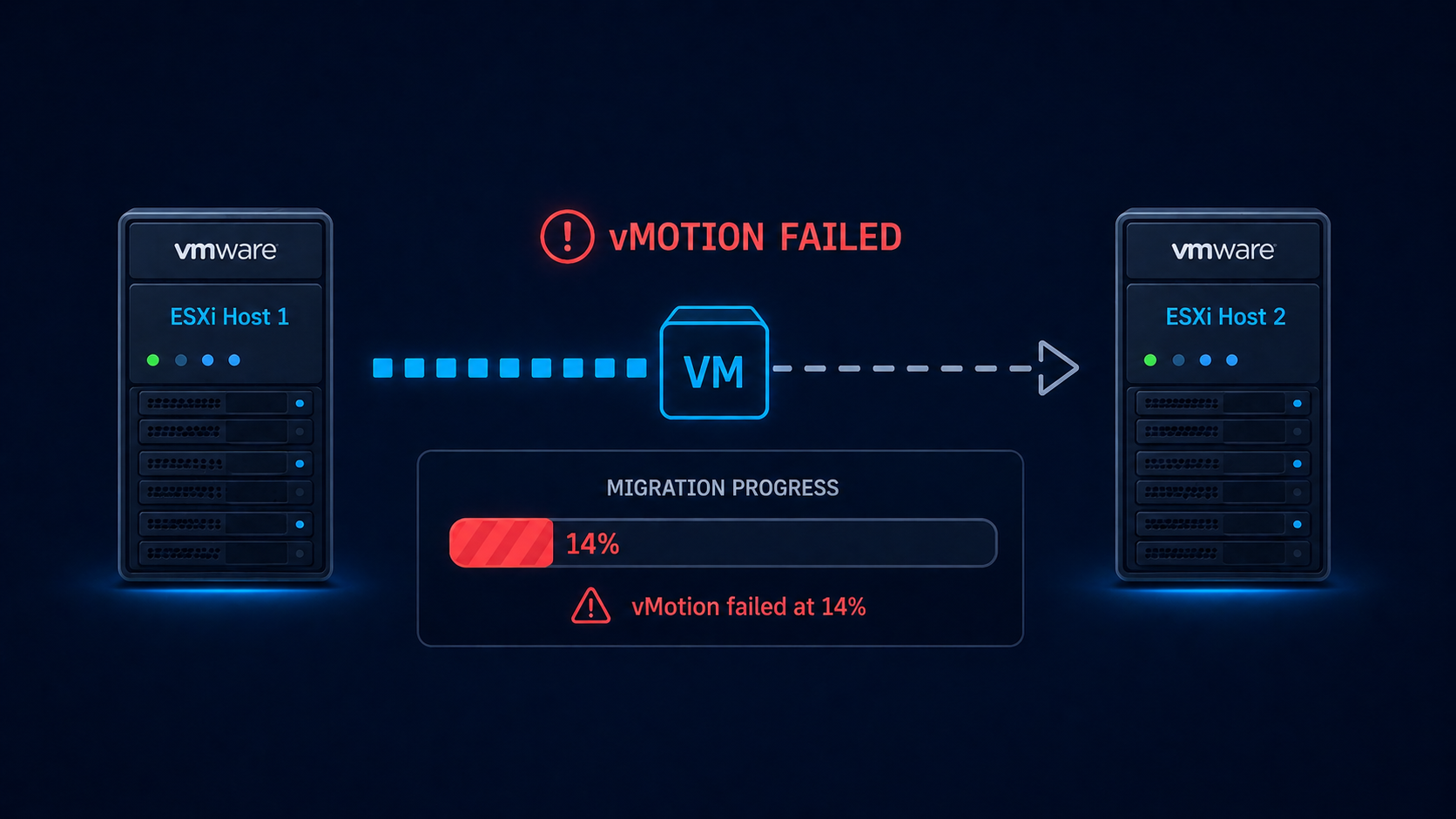
vMotion failed at 14 percent almost always points to a misconfiguration on the vMotion VLAN, and four specific causes account for nearly all cases.
You initiated a vMotion in vCenter, watched the progress bar climb, and then it stopped at 14 percent. The migration failed and rolled back. The VM is still running on the source host, which is good, but you need to know why before retrying or kicking off the broader maintenance plan. This post walks through the four real causes of vMotion failing at 14 percent, ranked by what we see, and the verified fix.
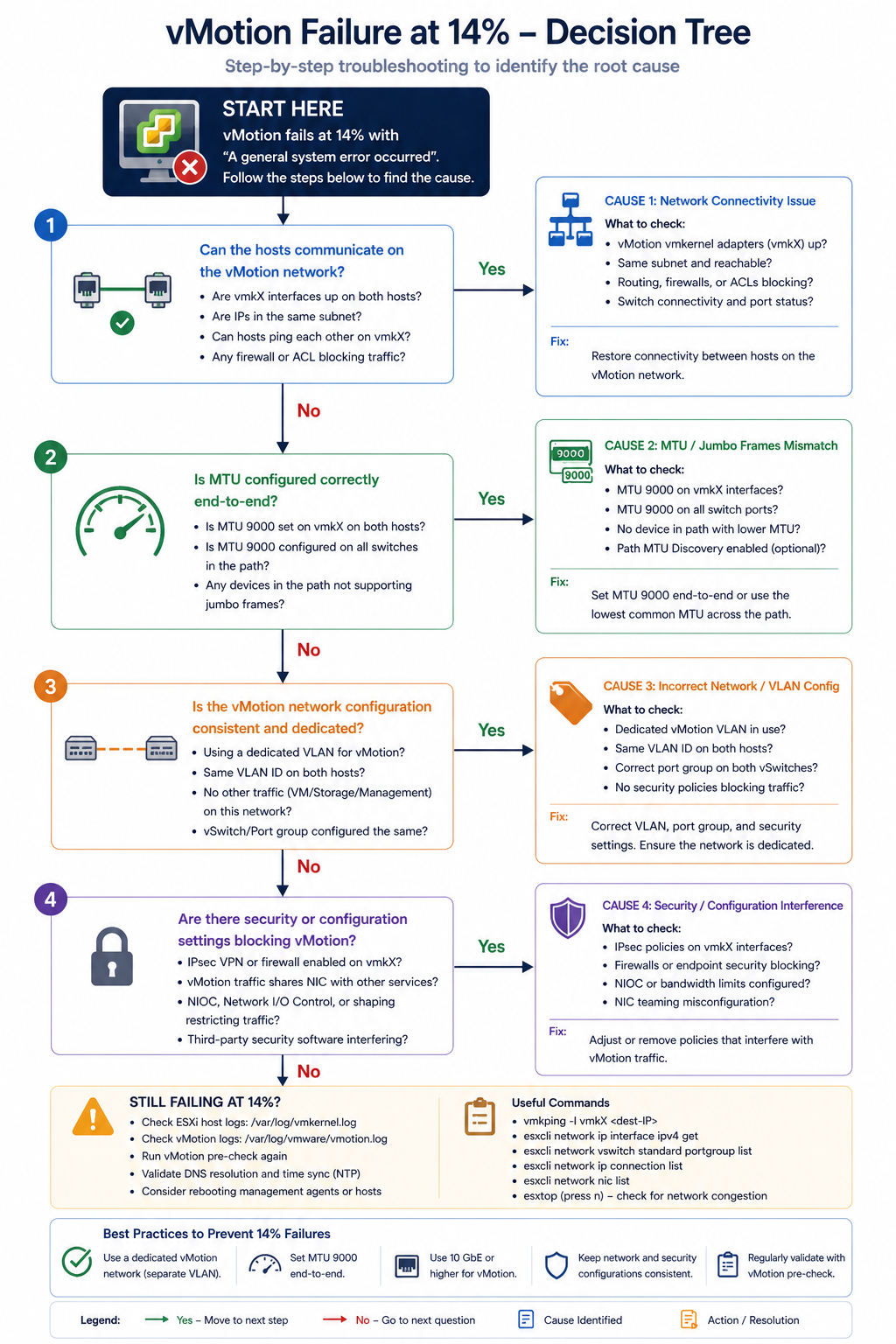
The short version. The 14 percent mark in vMotion is the network preparation phase. The hypervisor has staged the migration logically and is about to start copying memory between hosts. If anything is wrong with the vMotion network (MTU, VLAN, vmkernel configuration, or upstream switch), the migration fails right at this transition. About 50 percent of “failed at 14 percent” cases are MTU mismatch on the vMotion VLAN. Another 25 percent are vmkernel port misconfiguration. The remaining 25 percent split across upstream switch issues and source/destination compatibility.
What this error means
vMotion needs to copy a VM’s memory contents from one host to another while the VM continues to run. The 14 percent mark is when the source host begins sending memory pages to the destination host over the vMotion network. The first connection attempt and bandwidth test happens here. If the test fails (packets drop, MTU is wrong, the destination is unreachable), the migration aborts.
You will see this in vCenter task history with the error “vMotion network performance is poor” or “Network connectivity check failed” alongside the 14 percent failure point.
Verified against current VMware vSphere documentation, accessed April 2026.
The four causes, ranked
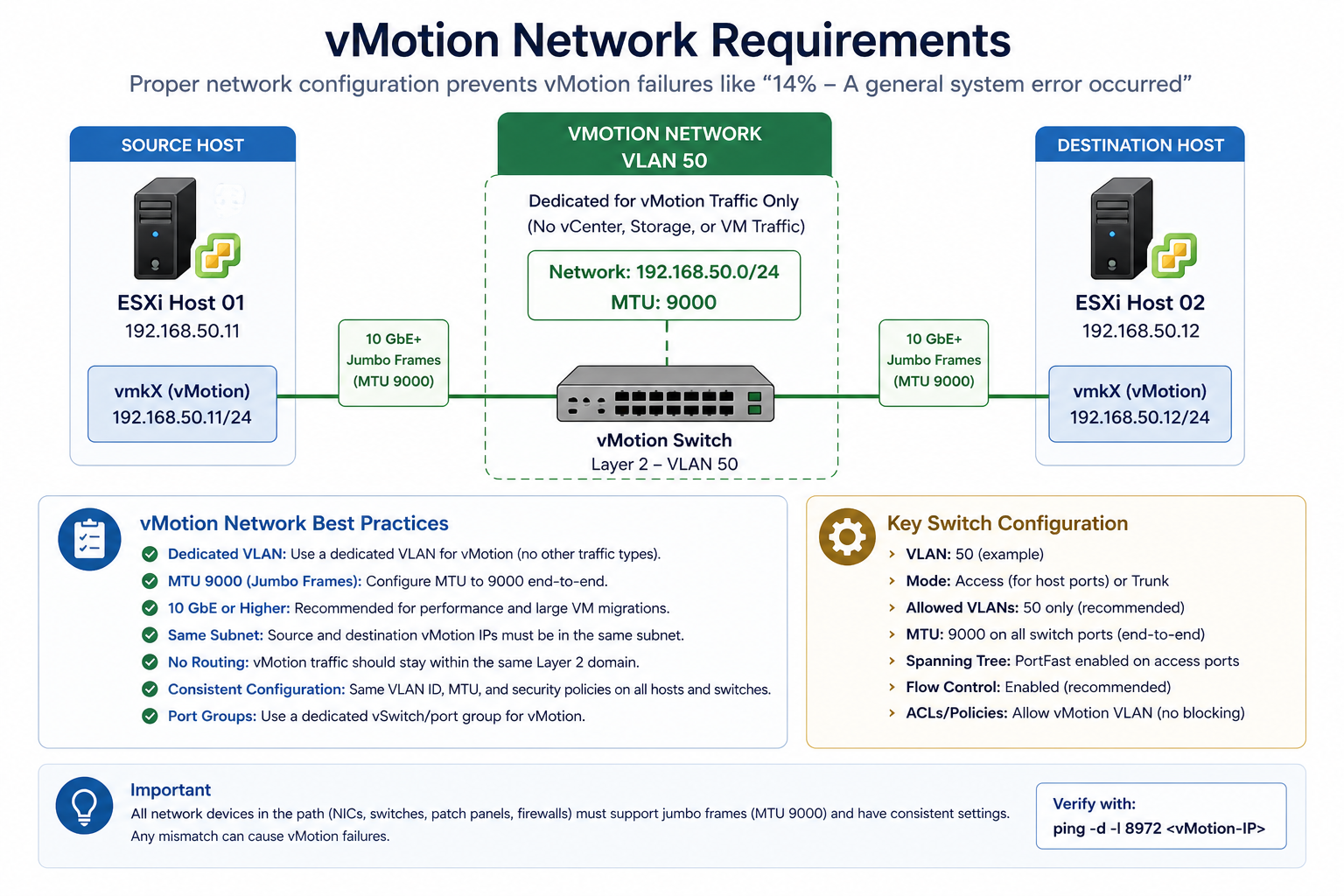
Cause one, MTU mismatch on vMotion VLAN, around 50 percent
vMotion is typically configured for jumbo frames (MTU 9000) for performance. If the source vmkernel, the destination vmkernel, or any switch port between them is at default 1500, vMotion’s connectivity test packet exceeds the path MTU and gets dropped.
Verify with vmkping -d -s 8972 [destination vmkernel IP] from the source host. The -d sets the do-not-fragment bit and -s 8972 sets the payload size to test MTU 9000 end to end. If the ping fails, you have an MTU issue somewhere in the path. Fix it on the offending hop.
Cause two, vmkernel port misconfiguration, around 25 percent
The vmkernel port for vMotion is missing on one host, configured on the wrong VLAN, or has lost its association with the correct distributed switch portgroup. Common after a host re-add to a cluster or a portgroup rename.
Verify in vCenter under Host → Configure → VMkernel adapters. Confirm a vmkernel exists with vMotion service enabled, on the correct VLAN, with an IP address in the vMotion subnet. Fix any mismatch.
Cause three, upstream switch issue, around 15 percent
The physical switch between source and destination has a configuration issue. VLAN trunking incomplete on a port, port-channel split brain, or storm control kicking in during the bandwidth test.
Verify with the switch’s port configuration for both host uplinks. Confirm vMotion VLAN is allowed on both ports, port-channels are healthy, and storm control thresholds are not aggressive.
Cause four, source/destination compatibility, around 10 percent
EVC (Enhanced vMotion Compatibility) is not enabled, or the destination host has a different CPU generation that vCenter cannot mask. Less common at 14 percent (typically fails earlier in compatibility check) but possible.
Verify cluster EVC mode and CPU compatibility between source and destination. Enable or adjust EVC if needed.
What the official documentation does not mention
VMware’s docs walk through vMotion troubleshooting but rarely emphasize the vmkping with do-not-fragment and exact MTU size as the first command to run. That single command isolates 75 percent of “failed at 14 percent” cases in 30 seconds. Keep it as your reflex when this error appears.
The architectural fix
Clusters that rarely see vMotion failures have three traits. They standardize MTU at 9000 for vMotion VLAN end-to-end and verify after any switch change. They use distributed virtual switches with consistent portgroup configuration across all hosts. They run a synthetic vMotion test as part of monthly health checks, so misconfiguration is caught before a real maintenance window depends on it. The third one matters most. Most “vMotion broke yesterday” issues actually broke weeks earlier and were not noticed.
FAQ
Will the VM be affected if vMotion fails?
No. The VM continues running on the source host. vMotion failures are abort-and-rollback by design.
Can I retry immediately after fixing?
Yes, after confirming the fix with vmkping. No waiting period required.
Is this related to long distance vMotion?
Long distance vMotion has additional considerations (latency, bandwidth, encryption) but the 14 percent failure point is typically still the MTU/network issue, just with more layers between hosts.
Related posts
vMotion failures during a migration window
If vMotion is failing during a planned maintenance window and time is short, our virtualization team can jump in remotely. Tell us the symptom and the topology and we will help you isolate.
Last verified April 2026 by the aaanetworkx virtualization practice.
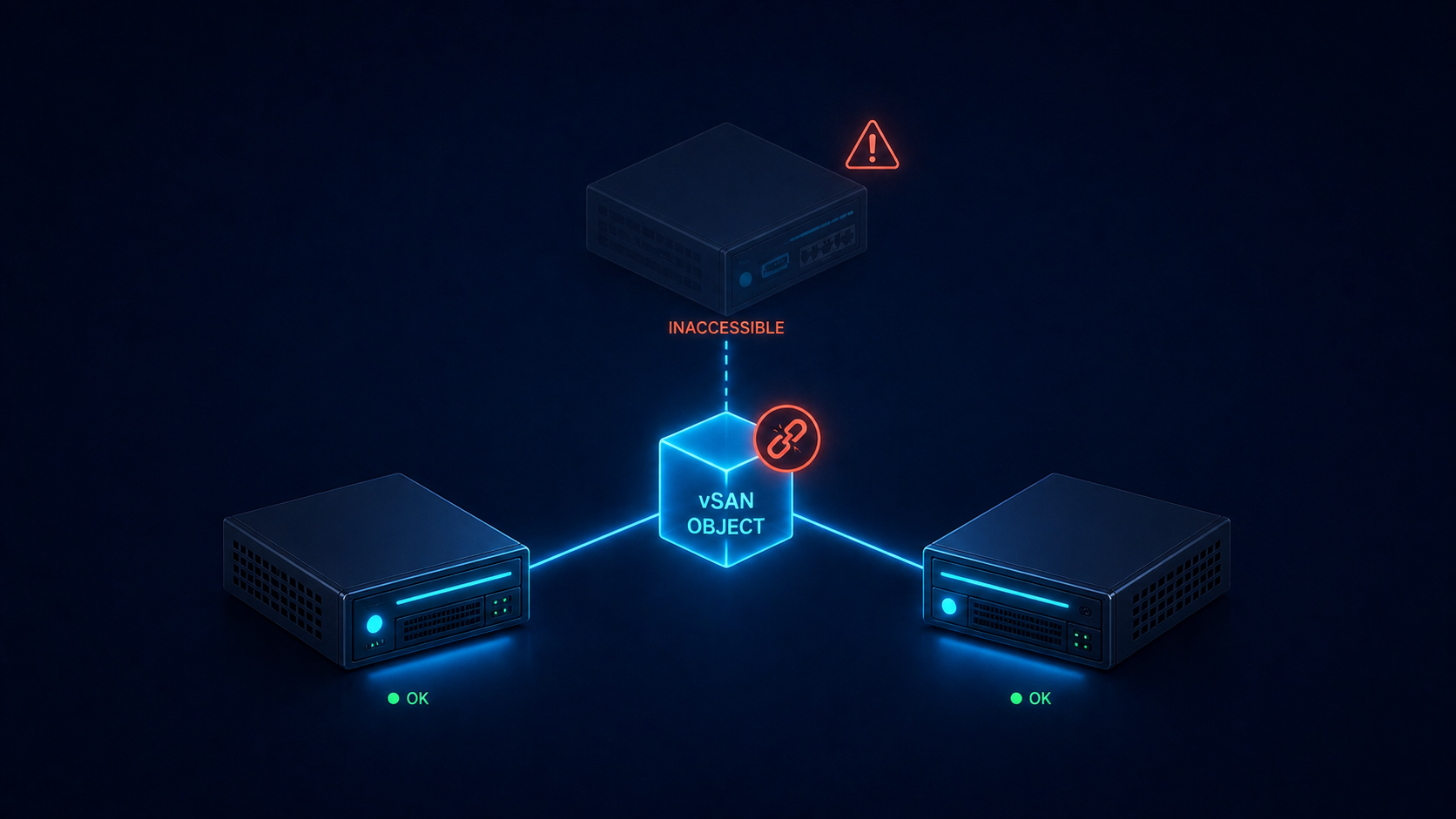
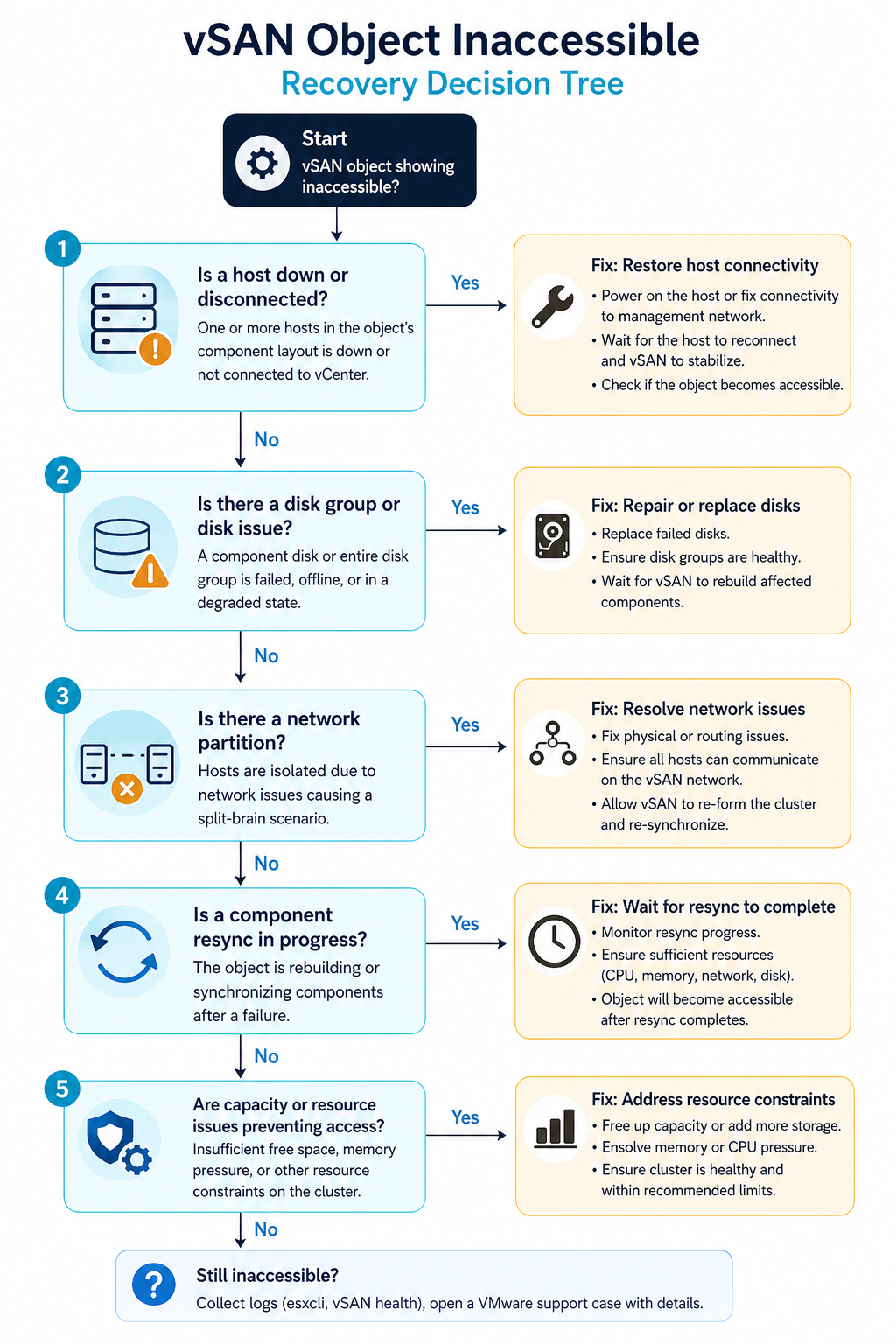
You opened the vSAN health view and saw a red dot on Object Health, with one or more objects showing as Inaccessible. Workloads on those VMs are either down or running off a stale read-only copy. This post walks through the five real causes of vSAN object inaccessible, ranked by what we actually see, and the safe order to recover without losing data.
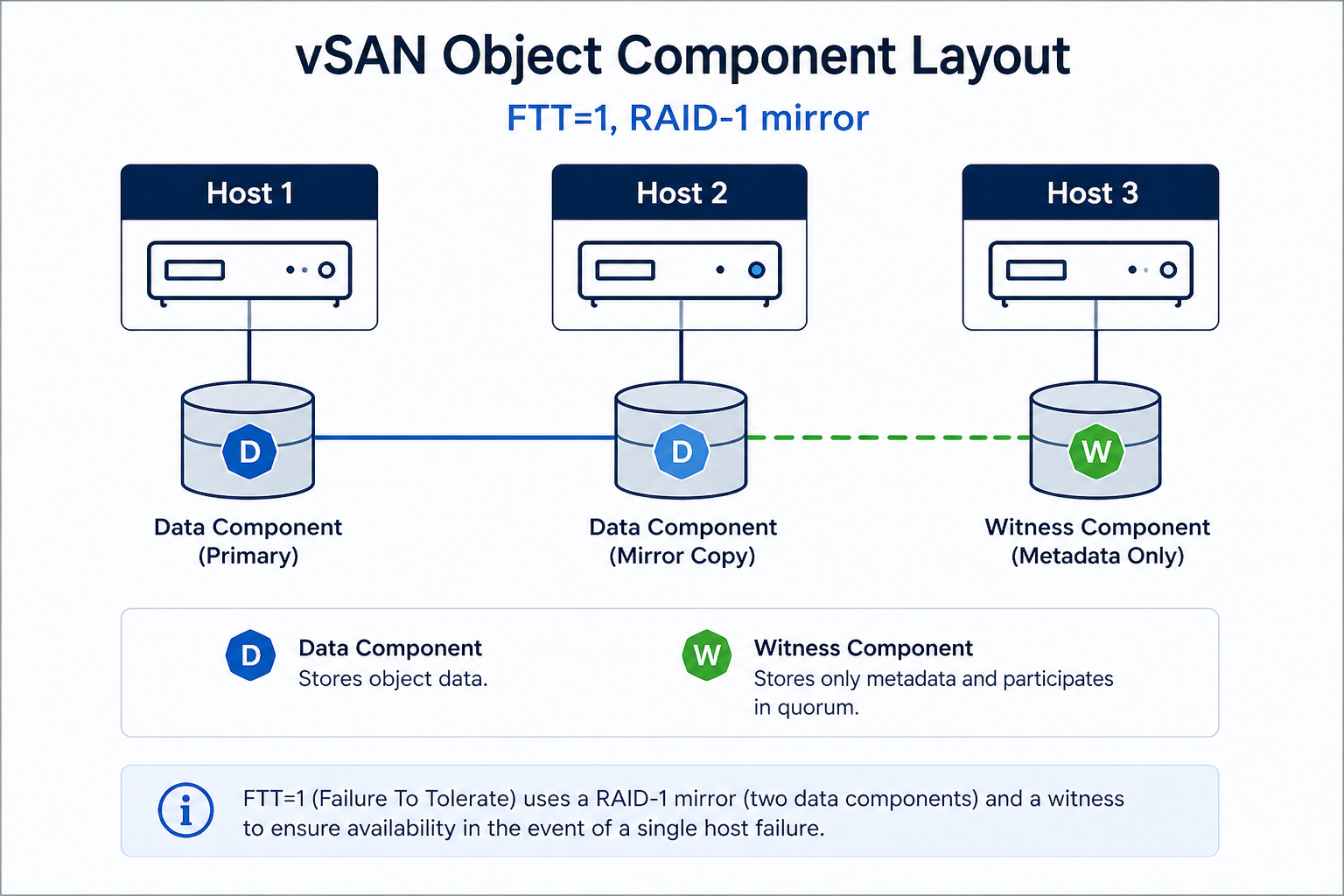
The short version. Object inaccessible means vSAN cannot find enough live components to satisfy the storage policy’s FTT (Failures To Tolerate) for that object. With FTT=1, you need at least one full data copy plus the witness available. Lose two and the object becomes inaccessible. The fix is almost never deleting and recreating the object. The fix is restoring the missing components, which requires understanding which host or disk group is offline and why.
The single biggest mistake we see is admins under pressure deciding to recreate the VM from a backup before vSAN has had a chance to rebuild. If the underlying issue is transient (network partition, host reboot taking longer than expected), vSAN will rebuild on its own once enough components come back online. Patience plus correct diagnosis recovers more workloads than panic plus action.
What inaccessible actually means
Every vSAN object (VMDK, namespace, swap, etc.) is broken into components according to its storage policy. With FTT=1 and RAID-1, every object has two data components on different hosts and one witness on a third host. The cluster can lose any one of those three and still serve reads and writes. Lose two, and the object goes inaccessible because vSAN can no longer guarantee data integrity by the rules the storage policy requires.
You will see it in three places. The vCenter UI shows the object in red on the vSAN health view. The output of esxcli vsan debug object list on any host shows the object’s components and their state. And your monitoring system flags the affected VM as down or unresponsive.
Verified against current VMware vSAN documentation, accessed April 2026.
The five causes, ranked by what we actually see
Cause one, host or disk group failure, around 40 percent of cases
One host is offline (hardware failure, hung, in maintenance mode without proper data evacuation) AND another component for the same object is also unavailable. Most common when two hosts go down within the resync window of an earlier event.
Verify with esxcli vsan cluster get on a healthy host. If a host shows as missing or in a different sub-cluster, that is your gap. Bring the host back online before doing anything else. If the host is permanently dead, replace it and let vSAN rebuild components.
Cause two, network partition between hosts, around 25 percent of cases
The hosts are running but cannot talk to each other on the vSAN network. Often a vmkernel port misconfiguration, a VLAN change on the upstream switch, or an MTU mismatch on the vSAN network after a maintenance event.
Verify with vmkping between vSAN vmkernel addresses. If pings fail or fragment, fix the network before touching the cluster. vSAN does not tolerate partitioned hosts without escalating to inaccessible objects.
Cause three, FTT not met by storage policy, around 15 percent of cases
The cluster size dropped (host removed, host failed permanently) and now has fewer hosts than the storage policy’s FTT setting requires. FTT=1 needs at least three hosts. FTT=2 needs five. A four host cluster running FTT=2 cannot satisfy the policy.
Verify with the storage policy assignment for the affected object and the current host count. Either restore the missing host or change the storage policy to a value the cluster can satisfy.
Cause four, capacity exhaustion preventing resync, around 12 percent of cases
vSAN tried to rebuild the missing components but ran out of capacity on the remaining hosts. The cluster is in a degraded state and cannot self-heal until capacity is freed.
Verify with the vSAN capacity view. If utilization is above the slack space threshold (typically 25 to 30 percent reserved), free space by removing snapshots, deleting unused VMs, or adding hosts.
Cause five, witness host issues (stretched clusters), around 8 percent of cases
In a stretched vSAN cluster, the witness host runs at a third site. If the witness is unreachable or has its own outage, all objects in the cluster lose quorum and go inaccessible.
Verify witness reachability with esxcli vsan cluster preferredfaultdomain get and ping tests to the witness vmkernel. Restore the witness or stand up a temporary one.
What the official documentation does not mention
VMware’s docs tell you to check object health and let vSAN heal. They do not warn you that running vmkfstools against an inaccessible object can corrupt the on-disk state in a way that is not recoverable. Do not run any direct manipulation commands against an inaccessible object. Use the supported repair workflow only, which is “fix the underlying cause and let vSAN heal.”
Also, vSAN sometimes shows objects as inaccessible during a normal resync after a planned host evacuation, especially on large clusters with FTT=2. If the object becomes accessible within a few minutes as the resync progresses, no action is needed. Wait at least 60 minutes before assuming an inaccessible object is permanent.
The architectural fix
Clusters that rarely see inaccessible objects have three things in common. First, sized capacity at slack-plus-30-percent so resync always has room. Second, vSAN network monitoring with MTU checks and per-host link health, so partition events are caught before they cascade. Third, FTT chosen relative to host count with margin (FTT=1 on minimum 4 hosts, FTT=2 on minimum 6) so a single failure never threatens the policy. Skip any of these three and you will see an inaccessible object during your next maintenance window.
FAQ
Will the object recover automatically?
Yes, if the underlying cause clears (host comes back, network partition heals, capacity freed). vSAN re-evaluates object health continuously.
Can I recover from backup if the object stays inaccessible?
Yes, but only as a last resort. Restore the underlying issue first, give vSAN time to heal, and only then fall back to backup if the object will not recover.
Is data lost if an object goes inaccessible?
Not necessarily. Inaccessible means the cluster cannot serve the object right now. The data on the surviving components is intact and will be served once enough components are restored.
Related posts
Need help with a degraded cluster
vSAN incidents have a window where calm diagnosis recovers everything and panic recovery loses workloads. Our virtualization team handles vSAN clusters across Western Canada and we are comfortable on the phone at any hour. Tell us your cluster size, FTT, and the symptoms and we will help you recover.
Last verified April 2026 by the aaanetworkx virtualization practice.

VMware ESXi Alternatives in 2026: KVM, Proxmox, Hyper-V and What Actually Works in Production
If you have been running VMware ESXi for years, you probably remember when it felt like the obvious choice. It was stable, well-supported and had an ecosystem of tools that made managing virtual machines relatively straightforward. Then Broadcom acquired VMware in 2023, and everything changed.
The licensing shake-up that followed pushed subscription costs through the roof for many organizations. Perpetual licenses were eliminated, partner programs were restructured, and IT teams that had built their entire infrastructure around vSphere suddenly found themselves staring at renewal quotes that did not fit their budgets. For smaller businesses and mid-sized enterprises in particular, the numbers simply stopped making sense.
The good news is that the alternatives have never been better. Whether you are running a small business server room in Edmonton or managing a distributed infrastructure across multiple sites, there are mature, production-ready hypervisors that can handle the job, and in some cases do it better than ESXi ever did.
This guide covers the top VMware ESXi alternatives available today, what each one is actually good at, where the tradeoffs are, and how to think about choosing the right one for your environment.
Why IT Teams Are Reconsidering VMware ESXi
Before jumping into the alternatives, it is worth understanding what changed and why so many organizations are now actively looking for an exit path from the VMware ecosystem.
Broadcom’s acquisition strategy has been clear from the beginning: consolidate enterprise licensing, remove entry-level options, and focus exclusively on large enterprise customers. For organizations running 100 or more virtual machines and paying for vSphere Enterprise Plus, the changes may be manageable. For everyone else, the situation is much harder to justify.
- Perpetual licensing for vSphere was discontinued entirely
- Subscription pricing shifted to per-core models, dramatically increasing costs for many workloads
- Smaller VMware partners lost their certifications or exited the market
- Support quality and response times have declined according to many enterprise IT teams
The result is a wave of migration projects happening across organizations of all sizes. And because the major alternatives have matured significantly over the past few years, many teams are finding the transition less painful than they expected.
The Top VMware ESXi Alternatives in 2026
1. Proxmox VE: The Open Source Powerhouse

Proxmox VE is probably the most talked-about VMware replacement right now, and for good reason. It is a complete, open source virtualization platform built on Debian Linux that supports both KVM virtual machines and LXC containers from a single management interface. The web UI is genuinely good, which is something you cannot say about every open source project.
What makes Proxmox compelling is that it gives you enterprise-grade features without the enterprise-grade price tag. High availability clustering, live migration, Ceph storage integration, backup and restore, and role-based access control are all included at no cost. You can run Proxmox completely free, or pay for a subscription that gets you access to the enterprise repository and commercial support.
What Proxmox does well:
- Runs KVM VMs and LXC containers side by side on the same host
- Built-in clustering and live migration with no additional licensing
- Ceph integration for software-defined storage
- Clean web interface that actually makes sense to navigate
- Strong community and growing enterprise support ecosystem
Where to be careful:
- Very large environments with hundreds of hosts will find it less polished than vSphere in certain areas
- The free tier lacks enterprise repository access, so you depend on community package repositories
- Some third-party backup and monitoring integrations require more configuration work than in the VMware world
Best fit: Small to mid-sized businesses, MSPs managing multiple client environments, and organizations that want serious capability without a serious licensing bill.
2. KVM: The Foundation Everything Else Runs On

KVM, which stands for Kernel-based Virtual Machine, is a virtualization module built directly into the Linux kernel. It is not a standalone product like ESXi. It is the hypervisor engine underneath many of the other options on this list, including Proxmox. Understanding KVM separately matters because many teams choose to deploy it directly using tools like libvirt, QEMU, and either a web-based manager or command-line management depending on their workflow.
KVM powers a significant portion of the world’s cloud infrastructure. Amazon EC2, Google Compute Engine, and most major public cloud providers use KVM or a derivative of it under the hood. That is not a coincidence. It is fast, stable, well-maintained, and deeply integrated with the Linux ecosystem.
What KVM does well:
- Near-native performance for CPU and memory-intensive workloads
- Part of the Linux kernel, so it receives continuous security updates and improvements
- Extremely flexible. You can build exactly the management layer you want around it
- Strong support for Windows guests, including Hyper-V enlightenments for better performance
- Excellent integration with OpenStack, oVirt, and other orchestration platforms
Where to be careful:
- Raw KVM without a management layer is not suitable for teams without strong Linux experience
- There is no single official GUI. You will need to choose a management tool, and each has its own learning curve
- Enterprise support requires going through a distribution like Red Hat Enterprise Linux or SUSE Linux Enterprise
Best fit: Linux-heavy environments, cloud infrastructure teams, and organizations that want to build a custom virtualization stack with full control over every layer.
3. Microsoft Hyper-V: The Windows-Native Choice
If your environment is predominantly Windows, Hyper-V deserves serious consideration. It is included with Windows Server at no additional cost, and it integrates tightly with Active Directory, System Center, and the rest of the Microsoft management stack. For organizations already running Microsoft licensing, the economics are hard to argue with.
Hyper-V has come a long way from its early days. Nested virtualization, shielded VMs for security, Storage Spaces Direct for hyperconverged deployments, and tight Azure integration through Azure Stack HCI have made it a genuinely competitive platform for Windows-centric shops.
What Hyper-V does well:
- Included in Windows Server licensing with no additional hypervisor cost
- Deep integration with Active Directory, Group Policy, and Windows management tools
- Azure hybrid connectivity through Azure Arc and Azure Stack HCI
- Strong support for Windows workloads and licensing compliance
- Familiar management through Windows Admin Center and PowerShell
Where to be careful:
- Linux VM support works but is not as seamless as running Linux on KVM or Proxmox
- System Center Virtual Machine Manager adds cost and complexity if you need it
- Less suitable for mixed or Linux-first environments
Best fit: Windows-heavy organizations with existing Microsoft licensing, businesses already invested in Azure, and environments where Active Directory integration is a top priority.
4. XCP-ng: The Open Source Citrix Hypervisor Fork
XCP-ng is an open source fork of Citrix Hypervisor (formerly XenServer) and it has built a strong reputation as a straightforward, stable ESXi replacement. It is developed by the Xen Orchestra team, which also builds XO, the management interface that pairs with it.
What sets XCP-ng apart is its combination of simplicity and reliability. It does not try to do everything. It focuses on running virtual machines well, with a clean architecture and a management experience through Xen Orchestra that is easy to learn. Many VMware administrators find the transition to XCP-ng more intuitive than moving to Proxmox, partly because the concepts map more directly to how ESXi works.
What XCP-ng does well:
- Clean, purpose-built hypervisor based on the mature Xen architecture
- Xen Orchestra provides a polished web UI with good feature coverage
- Strong live migration and backup capabilities
- Active community and commercial support available through Vates
Where to be careful:
- Smaller ecosystem compared to KVM-based alternatives
- Advanced features in Xen Orchestra require a paid subscription
- Less commonly deployed than Proxmox, so community resources are more limited
Best fit: Teams looking for a clean ESXi-like experience, smaller IT departments that want simplicity over feature depth, and environments that previously ran Citrix Hypervisor.
5. Nutanix AHV: The Enterprise Hyperconverged Option
Nutanix AHV (Acropolis Hypervisor) ships with Nutanix’s hyperconverged infrastructure platform at no additional licensing cost. If you are already running Nutanix hardware or evaluating a move to hyperconverged infrastructure, AHV is worth understanding because it directly replaces the previous requirement to license VMware separately.
AHV is built on KVM but heavily customized and integrated into the Nutanix stack. The management experience through Prism is excellent, arguably better than vCenter for day-to-day operations. The tradeoff is that AHV is tightly coupled to Nutanix hardware and software. You cannot run AHV independently the way you can run Proxmox or KVM.
What AHV does well:
- Included with Nutanix licensing with no separate hypervisor cost
- Deeply integrated with Nutanix storage, networking, and management
- Prism management UI is clean and genuinely user-friendly
- Strong enterprise support with well-defined SLAs
- Built-in microsegmentation through Nutanix Flow
Where to be careful:
- Not a standalone hypervisor. It only makes sense as part of a Nutanix deployment
- Nutanix licensing is a significant cost in its own right
- Lock-in concerns exist, though they are different from VMware’s
Best fit: Enterprises evaluating a full infrastructure refresh, and large environments where the operational simplicity of Nutanix justifies the investment.
Side-by-Side Comparison
| Platform | Cost | Best For | Management UI | HA / Clustering | Enterprise Support |
|---|---|---|---|---|---|
| Proxmox VE | Free / Paid subscription | SMB, MSP, mixed workloads | Built-in web UI | Yes, built-in | Community and commercial |
| KVM | Free | Custom stacks, Linux experts | Third-party required | Via oVirt or others | Via RHEL or SLES |
| Hyper-V | Included with Windows Server | Windows-heavy shops | Windows Admin Center | Yes, via Failover Cluster | Microsoft |
| XCP-ng | Free / Paid XO subscription | Clean ESXi replacement | Xen Orchestra | Yes, built-in | Vates commercial |
| Nutanix AHV | Included with Nutanix | HCI enterprise refresh | Prism | Yes, built-in | Full enterprise SLA |
Which One Should You Choose?
There is no single answer, but there are clear patterns depending on your situation.
If you are a small or mid-sized business looking for the closest thing to ESXi without the cost, Proxmox VE is almost certainly your answer. It has the most momentum in the VMware migration space right now, the community is large and helpful, and the feature set covers everything most businesses actually need.
If your environment is predominantly Windows and you already pay for Windows Server licensing, Hyper-V makes the most economic sense. The integration with your existing Microsoft tools is a genuine advantage, and Azure connectivity is a bonus if cloud expansion is on your roadmap.
If you have strong Linux expertise in-house and want maximum flexibility, building on KVM gives you the most control. Pair it with oVirt for a more vSphere-like management experience, or use Proxmox as a managed KVM deployment.
If you want a simpler ESXi-like experience and your environment is not massive, XCP-ng is worth a serious look, especially if you prefer the Xen architecture over KVM.
If you are planning a full infrastructure refresh anyway, evaluating Nutanix AHV as part of a hyperconverged deployment may reduce your overall operational complexity significantly, at the cost of a higher upfront investment.
Migration Path Considerations
Migrating off VMware is not as simple as installing a new hypervisor and importing your VMs. There are a few things to plan carefully before you start.
VM export formats. VMware uses VMDK disk files and OVF/OVA for portability. KVM-based platforms like Proxmox use QCOW2 or raw images. Tools like qemu-img handle the conversion, but you should test in a non-production environment before touching anything critical.
VMware Tools. VMs running VMware Tools will need those removed and replaced with the relevant guest agent for the new platform. For Proxmox and KVM that means installing the QEMU guest agent. For Hyper-V it means Hyper-V Integration Services. This is straightforward but it requires touching each VM individually.
Networking. If you are running NSX or complex vSphere distributed switch configurations, replicating that network design on a new platform takes careful planning. Proxmox uses Linux bridges and Open vSwitch. Hyper-V has virtual switches. Neither maps directly from vSphere distributed switches, so document your current network design thoroughly before starting.
Storage. vSAN does not migrate. If you are using vSAN today, you will need a separate storage plan for the new platform. Proxmox with Ceph is the closest equivalent for software-defined storage. Hyper-V with Storage Spaces Direct is another option.
Phased migration. Most organizations do this in waves. Identify your least critical workloads and migrate those first. Get comfortable with the new platform, build your operational runbooks, then move progressively toward more critical systems. Running both platforms in parallel during the transition adds some complexity but dramatically reduces risk.
Final Thoughts
The VMware ESXi ecosystem dominated enterprise virtualization for two decades because it was genuinely the best option available. That is no longer as clearly true in 2026. The combination of Broadcom’s pricing changes and the maturation of open source alternatives has created a real opportunity for organizations to reduce costs and gain more control over their infrastructure.
The migration is not without effort. It requires planning, testing, and often some retraining. But for most small and mid-sized businesses, the payoff in cost savings and operational independence is worth it.
If you are in Edmonton or anywhere in Alberta and working through a virtualization migration or infrastructure refresh, the team at AAA NetworkX has been through these transitions with clients across a range of industries. We can help you assess your current environment, recommend the right platform for your workloads, and manage the migration from start to finish.